
Add an employee
Add the people you pay, give them a time clock PIN, and invite them to the employee portal.
- Open Employees and choose Add employee.
- Enter the Name and pick a Role: Staff, Manager or Admin.
- Add an Email (for paystubs and the portal) and a Phone if you have them.
- Type a Time clock PIN of 4 to 6 digits, or leave it empty and BuiltPAYROLL picks one.
- Choose Save. A window shows the PIN. Choose Copy PIN and give it to the employee.
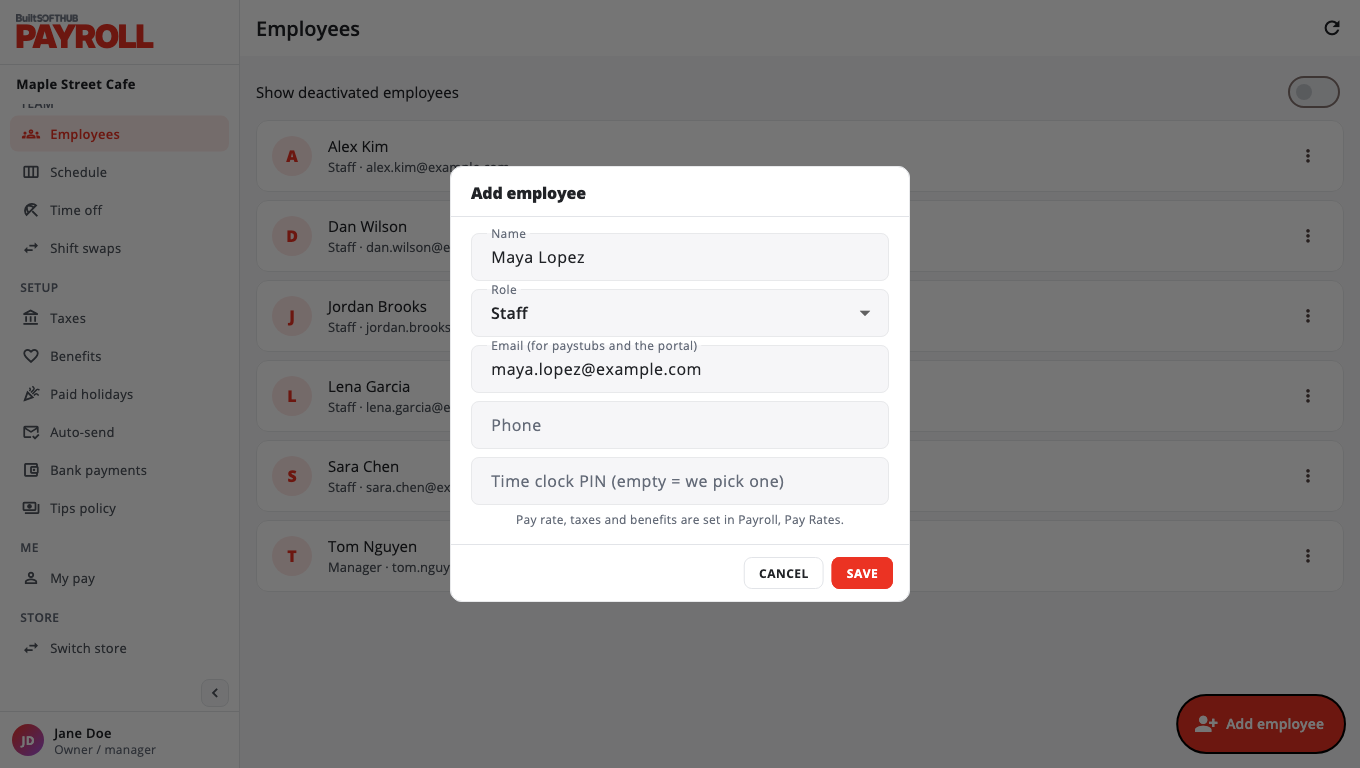
Pay rate, taxes and benefits are not set here. Set them next in Pay rates.
Invite them to the employee portal#
- In Employees, open the More menu (three dots) on the person's row.
- Choose Invite to the employee portal.
- If the email goes out you see Invite sent. If it cannot be sent you see Invite created with a temporary password to give them.
Managers and Admins see the full payroll menu when they sign in. Staff see My pay.
Edit, deactivate or reactivate#
- Edit changes name, role, contact details or the PIN. Leave New time clock PIN empty to keep the old one.
- Deactivate stops the person clocking in and signing in to the portal. Their past time and paystubs stay.
- Turn on Show deactivated employees to find them again, then choose Reactivate.
If you use BuiltPOS, employees you add in BuiltOFFICE show here too, and the same PIN works on the till.
Was this helpful?
Thanks for letting us know.
Sorry it did not help. Tell us what was missing: open Help & Support in the app and choose Report a problem, or email support@builtsofthub.com.