
Use the web time clock
Let employees clock in and out in the browser, on a shared device with a PIN or on their own phone.
Companies without a point of sale use the web time clock by default. If your store uses BuiltPOS, the till is the time clock. To also allow clocking in on the web, open Time clock, choose Time clock settings, and turn on Also allow clocking in here.
Clock in#
- Shared device (PIN): on a tablet at work, the employee types their PIN, then chooses Clock in or Clock out. Owners and managers can use this mode.
- Myself: a signed-in employee chooses Clock in or Clock out for themselves.
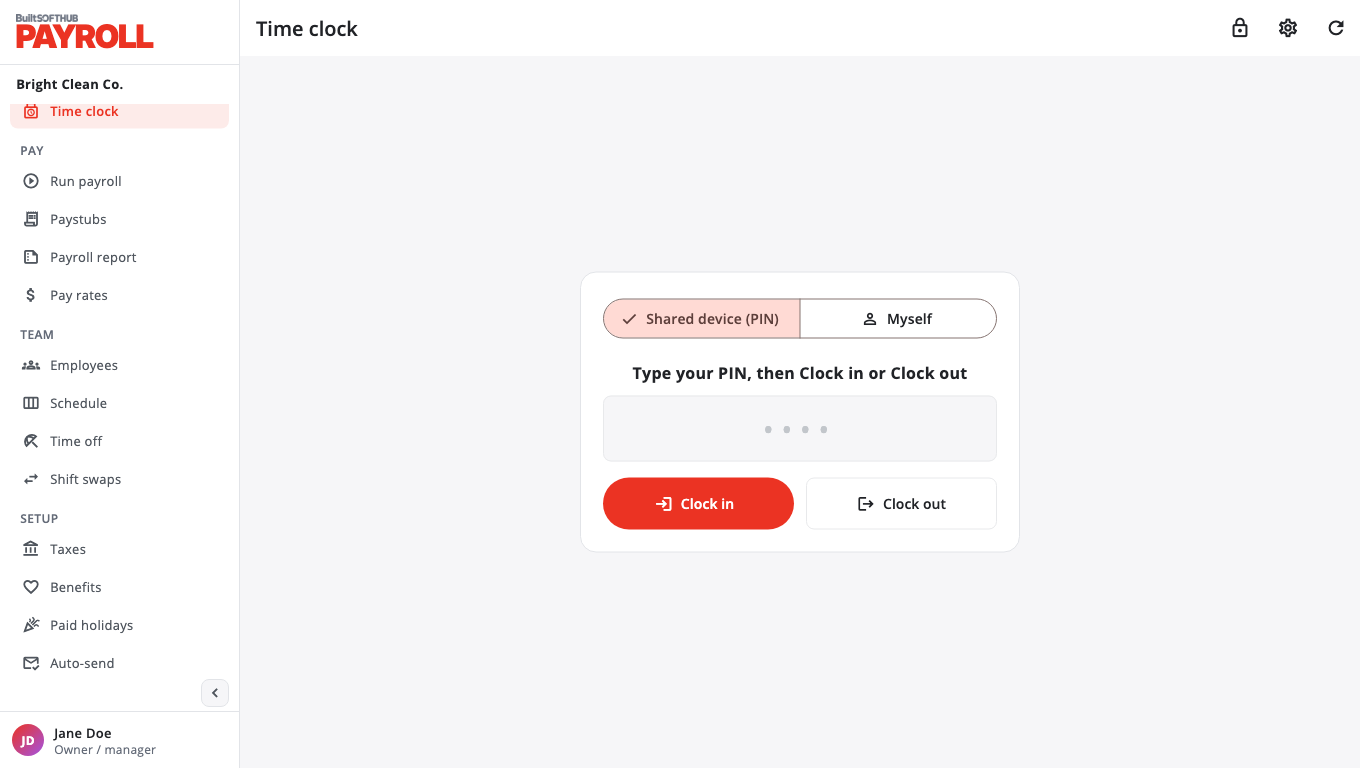
Punches made on the web and on the till go to the same time sheet.
Check location (optional)#
In Time clock settings, turn on Check location on every punch. Set the work location with Use this device's location, or type the Latitude and Longitude. Set the Radius (metres, 25 to 5000) and choose Save. Punches made outside the radius are refused, and the browser asks the employee to share their location.
Lock a shared device to the clock#
- On the device at work, open Time clock and choose the lock button (Clock-only mode (shared device)).
- Choose Lock to the time clock. Payroll, pay rates, paystubs and bank details are hidden on that device.
- To leave, choose Exit and type the password of the account signed in on the device. Choose Unlock.
Was this helpful?
Thanks for letting us know.
Sorry it did not help. Tell us what was missing: open Help & Support in the app and choose Report a problem, or email support@builtsofthub.com.