
Install BuiltPOS
Install the BuiltPOS register app on a Windows PC, an iPad or iPhone, or an Android device.
On this page
BuiltPOS is the register app. It runs on Windows 10 and 11 (64-bit), iPad and iPhone, and Android tablets and phones. It does not run in a web browser or on a Mac — BuiltOFFICE, the back office, is the part that runs in a browser.
iPad or iPhone#
- Open the App Store and search for BuiltPOS.
- Tap Get and wait for the app to install.
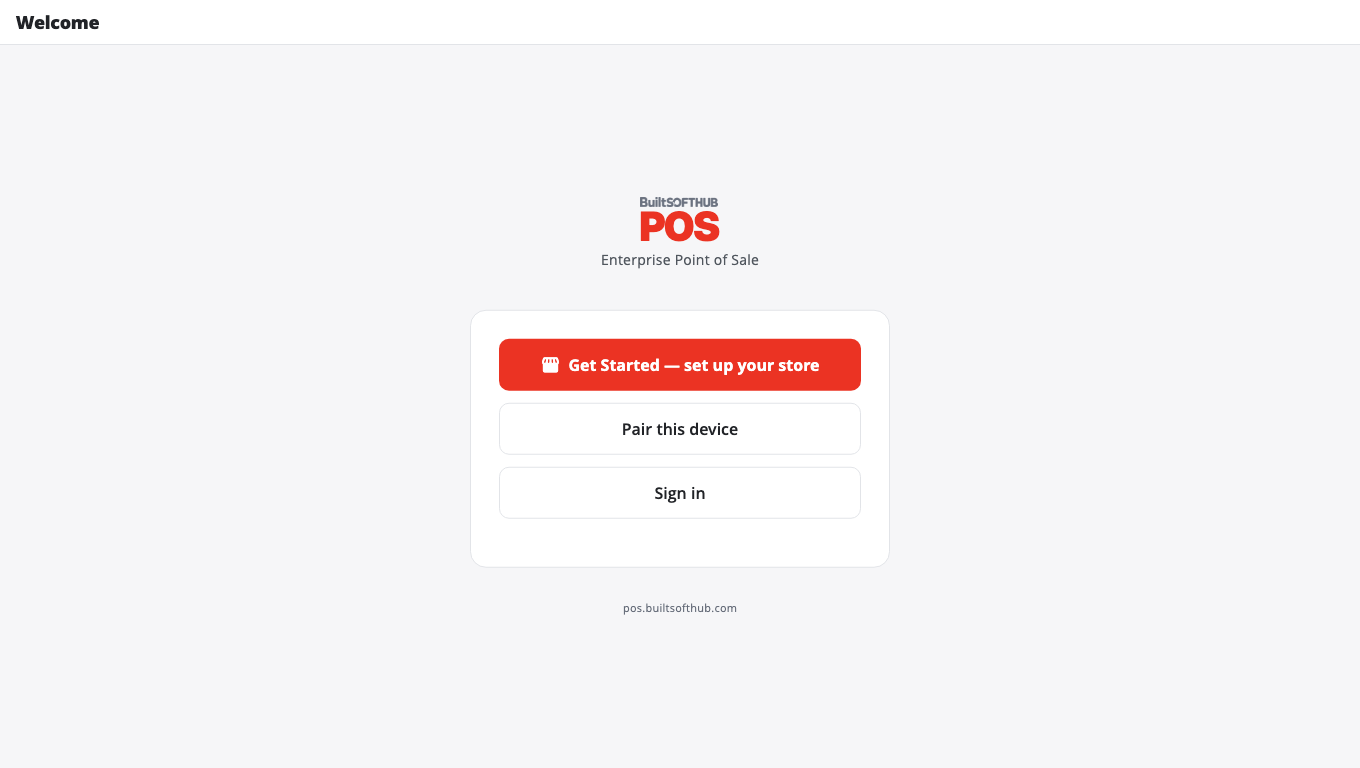
- Open BuiltPOS. You will see the Welcome screen.
- Go on to Sign in and your PIN.
The app needs iOS / iPadOS 17 or newer.
Android#
- On the Android device, open the Downloads page on our website (pos.builtsofthub.com).
- Enter the download password. If you do not have one, ask your BuiltPOS contact — No password yet? Talk to sales and we will send you one.
- Under BuiltPOS, download the Android APK.
- Open the downloaded file and allow your browser to install apps if Android asks.
- Open BuiltPOS. You will see the Welcome screen.
Windows#
You have two choices on the Downloads page:
- BuiltPOS (Windows) — just the register.
- BuiltPOS Suite — one installer with every Windows app (register, BuiltLauncher, BuiltOFFICE and the store server). Use this if you were told to set up a store server or a locked-down register.
To install:
- On the Windows PC, open the Downloads page, enter the download password and download the .zip you need.
- Open the .zip and run the setup file inside it. Click Yes if Windows asks to allow changes.
- BuiltPOS Suite only: pick a setup type:
- POS Terminal (Launcher + POS only) for a normal register.
- All apps or Store Server only if your installer or support told you to.
- BuiltPOS Suite only: on Deployment Mode, leave Cloud (api.builtpos.com) selected unless you were given a local server to use. A new install has Cloud selected already.
- Finish the wizard, then open BuiltPOS from the Start menu.
Good to know#
- Running a newer installer over an existing install upgrades it in place and keeps your settings and sales. Uninstalling BuiltPOS removes the register's local data from that PC, so let sales sync first.
- On Windows, BuiltPOS checks for updates by itself. See Update BuiltPOS.
- Next steps: Sign in and your PIN, then Link this device.
Was this helpful?
Thanks for letting us know.
Sorry it did not help. Tell us what was missing: open Help & Support in the app and choose Report a problem, or email support@builtsofthub.com.