
Link this device to your store
Connect a register to your store as a terminal — automatically, with a 6-digit pairing code, or by moving an existing terminal to it.
Every register is linked to your store as a terminal. That is how its sales reach BuiltOFFICE. A terminal uses one of your plan's terminal seats.
The first register of a new store#
When your store has no terminals yet, signing in with the owner's email on the Welcome screen links the device for you. Nothing else to do.
Add another register with a pairing code#
- On a device that is already set up, get a 6-digit code:
- In BuiltOFFICE: POS Management → Terminals → Pair Terminal, or
- On a linked register: Store Management → Pair Device, choose Terminal, then Generate code.
- On the new device, open BuiltPOS and tap Pair this device on the Welcome screen.
- Type the 6-digit code. The device links as soon as the last digit is entered.
- Sign in with your PIN.
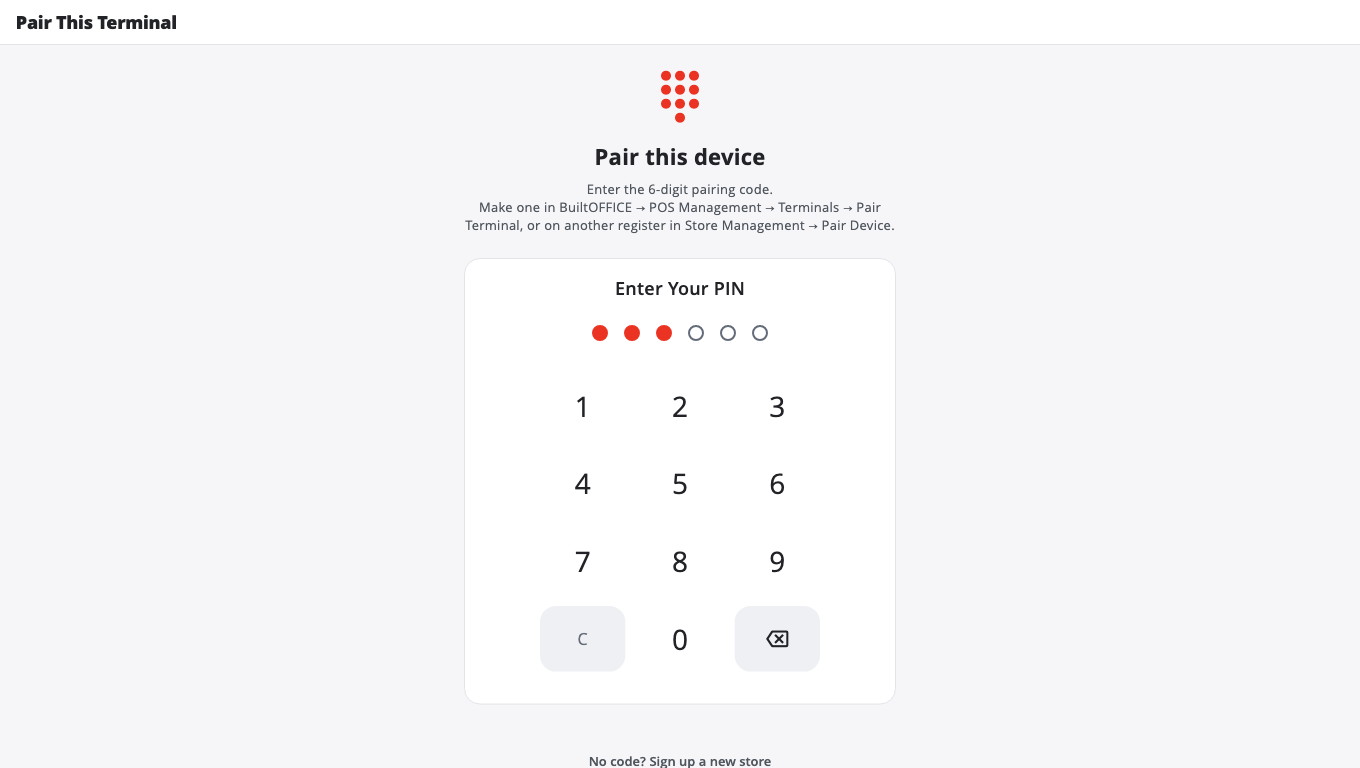
Codes expire after a short time. If you see Invalid or expired code, make a new one.
When the register asks you to link it#
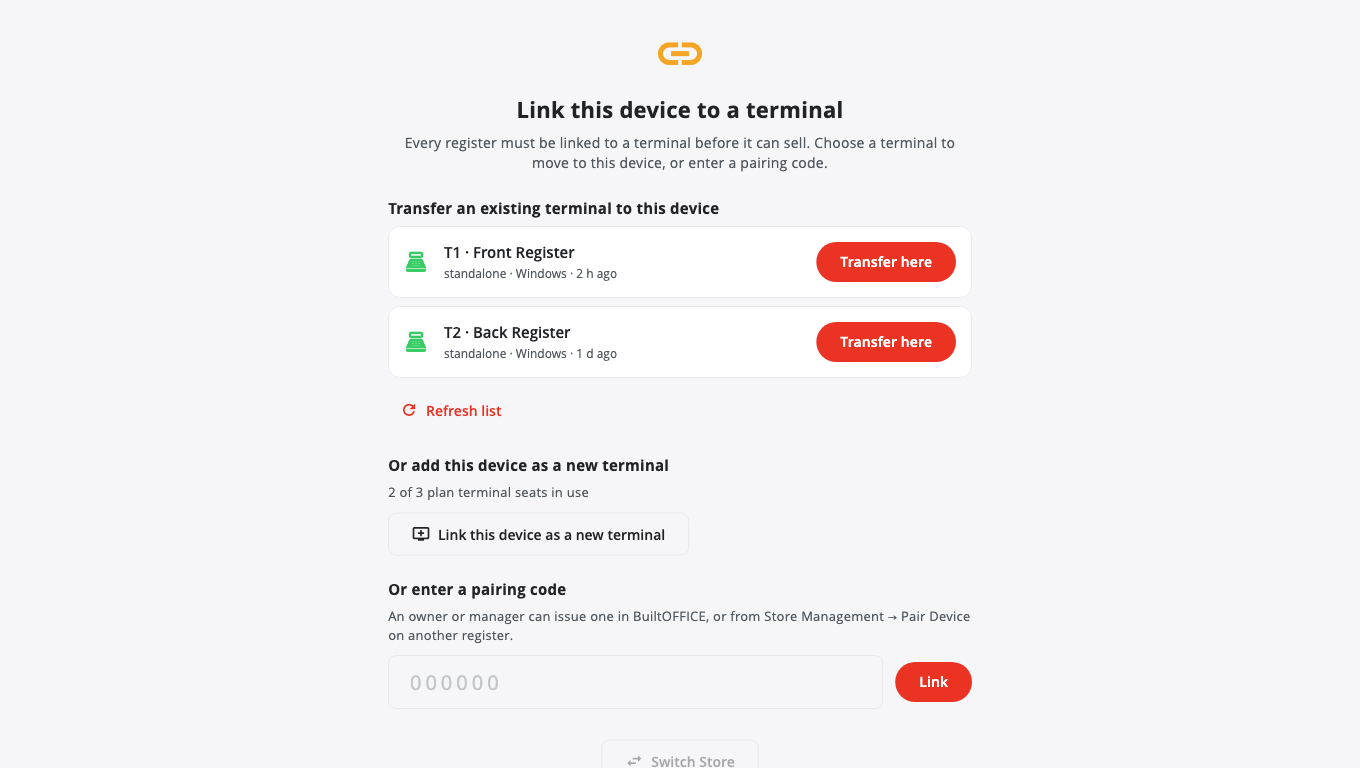
If you sign in on a device that is not linked yet, BuiltPOS shows Link this device to a terminal. You can:
- Transfer an existing terminal to this device — pick the terminal and tap Transfer here. Use this when you replace a broken register. The old device is unlinked straight away.
- Or add this device as a new terminal — tap Link this device as a new terminal, give it a Terminal name (for example "Front Register") and tap Link as new terminal. This uses one terminal seat.
- Or enter a pairing code — type the 6-digit code and tap Link.
You need an Owner or Manager account signed in to see the store's terminal list.
The red strip at the top#
If a register loses its link (for example, its terminal was moved to another device or removed in BuiltOFFICE), a red strip appears: This terminal is not linked. The register keeps selling — sales are saved on the device. Only syncing waits. Tap Link terminal on the strip and follow the steps above. More help: Red strip and linking problems.
Good to know#
- To rename or unpair a register, open Store Management → This Till → This Device.
- To move a register to another terminal without signing out, use This Device → Move this till to another terminal (Owner or Manager PIN).
- All plan seats used? You will see All plan terminal seats are in use. Transfer a terminal, revoke an old one in BuiltOFFICE, or see Plans and billing.
Was this helpful?
Thanks for letting us know.
Sorry it did not help. Tell us what was missing: open Help & Support in the app and choose Report a problem, or email support@builtsofthub.com.