
Sign in and your PIN
Sign in the first time with your email and password, then sign in every day with your PIN.
BuiltPOS has two kinds of sign-in:
- Account sign-in (email and password) — used once to set up a register and connect it to your store.
- PIN — what staff use every day. PINs work even when the internet is down.
First time on a new register#
- Open BuiltPOS. On the Welcome screen, tap Sign in.
- Enter the Email and Password of your BuiltPOS account (the store owner's account) and tap Sign in.
- If your account has more than one store, pick the store in Choose a store.
- The register now links itself to the store. If it needs you to choose a terminal, see Link this device.
Brand new to BuiltPOS? Tap Get Started — set up your store on the Welcome screen to create your account and store instead. You will be asked to confirm your email.
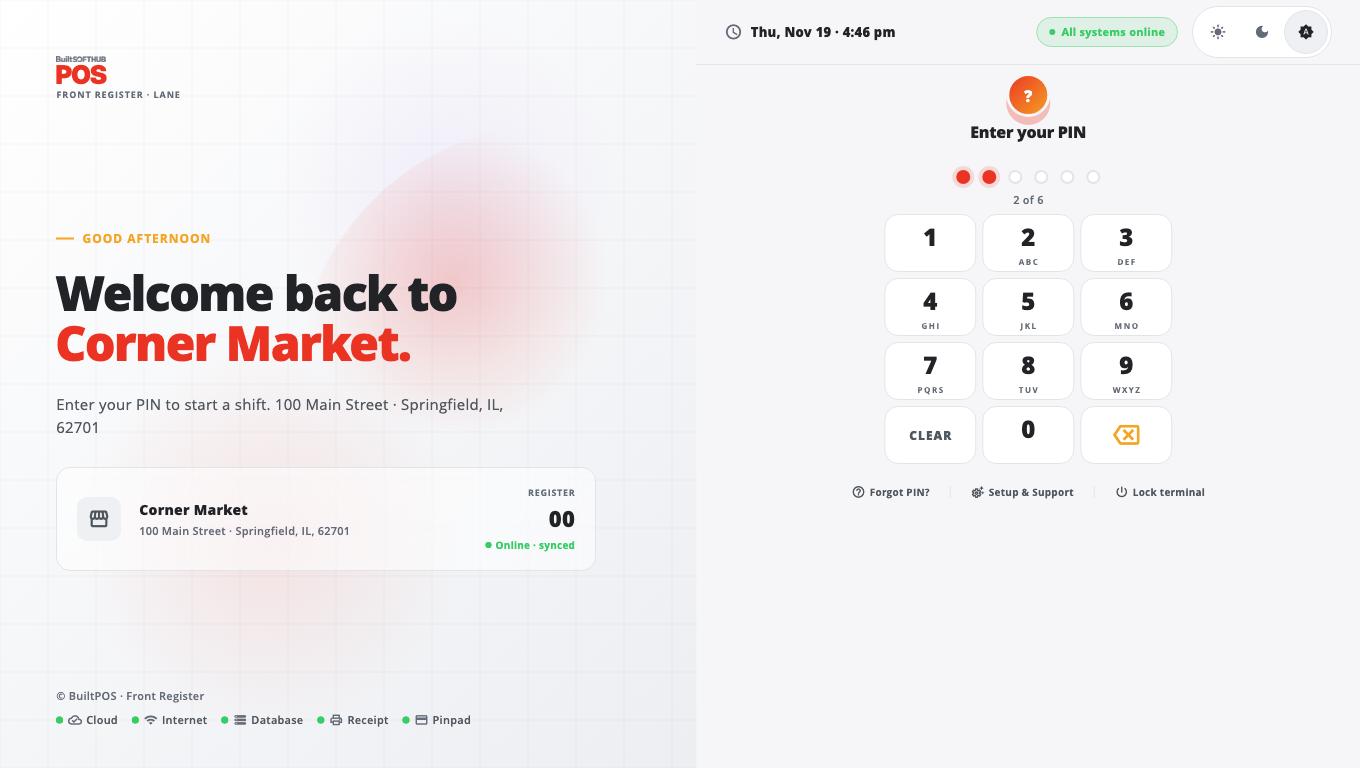
Every day: sign in with your PIN#
- On the sign-in screen, type your PIN on the keypad.
- A 6-digit PIN signs you in as soon as you type the last digit. For a 4- or 5-digit PIN, tap Enter.
- You land on Home. Tap POS to start selling.
By default the register uses PIN-only sign-in: your PIN identifies you, so you do not pick your name first. If your store turned this off, choose your name first (or tap All staff), then type your PIN.
The owner's first PIN#
A new store comes with one working sign-in: Owner, PIN 123456. The first time it is used, BuiltPOS asks you to Set a new PIN — choose 4 to 6 digits that nobody else uses. Give each employee their own PIN in BuiltOFFICE (Employees) or on the register in Store Management → Employees. See Employees and permissions on the till.
Forgot your PIN?#
- Tap Forgot PIN? under the keypad.
- Ask a manager to reset it — they can do this in BuiltOFFICE → Employees, or on the register in Store Management → Employees.
- If you know your email and password, use Account sign-in instead (under Setup & Support).
Good to know#
- After 5 wrong PINs the register locks for 60 seconds. Repeated lockouts get longer.
- Use biometrics appears on devices with Face ID, Touch ID or a fingerprint reader. It works for you after you have signed in with your PIN once on that register.
- Lock terminal (under the keypad) signs everyone out and returns to the PIN screen.
- Setup & Support shows extra options: Account sign-in (or Switch Store on a register already tied to a store — this needs an Owner or Manager PIN), Support token for our support team, and Server, which only support should change.
- Your PIN works offline because the staff list is kept on the register. A new employee's PIN reaches the register at the next sync.
Was this helpful?
Thanks for letting us know.
Sorry it did not help. Tell us what was missing: open Help & Support in the app and choose Report a problem, or email support@builtsofthub.com.