
Update BuiltPOS
See when a new version is ready, read what changed, and update now or tonight.
When a new version is ready, a blue Update button appears in the top bar of the till.
Update the till#
- Tap Update in the top bar.
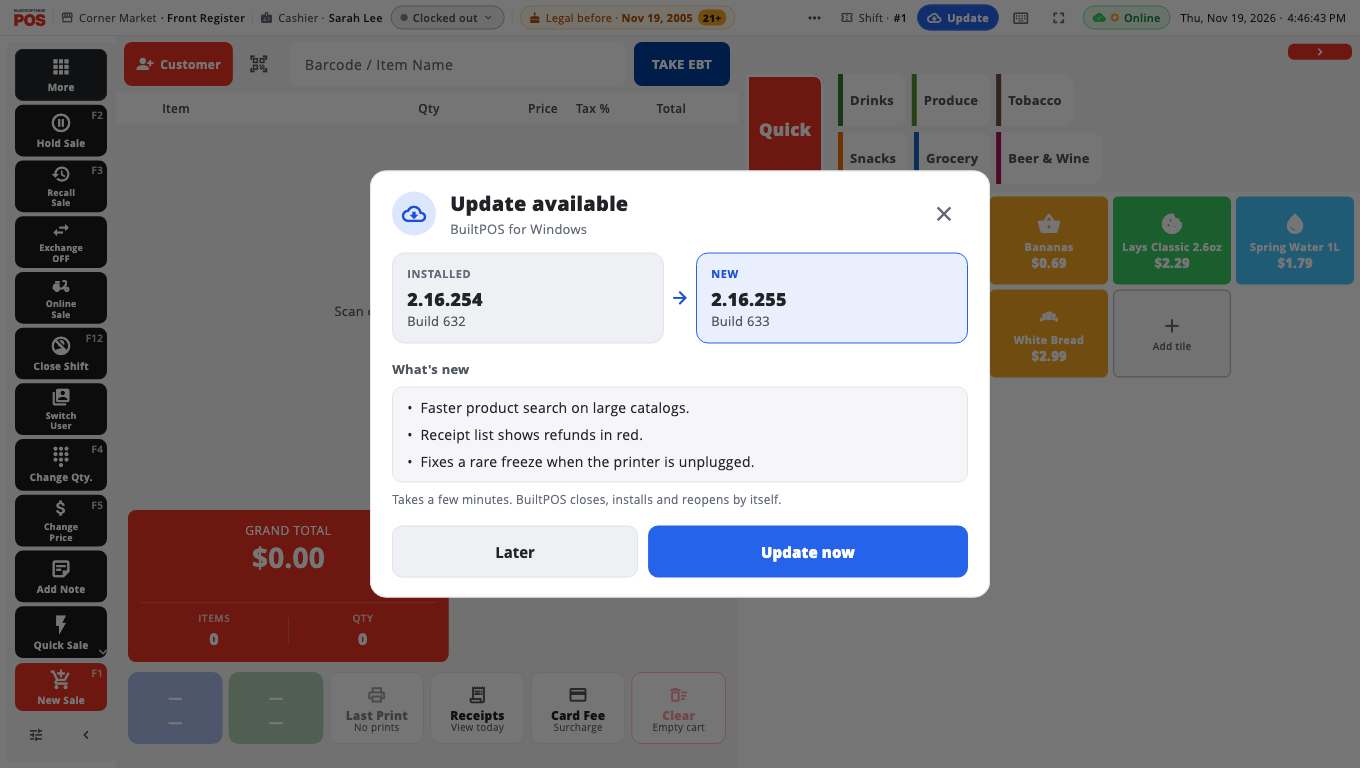
- The Update available box shows the INSTALLED and NEW versions and What's new in this release.
- Choose:
- Update now — start the update.
- Tonight at 3:00 AM (Windows only) — install while the store is closed. The top bar then shows the time it is booked for. Tap it and choose Cancel schedule to undo.
- Later — close the box. The Update button stays.
What happens on each device#
- Windows: BuiltPOS closes, installs the update and reopens by itself. It takes a few minutes. A Windows installer window shows the progress. Do not power off the till.
- Android: the new app downloads, then Android asks you to tap Install.
- iPad and iPhone: the button is Open App Store (or Open TestFlight on a test build). Install the update there.
Finish the sale first#
On Windows and Android, Update now is not available while a sale is in progress: "A sale is in progress. Finish or hold it to update now." On Windows you can still choose Tonight.
Windows: update settings#
Owners and Admins can open Store Management → This Till → Software Updates to:
- See the Current Version and the Latest Available build, and tap Check Now.
- Tap Update Now, Tonight at … or Pick a time….
- Change the Default update time used by the Tonight button. Pick a time when the store is closed.
- Turn on Auto-install at default window when update available under Automatic Install. It is off by default.
- Open Update health & restore to see how the last update went and roll back if needed.
Good to know#
- On a store that runs its own store server (BuiltPOS on a local Windows box), the update also updates that server. Keep that computer on.
- If the update does not reach a till, see Slow or frozen till or contact support.
- To install BuiltPOS on a new computer, see Install BuiltPOS.
Was this helpful?
Thanks for letting us know.
Sorry it did not help. Tell us what was missing: open Help & Support in the app and choose Report a problem, or email support@builtsofthub.com.