
Take a cash payment
Take cash on the Take payment screen, give the right change and finish the sale.
Take cash#
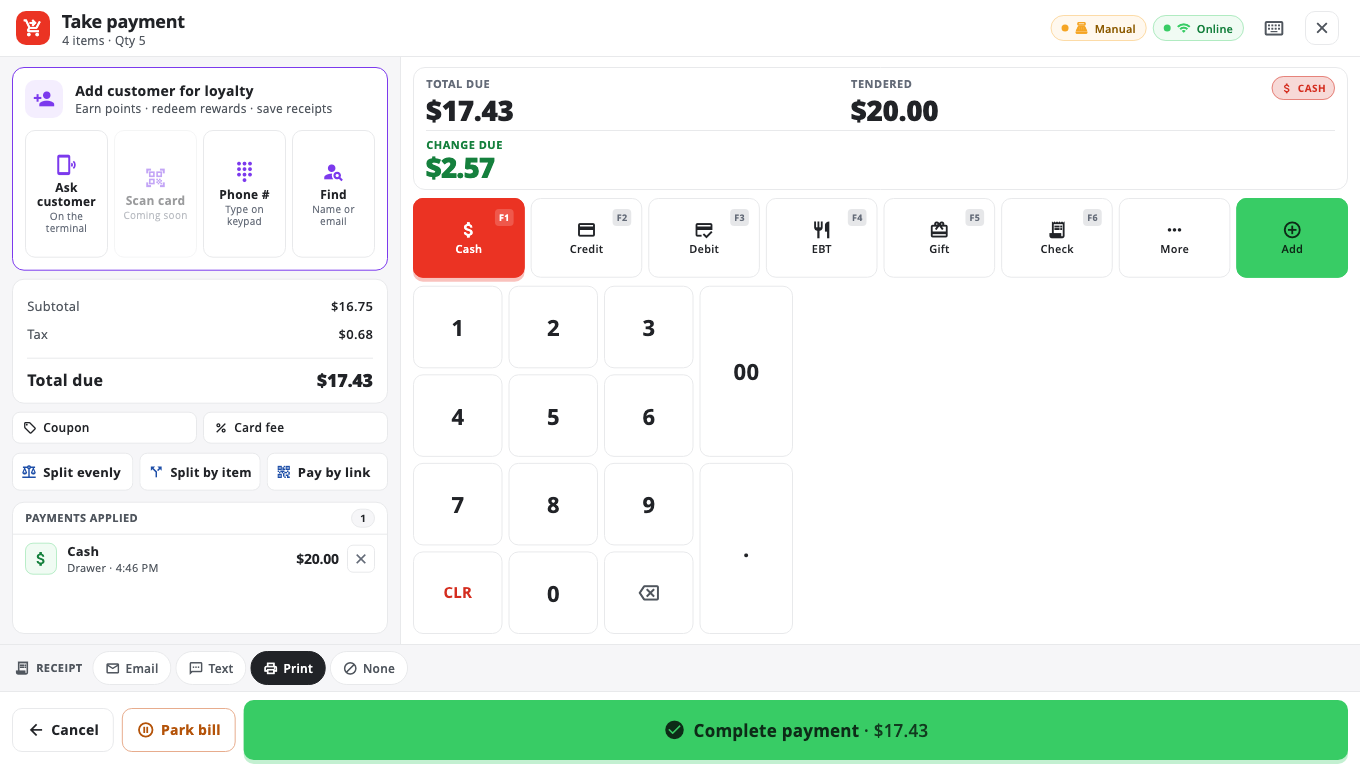
- With items in the cart, tap the red Grand Total card (TAP TO PAY), or press F8 on Windows. Take payment opens with Cash selected.
- Enter what the customer handed you, in one of these ways:
- Tap Exact if they paid the exact amount.
- Tap Next $ to round up to the next whole dollar.
- Tap a bill such as +$20. Tap more bills to add them up.
- Or type the amount on the keypad and tap Add Cash $….
- Check the amount under Change due and give the change.
- Tap Complete payment (just Complete on a narrow screen). The cash drawer opens.
Typing an amount#
The keypad has 1–9 in three rows and CLR 0 ⌫ on the bottom row. 00 and . sit in a column on the right.
Digits fill in from the cents: 2000 is $20.00 and 535 is $5.35. You can also type a point: 20.5 is $20.50. The point only works within the first three digits, so 2000. stays $20.00. CLR clears the entry and ⌫ deletes the last digit. On Windows you can type with the keyboard and press Enter.
"Did you mean $5.00?"#
Other money boxes on the till use the same rule: digits fill in from the cents. If you type an amount under $1.00 (for example 5, which is $0.05), the till asks once: Did you mean $5.00? Tap $5.00 for the whole dollars or $0.05 to keep what you typed. Amounts of $1.00 or more are never questioned.
This check is on the custom tip, Safe Drop, Paid Out, selling a gift card, Check Cashing, Tip Adjust, the closing cash count (only when the drawer should hold $10 or more), a one-off item price, the default opening cash, house-account payments and layaway or special-order payments. Refunds and voids don't ask.
Faster cash: Quick cash buttons#
An owner can add EXACT, NEXT $ and bill buttons to the sale screen itself. Tap one and the cash sale is finished in one step (a bill smaller than the total is not offered). Turn on Quick cash buttons in Store Management → This Till → Terminal Settings. It is off by default.
Good to know#
- Only cash gives change. Other payment types cannot be more than what is owed.
- Want the sale to finish the moment it is fully paid, without tapping Complete? Turn on Skip "Complete Trans" — auto-finish when fully paid in Terminal Settings. It is off by default.
- Tap Add tip to add a tip before completing.
- Part cash, part card? See Split payments.
- Need to open the drawer without a sale? Tap No Sale / Open Drawer (on the button panel, or under More). You pick a reason and it is logged. A store can require a manager for this.
- Cash sales work with no internet and sync later.
Was this helpful?
Thanks for letting us know.
Sorry it did not help. Tell us what was missing: open Help & Support in the app and choose Report a problem, or email support@builtsofthub.com.