
EBT / SNAP payments
Take an EBT card for eligible food, pay the rest another way, and check an EBT balance.
Only items marked EBT eligible in BuiltOFFICE can be paid with EBT. Tax is removed from EBT food only for the part actually paid with EBT — if the customer pays for the same item with cash or card, normal tax applies.
Before you start#
- Mark eligible products as EBT in BuiltOFFICE. See Products and categories.
- Your card terminal must accept EBT, and EBT must be turned on for it (set up by BuiltPOS support).
Take EBT#
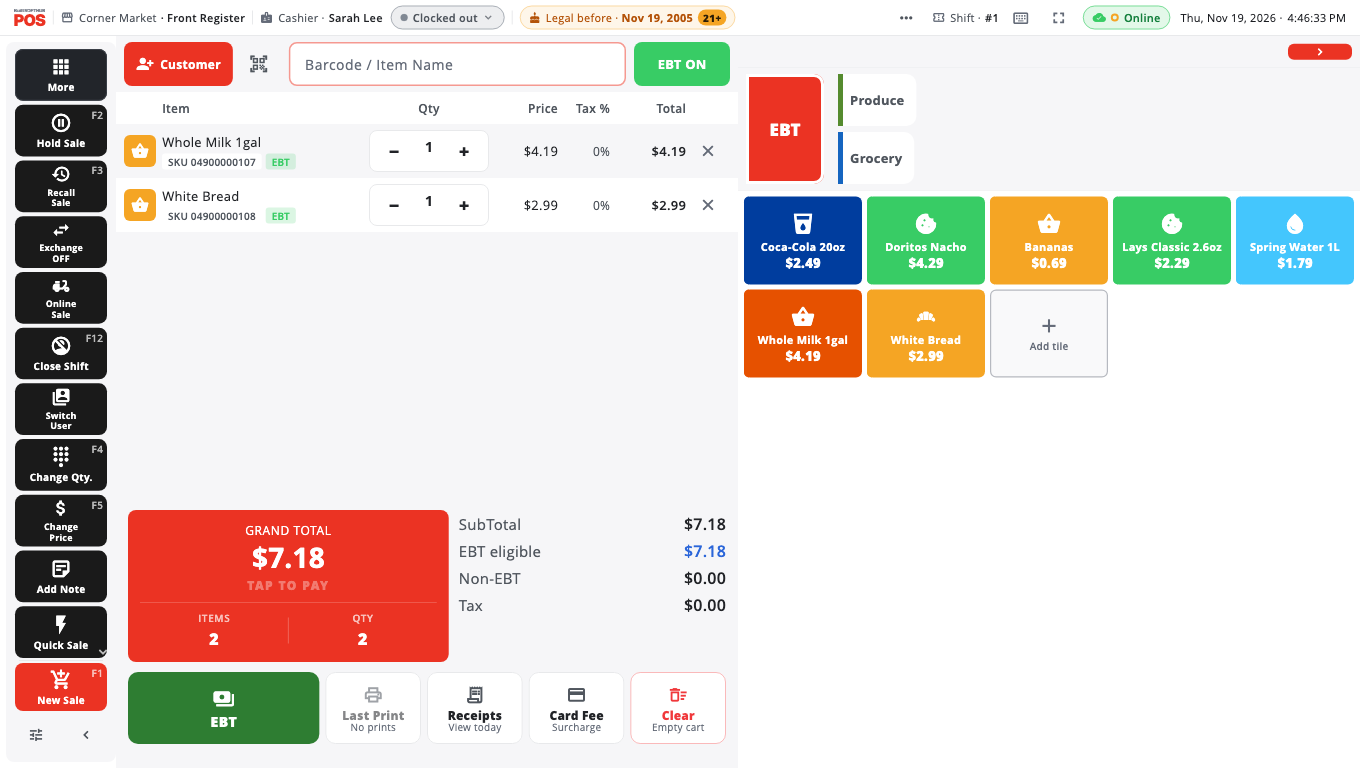
- Tap TAKE EBT next to the search box. It turns green and reads EBT ON. While it is on, searches show only EBT items, and scanning a non-EBT item tells you so.
- Ring the items.
- Tap EBT under the Grand Total.
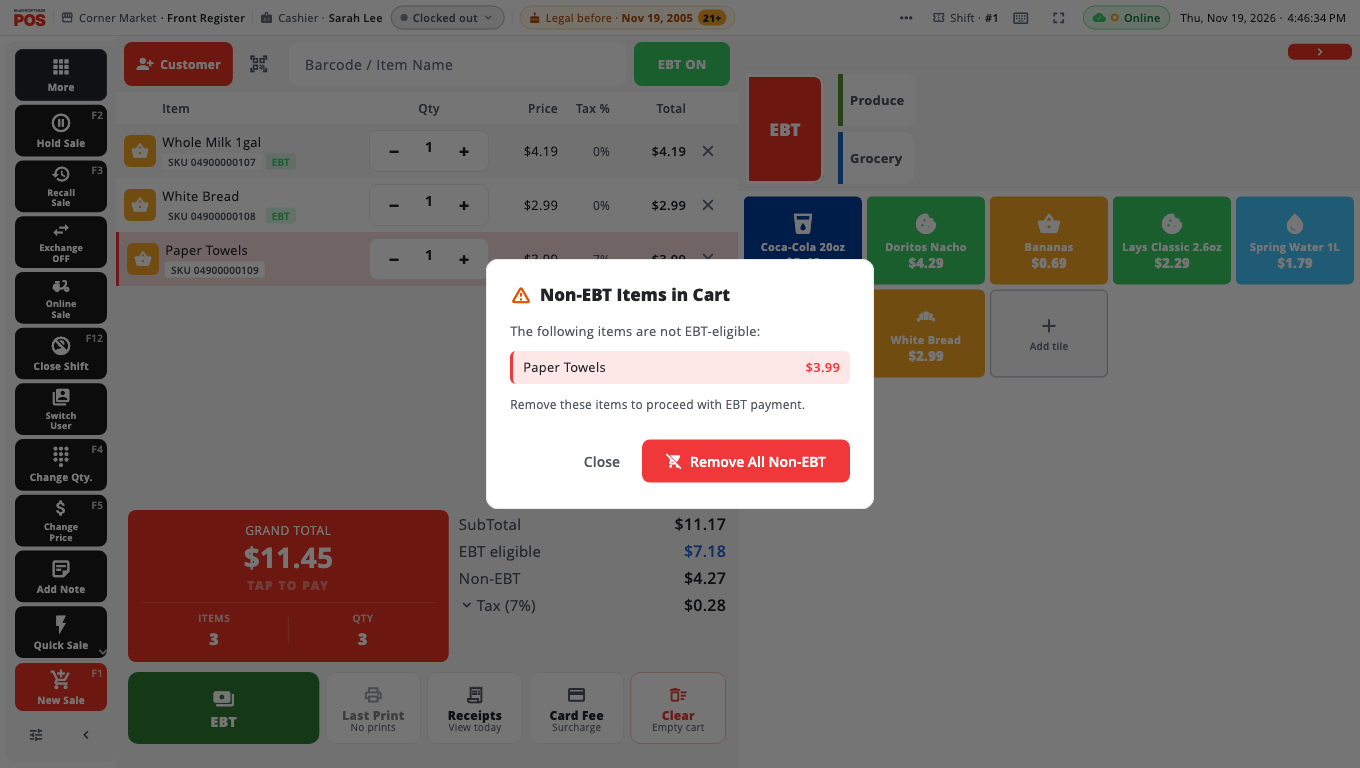
- If the cart has items that are not EBT eligible, you see Non-EBT Items in Cart. Tap Remove All Non-EBT to take them out of this sale, or cancel and pay them another way.
- The customer swipes or inserts the EBT card on the terminal (Insert or swipe EBT card).
- When it is approved, the sale finishes.
Mixed basket: EBT plus cash or card#
- Open Take payment (tap the Grand Total).
- Tap EBT. The amount is limited to the EBT-eligible total (the screen says EBT-eligible: $…).
- Charge the EBT card.
- Pick Cash or Credit for what is left and finish as normal.
Check an EBT balance#
With EBT selected on Take payment, tap Check EBT balance. The customer swipes the card and the till shows the EBT balance: SNAP / food and Cash benefits. This is an inquiry only — nothing is charged. The button only appears on terminals that support balance checks.
Good to know#
- Tap EBT ON again to turn the filter off.
- If your store has turned off EBT for cashiers in Terminal Settings, the TAKE EBT button and the EBT button are hidden.
- Bottle deposits follow their item: a deposit on an EBT item stays with it.
- EBT refunds are done from Returns. See Refunds and exchanges.
Was this helpful?
Thanks for letting us know.
Sorry it did not help. Tell us what was missing: open Help & Support in the app and choose Report a problem, or email support@builtsofthub.com.