
Split payments
Pay one sale with several payment types, split the bill evenly, or give each guest their own check.
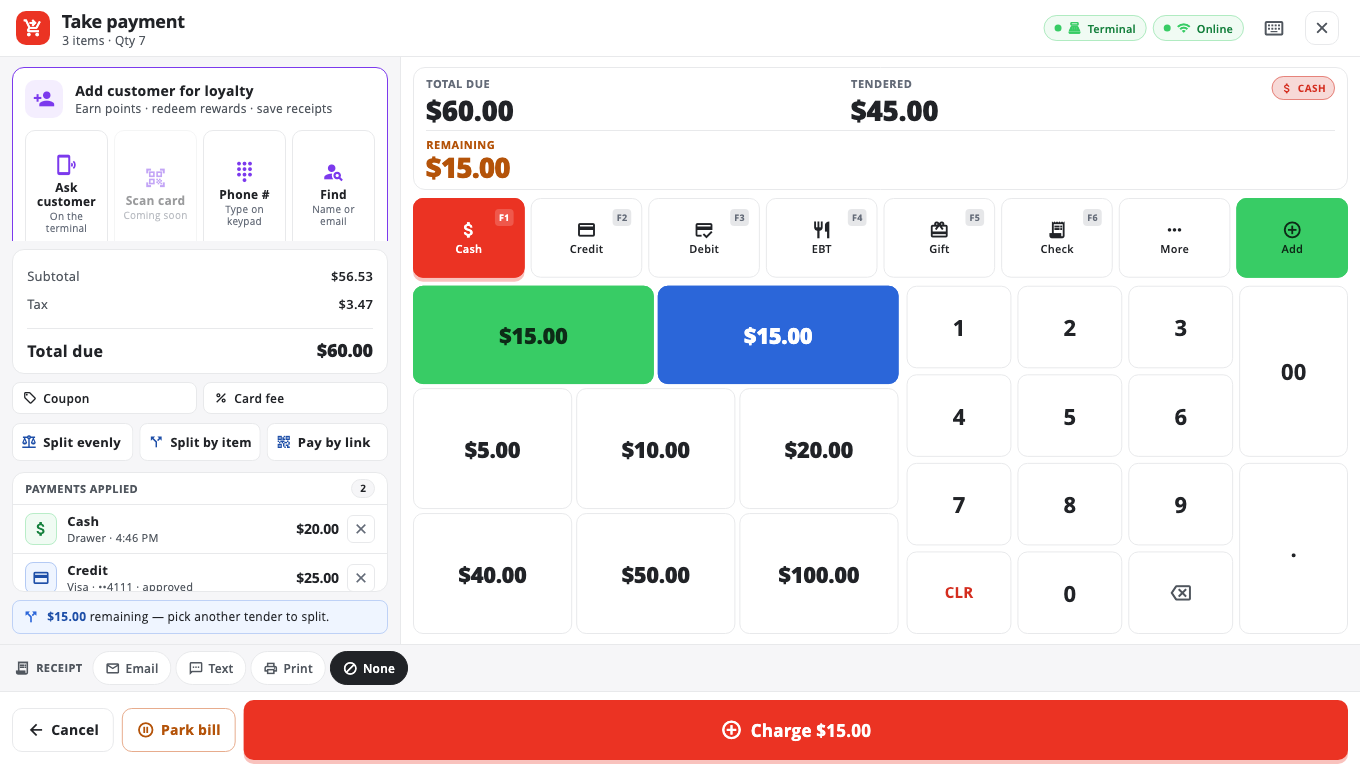
Pay with more than one method#
- Open Take payment (tap the Grand Total).
- Pick the first method, enter the amount for it on the keypad and tap Add … (for example Add Cash $20.00). For a card, the amount is charged on the terminal.
- The screen shows what is left as Remaining. Pick the next method and repeat.
- When nothing is left, tap Complete payment.
To take a payment off before completing, tap the remove button on its row and confirm Remove payment?. Removing an approved card payment voids it on the terminal first (Void card auth?).
Split evenly#
- On Take payment, tap Split evenly.
- Choose how many guests and tap Split into …. If the total does not divide evenly, the first guests pay the leftover cent.
- The till adds one cash payment per guest. If a guest wants to pay by card, remove one of the cash payments and charge that amount on a card instead.
- Tap Complete payment.
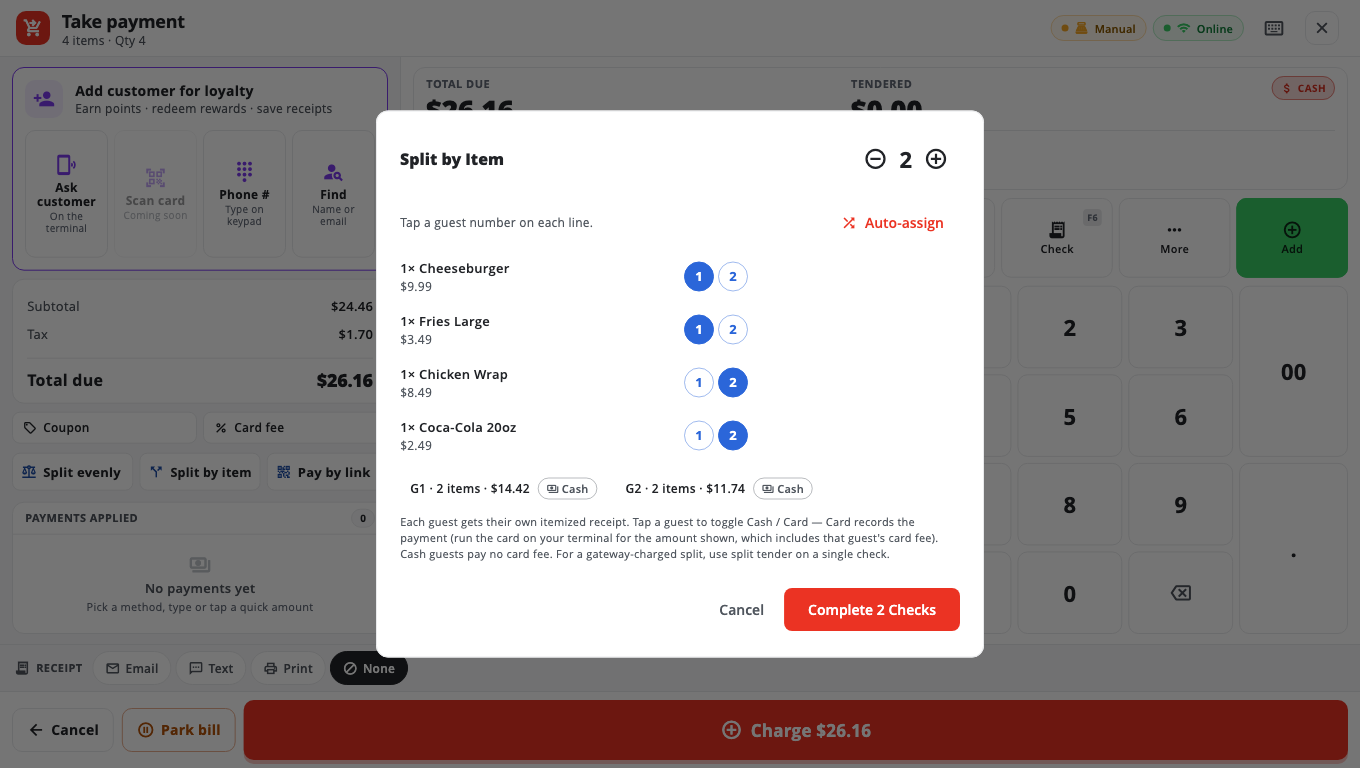
Split by item (separate checks)#
- On Take payment, tap Split by item. You need at least 2 items and no payments entered yet.
- Tap a guest number on each line, or tap Auto-assign.
- Tap Complete … Checks. Each guest gets their own itemized receipt.
Good to know#
- Only cash gives change. A card, check or gift card payment can never be more than what is left.
- Remove any tip, round-up or points redemption before Split by item.
- Park bill on Take payment holds the sale with no payments, to finish later. See Hold and recall sales.
- Leaving Take payment with payments entered asks Discard payments? first, so nothing is lost by a stray tap.
Was this helpful?
Thanks for letting us know.
Sorry it did not help. Tell us what was missing: open Help & Support in the app and choose Report a problem, or email support@builtsofthub.com.