
Take a card payment
Charge a credit or debit card on your card terminal, and what to do when a card is declined or the terminal does not answer.
Charge a card#
- With items in the cart, tap CARD under the Grand Total.
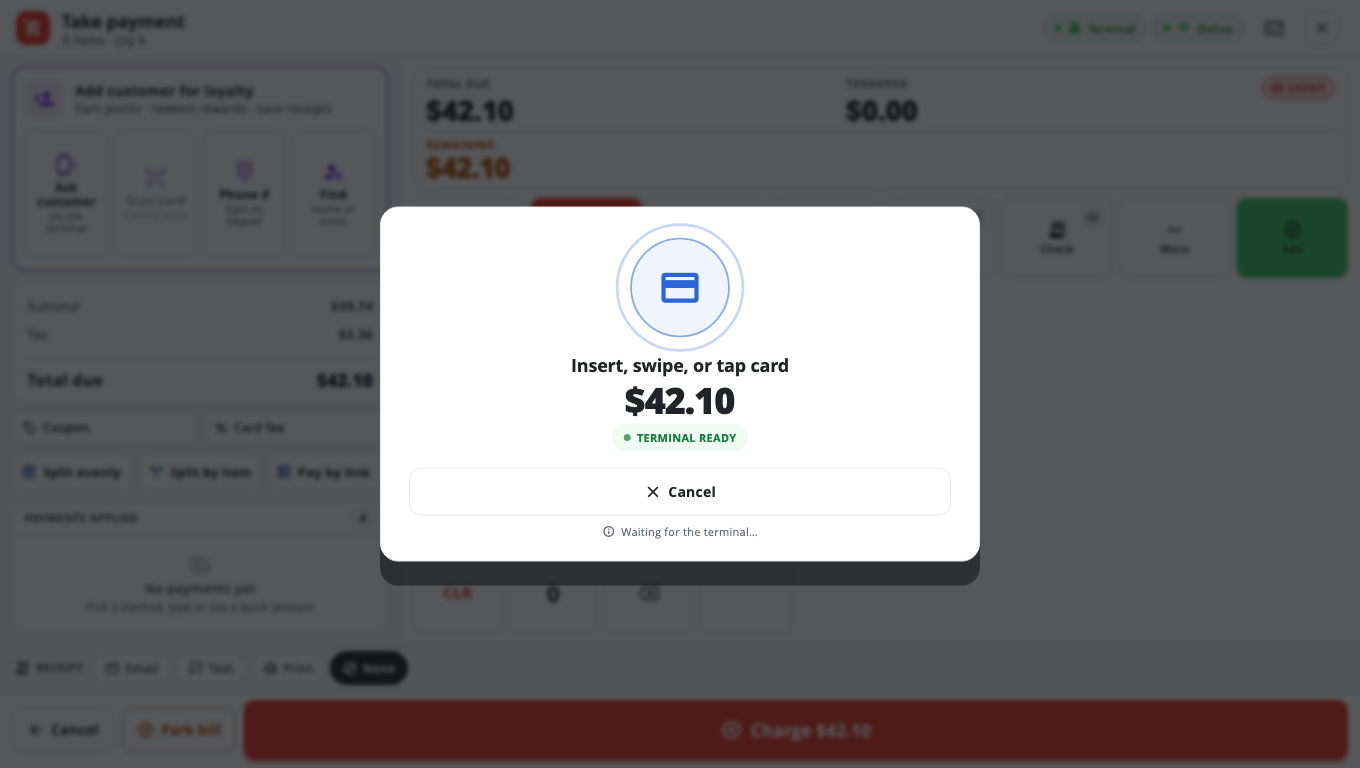
- The card terminal asks the customer to Insert, swipe, or tap card. For debit, choose Debit on Take payment first — the terminal asks for the PIN.
- When the card is approved, the sale finishes on its own and the receipt step follows.
You can also open Take payment (tap the Grand Total), pick Credit or Debit, and tap Charge $….
If the card is declined or something goes wrong#
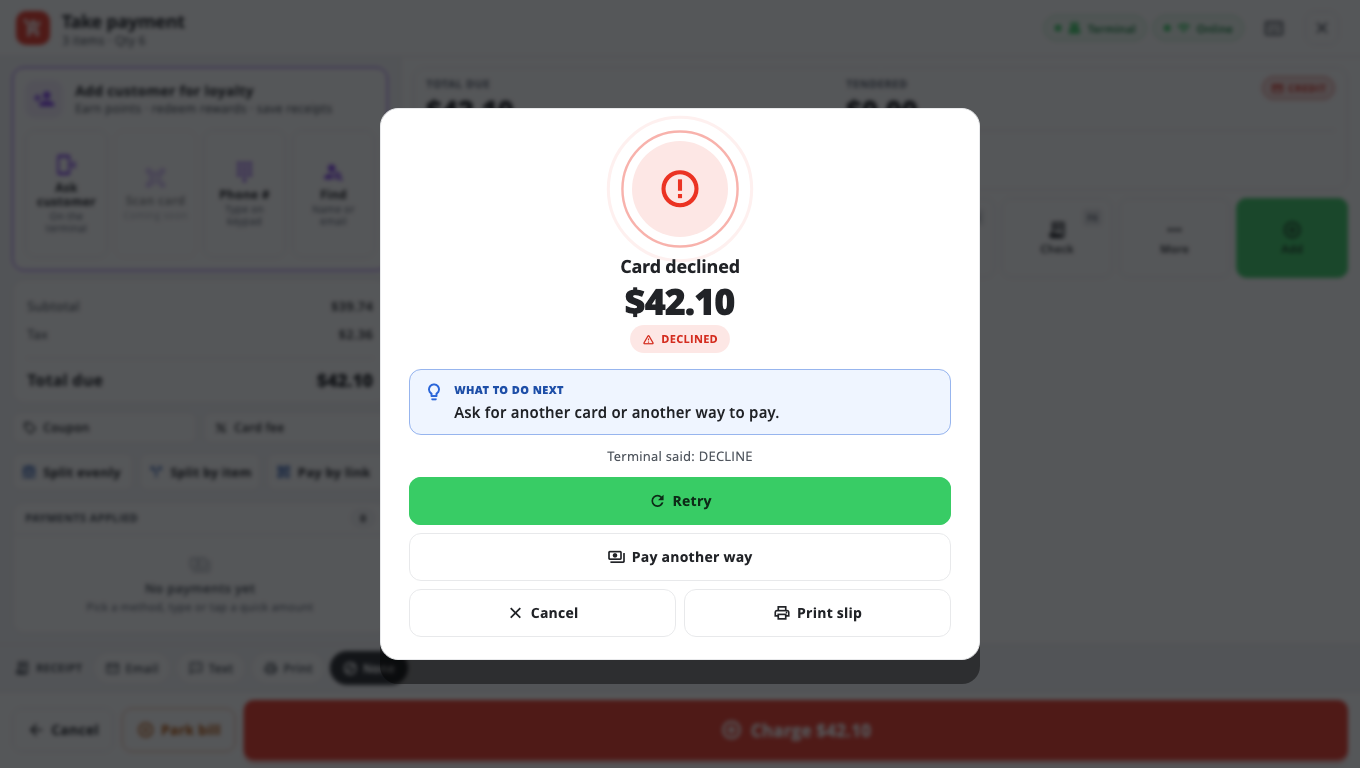
Take payment shows the result and a WHAT TO DO NEXT box that tells you exactly what to do, with the terminal's own message underneath (Terminal said: …).
- Retry — run the card again. Retry uses the same sale reference, so the processor will not charge the customer twice for the same sale.
- Pay another way — choose cash or another method instead.
- Print slip — print a decline slip for the customer.
If the terminal stops answering (Terminal timed out or Couldn't reach the card terminal), look at the terminal's own screen before you do anything else. If it shows the payment was approved, do not charge again.
Cancel a card payment in progress#
- Tap Cancel on the processing screen. You may see Cancelling… while the till waits for the terminal.
- Some terminals can only be cancelled on the device itself — the screen tells you to press Cancel on the payment device.
- If the terminal clearly shows the sale was cancelled but the till is still waiting, tap Terminal shows cancelled — close and confirm. Only do this if you are sure the customer was not charged.
No card terminal connected?#
If this register has no card terminal set up, Credit and Debit show Manual. You can run the card on a separate terminal and record it: pick the card type and enter the auth code or the last 4 digits.
Good to know#
- Card terminal setup (PAX, Clover, Worldpay, Verifone) is done by BuiltPOS support — the setup pages are locked to protect your payment account. See PAX, Clover, Worldpay, Verifone.
- Card fee: if your store adds a card surcharge, it shows on the cart (Grand Total CC). A cashier can add or remove it with Card Fee under the Grand Total or Card fee on Take payment, unless the store applies it automatically.
- Tips: tap Add tip before charging. If your store asks for tips on the customer display, the till shows Waiting for customer tip — wait, or tap Continue without tip.
- Card refunds are done from Returns, not from Take payment. See Refunds and exchanges.
- Cloud card terminals need the internet. If the internet is down you will see Internet required — take cash, or use a terminal connected on your store network.
- Problems with the terminal itself: Card terminal troubleshooting.
Was this helpful?
Thanks for letting us know.
Sorry it did not help. Tell us what was missing: open Help & Support in the app and choose Report a problem, or email support@builtsofthub.com.