
Ring a sale
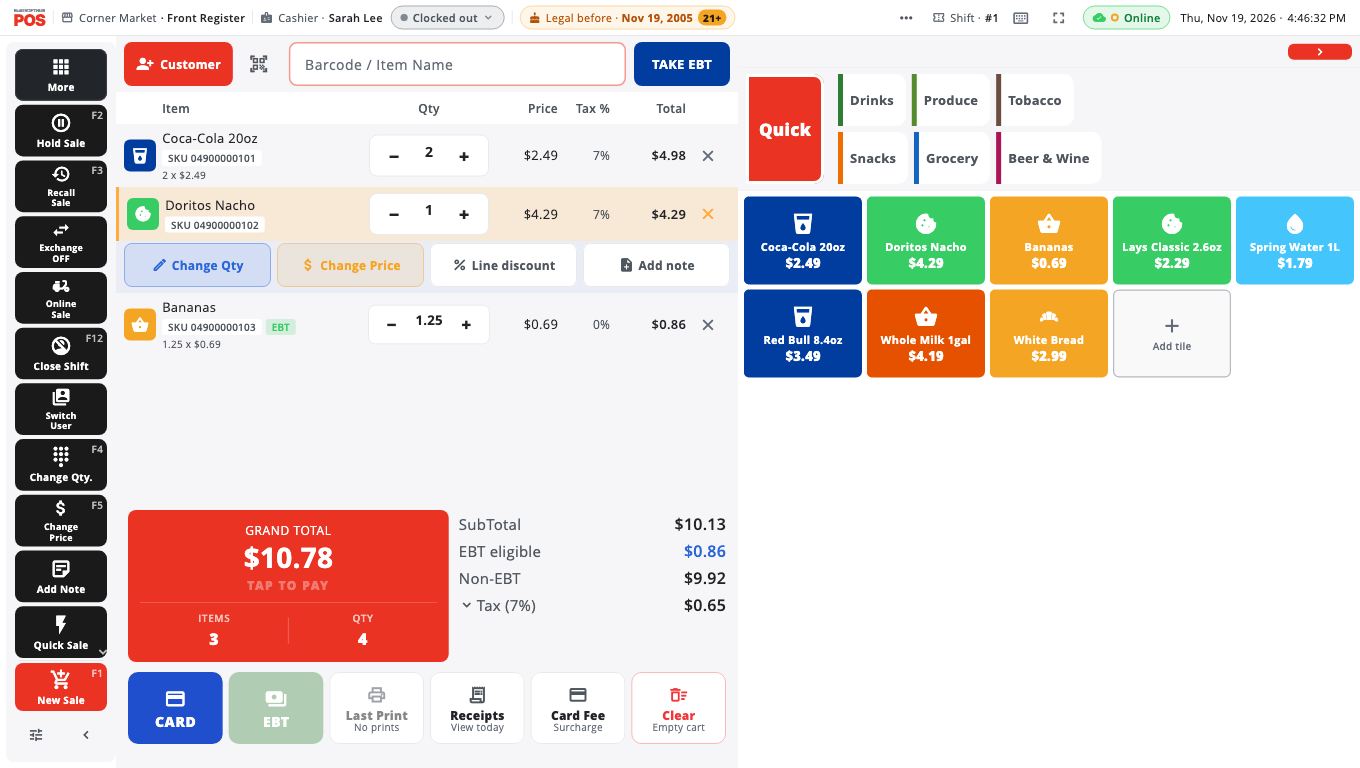
Add items by scan, search or tile, change quantities, remove lines and add notes.
Add items#
- Scan the barcode with a scanner or camera. Each scan adds one.
- Search: type part of the name or barcode in Barcode / Item Name and pick the product.
- Tap a tile in the product panel on the right. Quick shows your pinned buttons; the other pills are your categories.
- Several of one item: type the quantity, a star and the barcode in the search box — for example
3*012345678905— then press Enter.
Items that need a weight, a price, options (modifiers) or an ID check ask for them when you add them.
Change a line#
- Tap the line in the cart to select it. Buttons appear under it: Change Qty, Change Price, Line discount, Add note and Remove.
- Change Qty opens Change Quantity. Type the new quantity and tap ENTER.
- For price and discount changes, see Discounts and price overrides.
- Press and hold a line (right-click on Windows) for more: Edit modifiers, Quick Edit item, Save as Quick Button, Mark Tax-Exempt.
Remove a line#
- Select the line and tap Remove (or the ✕ on the row).
- Confirm Remove item? with Remove. A message with Undo appears for a few seconds.
To empty the whole cart, tap Clear (Empty cart) under the Grand Total. You are asked whether to clear it or hold it for later.
A barcode that is not in your catalog#
You will see Barcode not found. You can:
- Sell once at a price… — enter the price (and tax) and tap Add to Sale. The item is not added to your catalog.
- Add Product — create it now (Owner or Admin). See Quick Add and Quick Edit products.
The top bar#
The bar along the top of the till shows the full date and time (on a phone, a short date and the time), the connection, and the open shift (Shift · #12).
Tap ⋯ at the right of the bar for more. When a shift is open, it lists Transactions for this shift. Managers also see Sales, Avg ticket and (when there are any) Voids there, unless an owner turned off Show shift sales, average ticket and voids to managers in the ⋯ menu in Store Management → This Till → Terminal Settings (it is on by default). These figures are not shown on the bar itself any more. A manager can tap the Shift chip to open the shift dashboard.
Windows keyboard shortcuts#
| Key | Does |
|---|---|
| F1 | New Sale |
| F2 / F3 | Hold Sale / Recall Sale |
| F4 / F5 | Change Quantity / Change Price |
| F6 or Delete | Remove the selected item |
| F7 | Customer search |
| F8 | Payment |
| F11 | Returns |
| ↑ / ↓ | Select a cart line |
| + / − | Change the selected line's quantity |
| Ctrl+Z | Undo the last item |
| ? | Show all shortcuts |
Good to know#
- On a phone, lines are changed on the Review page: tap a line for Qty, Price, Disc. and more.
- You can turn off the Remove item? question in Store Management → This Till → Appearance (Ask before removing an item). It is on by default.
- Online, kiosk and delivery orders have their own screens — see Restaurant tables and kitchen.
- Next: Take a cash payment or Take a card payment.
Was this helpful?
Thanks for letting us know.
Sorry it did not help. Tell us what was missing: open Help & Support in the app and choose Report a problem, or email support@builtsofthub.com.