
Offline or sales not syncing
What the cloud pill and its coloured dot mean, what still works offline, and how to get waiting sales to send.
BuiltPOS is built to keep selling when the internet drops. Every sale is saved on the till first and sent to BuiltOFFICE when the connection is back. You don't need to do anything for that to happen — this page is for when you want to check, or when something looks stuck.
Read the cloud pill#
The pill at the top of the sale screen shows two things.
The cloud and its word — can this till reach the server right now:
- Online (green cloud) — connected.
- Slow (amber cloud) — the server is answering, but slowly. Sales still ring; syncing may take longer.
- Offline (red cloud, glowing) — the till can't reach the server. Sales still ring and are kept on the till.
The small dot next to the cloud — is everything sent:
- Filled green circle — Synced. Nothing is waiting.
- Hollow orange ring — Sync pending. Something is waiting to send, or the last good sync is more than a few minutes old. Not broken, just not caught up.
- Red diamond — Sync failing. The last sync attempt failed, or this till must be linked again. Someone should look.
A number on the pill is how many items are waiting to send.
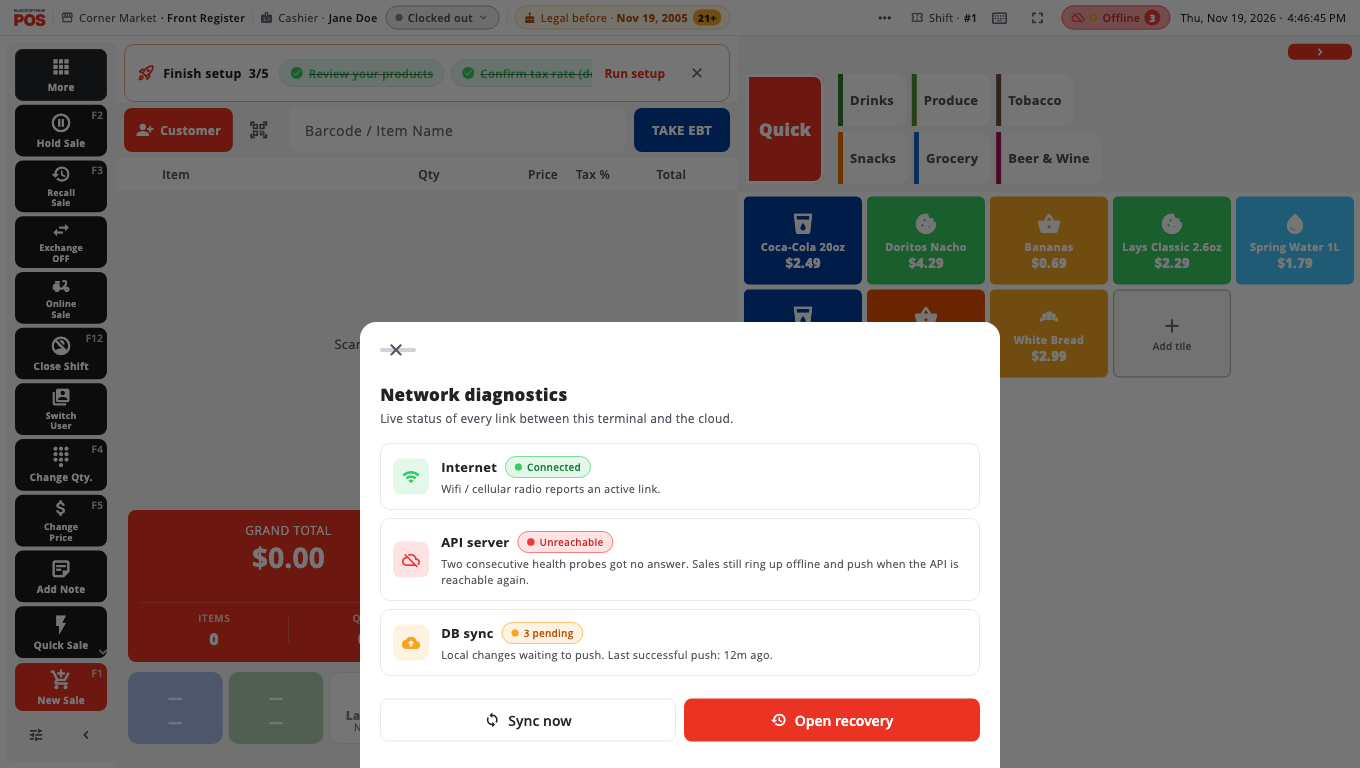
Check what is wrong#
- Tap the cloud pill. Network diagnostics opens.
- Look at the three rows:
- Internet — Connected or Disconnected. Disconnected means the till has no Wi-Fi, cellular or cable link. Check the cable or Wi-Fi, and your router.
- API server — Reachable, Slow or Unreachable. If Internet is connected but this says Unreachable, the internet line itself may be down even though the router is on.
- DB sync — Up to date, Syncing now, or how many are pending, with the time of the last successful push.
- Tap Sync now to try straight away.
- Keep selling. The till tries again by itself about every minute.
What still works offline#
- Ringing sales, cash, discounts, receipts and shifts.
- Card payments on a terminal that is on your store network (for example PAX).
- Not card services that run through the cloud (Clover Cloud Pay, Worldpay Cloud). They show Internet required — use cash or another way to pay until the connection is back.
- Your licence: the till keeps selling offline. After 48 hours without a connection you'll see a banner saying the offline grace period expired — the till still sells; connect when you can.
Sync is failing (red diamond)#
- Look for a red bar at the very top of the screen. If it says This terminal is not linked or Store not found on the server, see The red bar at the top of the till.
- If a red message says Terminal not paired followed by a reason, read the reason (for example, all terminal seats on your plan are in use). Fix it in BuiltOFFICE, then tap RETRY on the message.
- If a message says Store reset is waiting, the till has sales that must send before a store reset can finish. Leave the till online and tap RETRY.
- An Owner or Admin can open Store Management → System & Data → Sync Recovery (or tap Open recovery in Network diagnostics when items are pending) to see each waiting or failed item.
Good to know#
- Don't uninstall BuiltPOS, reset the till or clear its data while items are waiting. Waiting sales exist only on that till until they send.
- On Sync Recovery, Clear all failed… sits below the list of waiting items (not next to Sync Now). It permanently deletes failed items from this till; they never reach the server. Use it only when support tells you to. First you confirm what will be deleted. If any of the items moves money (a payment, refund, store credit or gift card), you confirm a second time (Delete N money entries for good?) and then an Owner / Manager PIN is needed. An Owner or Admin who is signed in approves without typing a PIN. Cancelling at any step deletes nothing.
- A till that runs its own store server on the same Windows computer finds that server again by itself if its network address changes.
- Still stuck? Open More → Help & Support and send a ticket with Include device details switched on. See the BuiltPOS FAQ.
- More on working without internet: Working offline.
Was this helpful?
Thanks for letting us know.
Sorry it did not help. Tell us what was missing: open Help & Support in the app and choose Report a problem, or email support@builtsofthub.com.