
Customer display not showing or stuck
Fix a customer display that won't open, opens on the wrong screen, covers the till, or keeps coming back.
On this page
- Pick the right Display Source
- "No secondary monitor detected — opening browser URL instead"
- Check whether the customer screen is open (Windows)
- The customer screen is blank or white
- The display is covering the till's main screen
- The display keeps opening every time BuiltPOS starts
- Unplugged the monitor?
- Browser display won't load
- Android external screen
- Things missing on the display
- Leaving the full-screen display on a phone or tablet
- Good to know
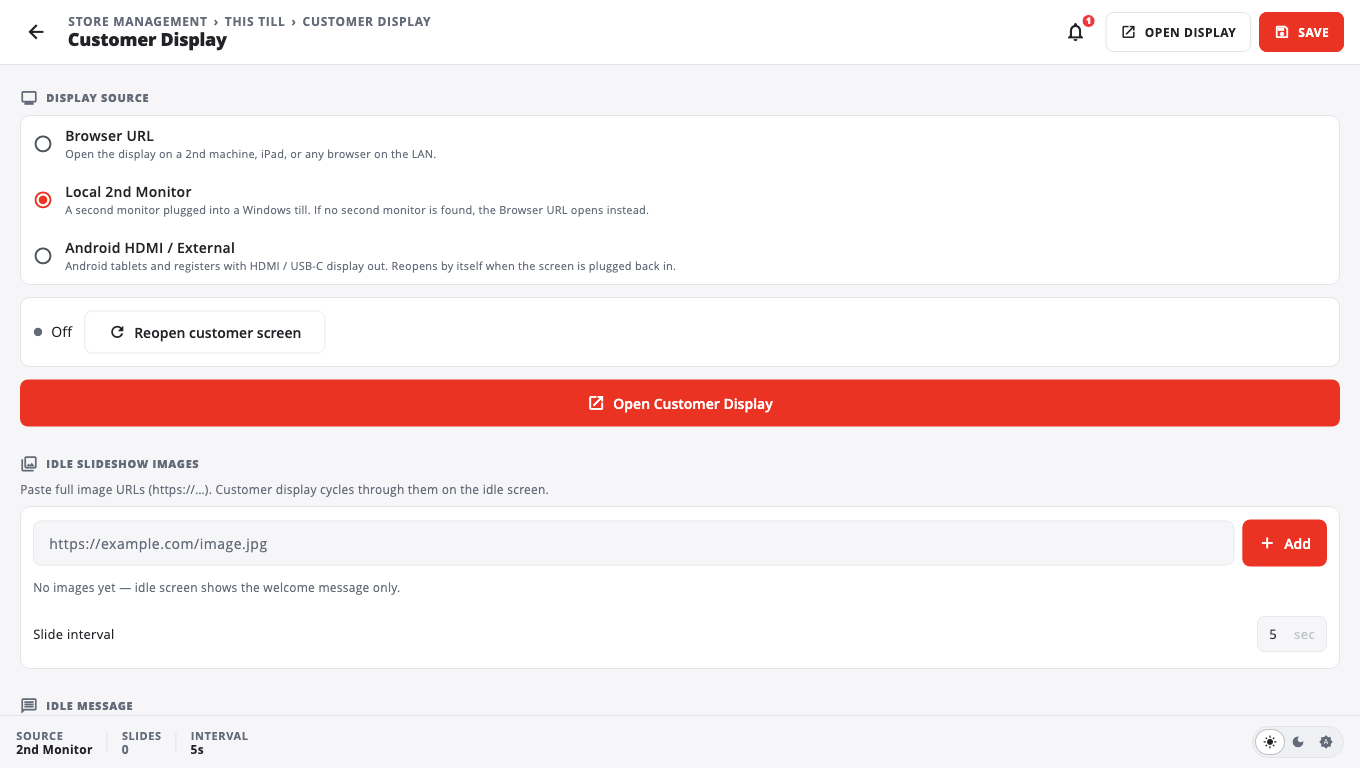
The customer display shows the customer their items and total. It is set per till in Home → Store Management → This Till → Customer Display. Change a setting, tap Save, then tap Open Display.
Pick the right Display Source#
- Local 2nd Monitor — a second screen plugged into a Windows till.
- Browser URL — any browser on your store network (another computer, an iPad). The till shows the address to open in a message when you tap Open Display.
- Android HDMI / External — a screen plugged into an Android till by HDMI or USB-C. Android only.
On a phone or tablet you can also show the customer view on the same device: open the menu and tap Customer Display.
"No secondary monitor detected — opening browser URL instead"#
The till didn't find a second screen.
- Check the monitor is on and its cable is plugged into the till.
- In Windows Settings → Display, make sure the screens are set to extend (not duplicate).
- Back in Customer Display, tap the refresh button next to Display (Re-scan displays) and choose the screen. Auto (first non-primary) picks the screen that isn't your main one. Screen numbers match Windows Settings → Display.
- Tap Open Display.
Check whether the customer screen is open (Windows)#
With Local 2nd Monitor chosen, the Customer Display page shows the screen's state at the top:
- Open on the customer screen — all good.
- Opening… or Reopening the customer screen… — the till is starting it. If the customer screen stops answering, the till closes it and opens it again by itself.
- Waiting for the customer screen to connect — the monitor is asleep, unplugged or not ready yet (common straight after a restart). The display opens as soon as the monitor appears.
- On — opens on the customer screen when the till starts or Off.
Tap Reopen customer screen to close and open it again by hand.
The customer screen is blank or white#
While it starts, the customer screen stays dark rather than white, and it only appears once it has drawn. If it stays blank, check the state above and tap Reopen customer screen. If it says Waiting for the customer screen to connect, wake the monitor and check its cable.
The display is covering the till's main screen#
Press Esc three times within 3 seconds on the till's keyboard. The customer display closes and switches off. Then check the monitor setup above and open it again.
The display keeps opening every time BuiltPOS starts#
That's on purpose while it is switched on. To stop it, open Customer Display and tap Turn Off.
Unplugged the monitor?#
The display closes when its monitor is unplugged and opens again by itself when it is plugged back in.
Browser display won't load#
- The browser must be on the same network as the till.
- Use the exact address the till showed. If the till got a new network address (for example after a router restart), tap Open Display again to see the new one.
- If Windows asks whether BuiltPOS may use the network, allow it.
Android external screen#
If you see "No external display connected — plug in the HDMI / USB-C screen", connect the screen and tap Open Display again. Until then the till opens the browser address instead.
Things missing on the display#
- No item pictures — switch on Show product images.
- No logo — switch on Show store logo on idle screen and add a logo (Logo image URL (optional) or Browse from device).
- No phone-number keypad for loyalty — switch on Customer display is a touch screen and Show loyalty keypad on customer display.
- Slideshow empty — add image links under Idle Slideshow Images and tap Add.
Leaving the full-screen display on a phone or tablet#
Tap any corner of the display 8 times within 3 seconds, then enter an Owner or Manager PIN.
Good to know#
- Remember to tap Save after changing settings.
- Hardware choices: Customer display hardware. More help: Customer display troubleshooting.
Was this helpful?
Thanks for letting us know.
Sorry it did not help. Tell us what was missing: open Help & Support in the app and choose Report a problem, or email support@builtsofthub.com.