
The red bar at the top of the till
"This terminal is not linked" or "Store not found on the server" — the till keeps selling, but sales can't sync until you fix it.
A red bar across the top of the till never stops you selling. Every sale is saved on the till. Only syncing to BuiltOFFICE is paused until you do what the bar asks.
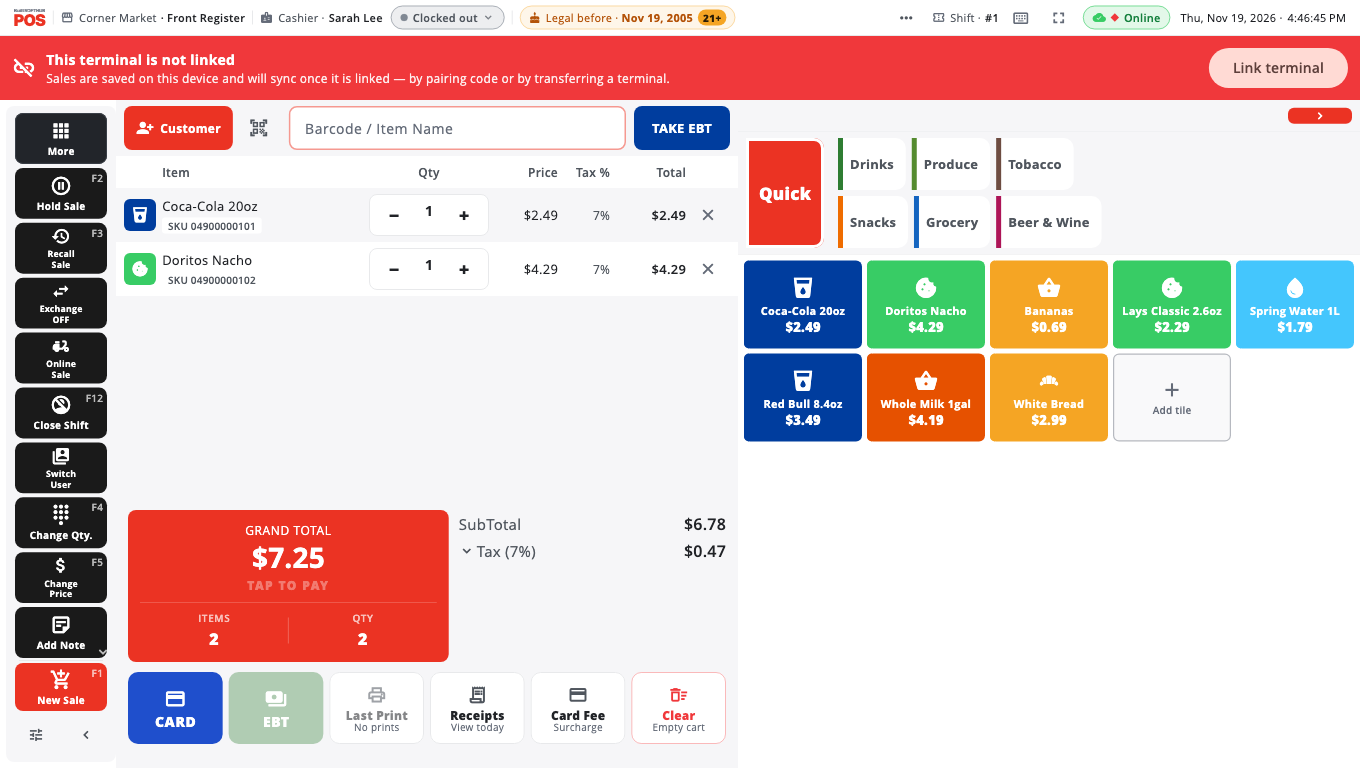
"This terminal is not linked"#
This device isn't tied to one of your store's terminals. It happens when a terminal was moved to another device, removed in BuiltOFFICE, or this device was set up again.
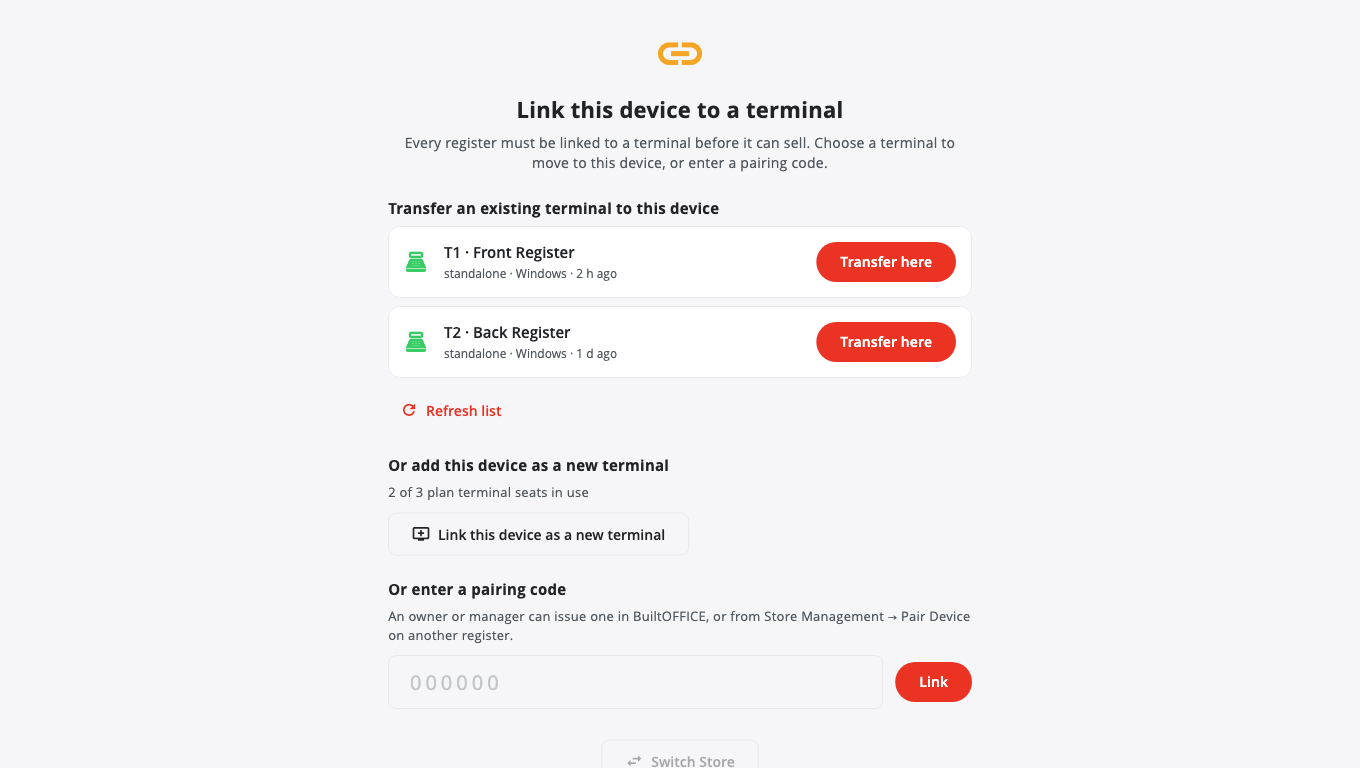
- Tap Link terminal on the red bar. The Link this device to a terminal page opens.
- Pick one of three ways:
- Transfer an existing terminal to this device — tap Transfer here next to the terminal this till should be, then Transfer. The device that was using that terminal is unlinked straight away. You need to be signed in as an owner or manager to see the list; if you aren't, tap Switch Store and sign in.
- Or add this device as a new terminal — tap Link this device as a new terminal, give it a Terminal name, then Link as new terminal. This uses one of your plan's terminal seats. If every seat is in use, transfer a terminal instead or add seats to your plan.
- Or enter a pairing code — type the 6-digit code and tap Link. An owner or manager can make a code in BuiltOFFICE, or from Store Management → Pair Device on another register.
- When it says Linked as …, tap Done. Waiting sales start sending.
"Store not found on the server"#
The store this till belongs to no longer exists — it may have been deleted or replaced in BuiltOFFICE.
- Tap Switch store on the red bar.
- Tap Switch Store and sign in with the account of the store this till should belong to.
- If you think the store should still be there, tap Check again first. If it still says the store is gone, contact support before switching.
Other red messages#
- Terminal not paired — … The server refused to link this till and says why (for example, all terminal seats on your plan are in use). Free a seat or add one in BuiltOFFICE, then tap RETRY.
- Store reset is waiting — a store reset can't finish until this till's unsent records reach the server. Keep the till online and tap RETRY.
Good to know#
- Signing in again never creates a new terminal by itself. Linking a device is always one of the three choices above.
- If the page says This device is already linked as …, it's fine — nothing more to do.
- Error That code belongs to a different store means the code was made for another store. Use Switch Store first.
- Error Invalid or expired code — ask for a new code; codes don't last long.
- Manage terminals and seats in BuiltOFFICE: Terminals and devices. Setting up a new till: Link this device.
Was this helpful?
Thanks for letting us know.
Sorry it did not help. Tell us what was missing: open Help & Support in the app and choose Report a problem, or email support@builtsofthub.com.