
Receipts not printing or printing wrong
Get the receipt printer working again, fix receipts cut off at the edge, and check when receipts print automatically.
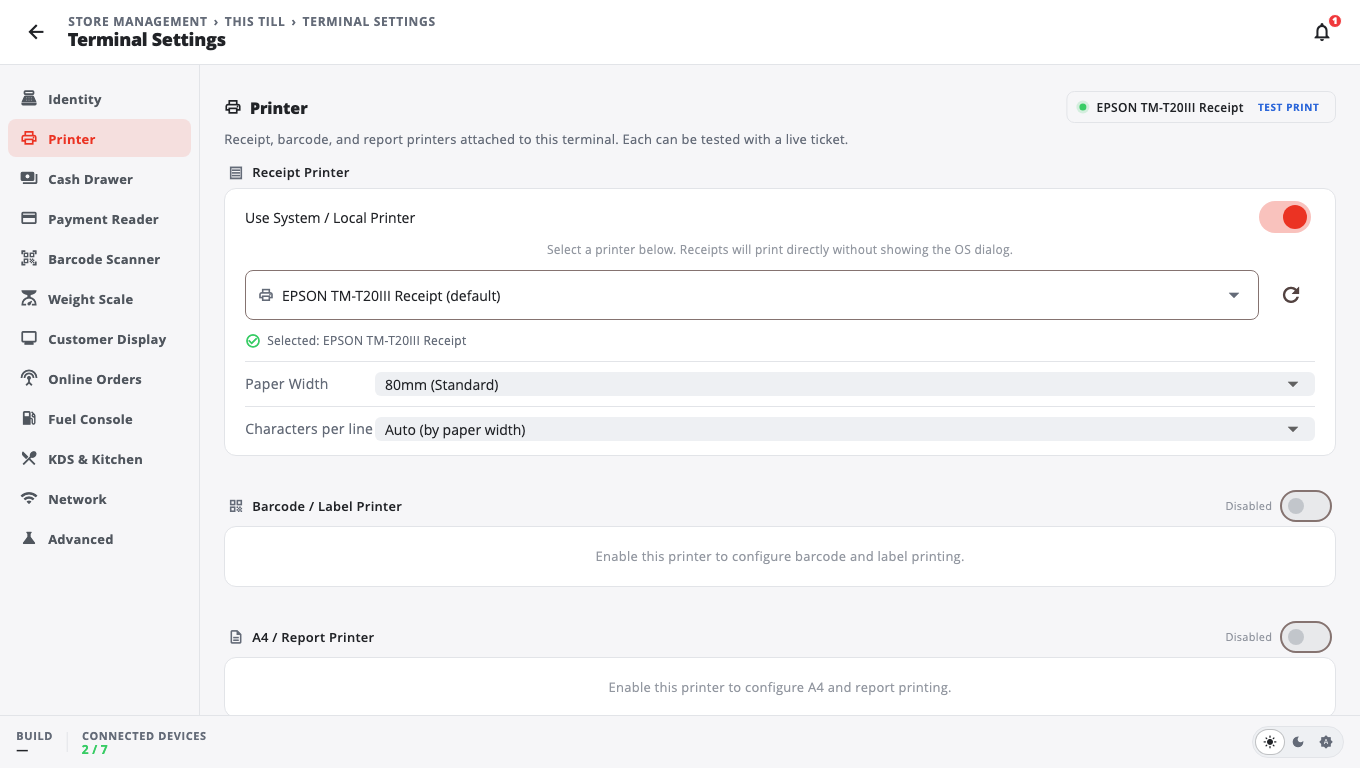
Printer settings live on each till. An Owner or Admin opens them from Home → Store Management → This Till → Terminal Settings, section Printer. (A Manager can open them by entering an Owner or Admin PIN.)
Nothing prints#
- Check the printer: power on, paper loaded, cover closed, no error light.
- Open Terminal Settings → Printer and tap Test Print at the top of the section.
- If the test prints, the printer is fine — see "Receipts don't print after a sale" below.
- If the test doesn't print, check how the printer is connected (next sections), then tap Save at the top of the page and test again.
Windows: USB or driver printer#
- Switch on Use System / Local Printer.
- Choose your printer in the list. Tap the refresh button (Re-scan printers) if it isn't there.
- If you see No printers found, open Windows Settings → Printers & scanners and check the printer is installed and online. A stopped Windows Print Spooler service also causes this.
- Choosing — Use OS print dialog — makes Windows ask where to print every time. Pick the printer instead to print without asking.
Network (IP) printer#
- Turn Use System / Local Printer off and set Connection to Network (IP).
- Enter the printer's IP Address. Print the printer's own self-test page to find it (see your printer's manual).
- Tap Test Print. If it says the printer did not accept the test ticket, check the printer is on the same network as the till.
- If it worked yesterday and not today, the printer may have a new address after a router restart. Ask whoever looks after your network to give the printer a fixed address, then enter it again.
iPad, iPhone and Android#
Bluetooth and USB receipt printers are not supported on iPad, iPhone or Android. Use a Wi-Fi or network printer, or the built-in printer on a Sunmi device (Sunmi Built-in (K2 / D2 / T2)).
Receipt is cut off on the left or off-centre (Windows)#
This shows up on some USB printer drivers.
- In Terminal Settings → Printer, with your Windows printer selected, find Move print left / right.
- Tap Print alignment test.
- Move the print with the arrows until the first ruler digit on the test prints in full.
Text runs off the right edge or wraps#
- Check Paper Width matches your roll: 58mm (Narrow) or 80mm (Standard).
- Set Characters per line. Auto suits most printers. Some 80 mm printers (for example the Epson TM-T88 family) fit 42.
- Test Print ends with a full-width ruler, so you can see which setting fits.
Receipts don't print after a sale#
Each payment type has its own rule under Terminal Settings → Receipt Printing: On Cash Payment, On Credit / Debit, On Check, On Mobile Pay, On Split Payment, On Payout. Each can be:
- Print — prints straight away.
- Popup — shows choices after the sale.
- Preview — shows the receipt on screen first.
- Don't Print — no receipt.
Set the ones you want to Print and tap Save.
Kitchen tickets don't print#
Kitchen and prep-station printers are set in Store Management → This Till → Printers, and which items go where in Store Management → Kitchen Stations. See Restaurant tables and kitchen and Kitchen printers.
Good to know#
- Reprint a receipt from More → Receipts, or More → Reprint Last. See Print and reprint receipts.
- The cash drawer opens through the printer's drawer cable, so a printer that isn't printing usually means the drawer won't open either. See Cash drawer.
- Label printers: Print barcode labels and Brother QL label printers.
- More printer help: Receipt printer troubleshooting.
Was this helpful?
Thanks for letting us know.
Sorry it did not help. Tell us what was missing: open Help & Support in the app and choose Report a problem, or email support@builtsofthub.com.