
Collect leads with a web form on your website
Build a contact form, paste it into your website, and every submission arrives as a lead.
Build the form#
- Go to Web forms → New form.
- Enter a Form name and the Fields, separated by commas — for example
Name, Email, Phone, Message. - Write a Thank-you message (shown after someone submits).
- Leave Minimum seconds to fill in at a few seconds — it stops bots.
0turns it off. - Set Status to Active, leave Submissions create on Lead, and select Create form.
Put it on your website#
- Open the form.
- Under Public form hosting, select Turn on public link.
- Under Embed snippet, select Copy.
- Paste the snippet into a page on your website (most site builders have an "HTML" or "Embed code" block).
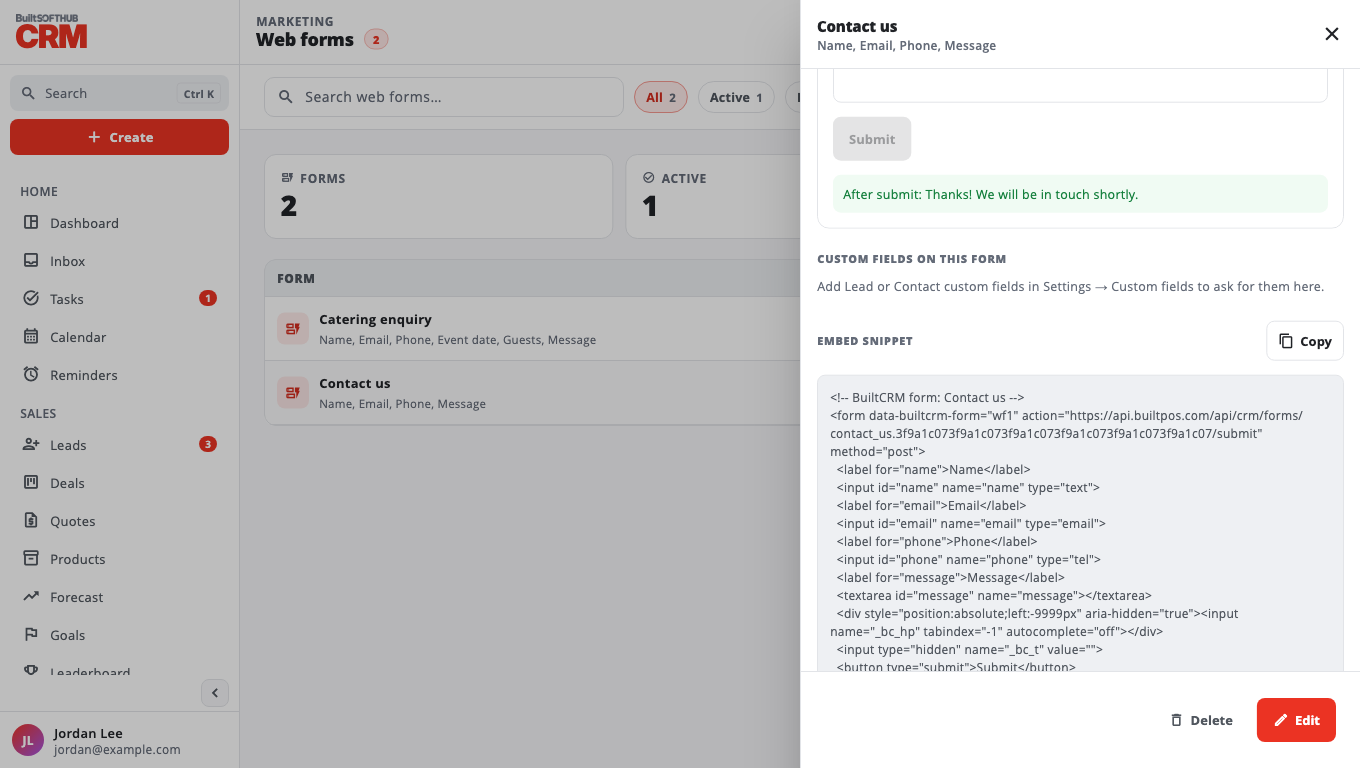
The status shows Collecting while it works. Each submission becomes a lead with the source web form: your form name. See Capture and convert leads.
Change or stop the form#
- New link makes a fresh link. The snippet already on your website stops working, so paste the new one.
- Turn off stops collecting until you turn it on again (with a new snippet).
- Setting the form to Draft pauses it (Paused (Draft)) — submissions are refused.
Not getting leads? See Web form not creating leads.
Was this helpful?
Thanks for letting us know.
Sorry it did not help. Tell us what was missing: open Help & Support in the app and choose Report a problem, or email support@builtsofthub.com.