
Send a quote or invoice for signature
Connect BuiltSIGN, then have customers e-sign quotes (to accept them) and invoices (to acknowledge them).
On this page
BuiltSIGN is the BuiltSOFTHUB e-signature app. Connect it once, then send documents for signature from BuiltINVOICE.
Connect BuiltSIGN#
- In BuiltSIGN, make an API token. See Connect BuiltSIGN to BuiltINVOICE.
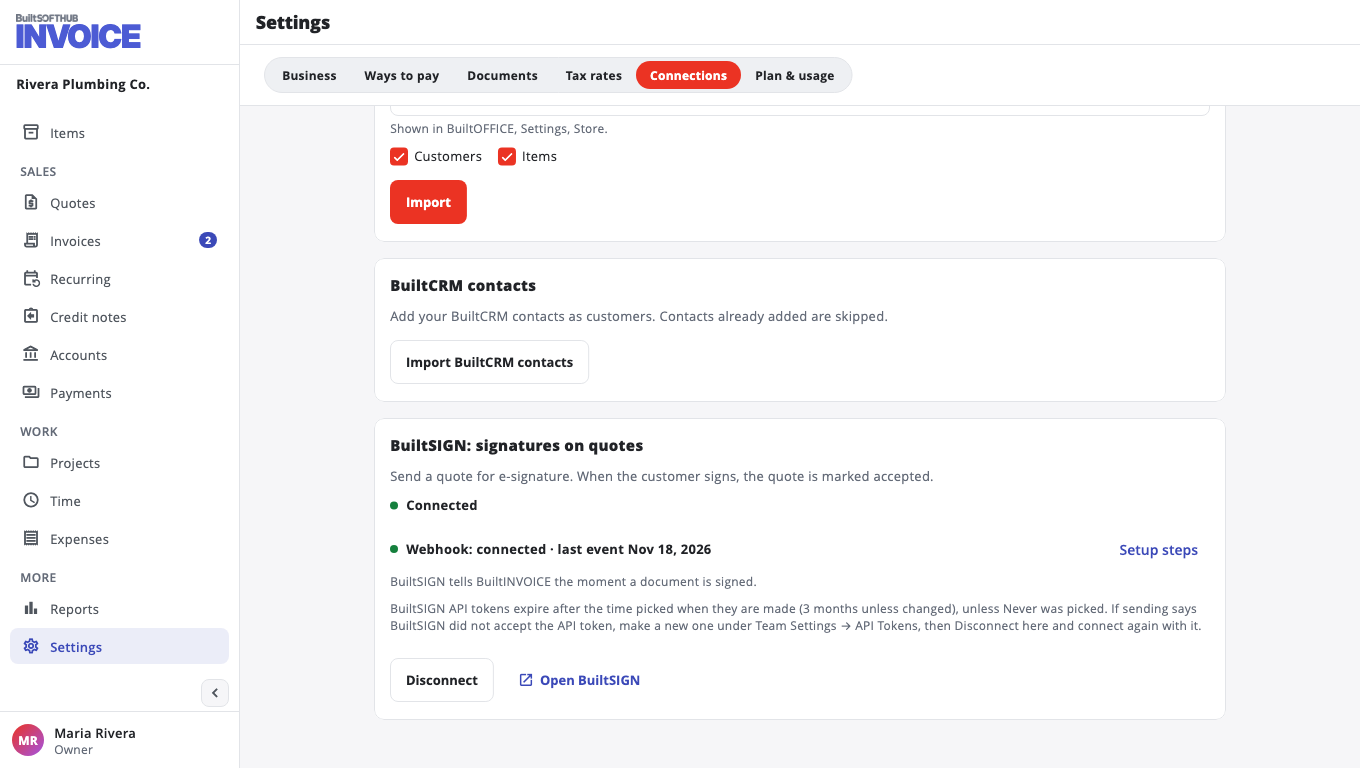
- In BuiltINVOICE, go to Settings, Connections.
- Paste it into BuiltSIGN API token and choose Connect BuiltSIGN.
The card then shows Connected. For signatures to show up the moment they happen, open Setup steps and add the webhook in BuiltSIGN. Without it, signatures show up within the hour.
Only the owner or an admin can connect BuiltSIGN.
Send for signature#
- Open the quote or invoice and choose Send for signature.
- Check Signer name and Signer email.
- Under Send by, choose Email, SMS or WhatsApp. SMS and WhatsApp need the signer's phone.
- Add an optional Message (optional) and choose Send for signature.
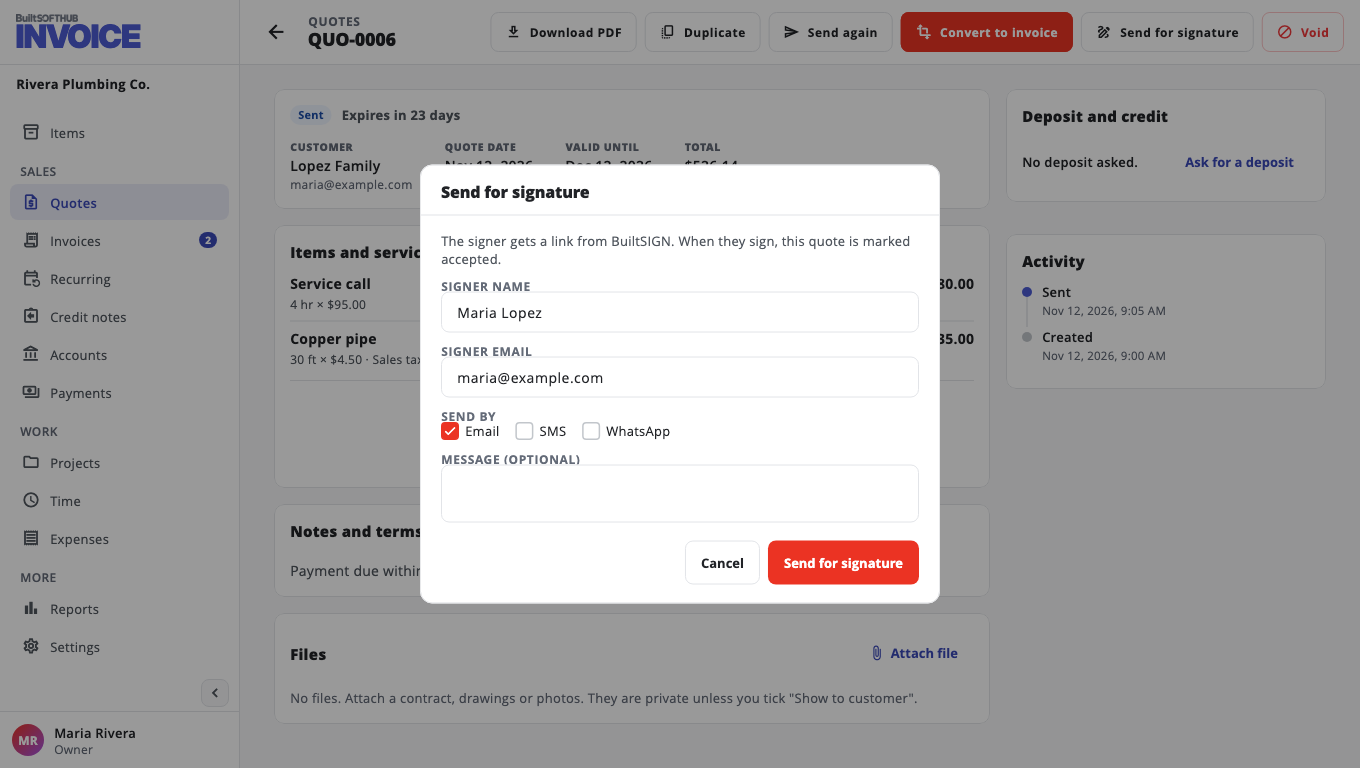
- On a quote, signing marks it accepted.
- On an invoice, signing records who acknowledged it. It does not change what is owed.
What the signer sees: Sign a document.
Follow it up#
The Signature card on the document shows its status, such as Waiting for signature or Signed. From there you can:
- Send a reminder (once a day at most),
- Check now for an update,
- Cancel request,
- Download signed copy and Download certificate once it is signed,
- Open in BuiltSIGN.
A request not signed within 60 days expires. Send it again if you still need it.
Was this helpful?
Thanks for letting us know.
Sorry it did not help. Tell us what was missing: open Help & Support in the app and choose Report a problem, or email support@builtsofthub.com.