
Add staff and set roles
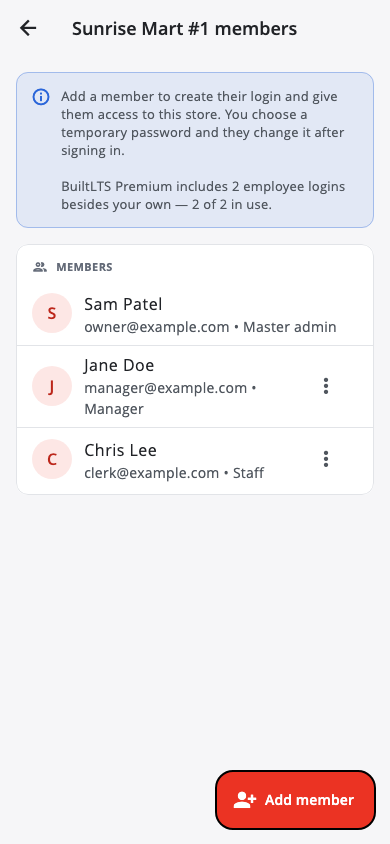
Create logins for your team and choose Master admin, Manager or Staff.
Store users are part of BuiltLTS Premium. Only the store owner (master admin) manages them.
- Go to Settings › Store Users & Access and tap Manage members.
- Tap Add member.
- Enter their Email, Display name, a Temporary password and pick a Role. Tap Create.
- Share the temporary password with them and ask them to change it after signing in.
If the email already has a BuiltSOFTHUB account, it is simply added to your store — they keep their own password.
Roles#
- Master admin — the owner. Billing, deleting the store and everything else.
- Manager — can change store settings and rules and edit filed settlements.
- Staff — runs shifts, scans and settles. Can't change store settings or edit a filed settlement.
To change someone, tap the menu next to their name: Set as Master admin, Set as Manager, Set as Staff, Reset password or Remove from store. Nobody can change their own role, and a store always keeps at least one master admin.
Managing members needs an internet connection.
Don't want every clerk to have a login? Use clerk names and PINs instead. See also Team and roles.
Was this helpful?
Thanks for letting us know.
Sorry it did not help. Tell us what was missing: open Help & Support in the app and choose Report a problem, or email support@builtsofthub.com.