
Upgrade to Premium
Turn on BuiltLTS Premium by card on the web, or with an activation code.
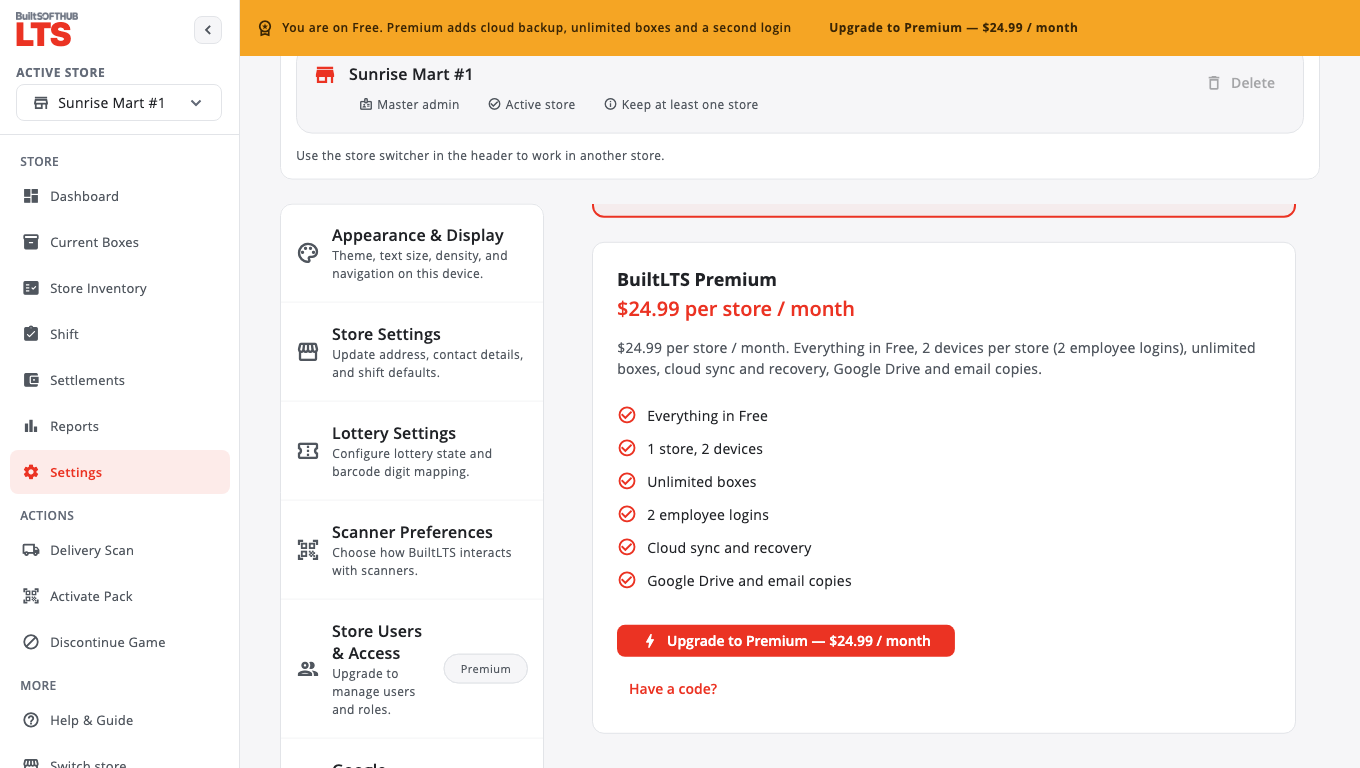
BuiltLTS Free covers one store on one device, up to 50 boxes. BuiltLTS Premium adds unlimited boxes, a second device (2 employee logins), store users and roles, cloud sync and recovery, Google Drive copies and automatic settlement emails. Premium is billed per store, monthly. See current prices on the BuiltLTS pricing page.
Only the store owner (master admin) can upgrade.
Pay by card (web)#
- Open BuiltLTS in a browser at lts.builtsofthub.com/app and sign in as the store owner.
- Go to Settings › Billing & Subscription.
- Tap Upgrade to Premium.
- Finish paying on the page that opens. When it says the payment went through, tap I have paid.
- You'll see Premium is on. Thank you!
The phone apps do not take payments. They show Plans are managed by your store's account owner. — upgrade from the web.
Use an activation code#
- Go to Settings › Billing & Subscription.
- Tap Have a code? and enter your Activation code (it starts with PLS-).
- Tap Activate.
Activating needs an internet connection.
Manage or cancel#
- Manage billing (web) opens the billing page to change your card or see invoices.
- End subscription stops Premium. If you paid by card, Premium stays on until the end of the period you paid for. Your data stays on the device.
Related: Plans and billing
Was this helpful?
Thanks for letting us know.
Sorry it did not help. Tell us what was missing: open Help & Support in the app and choose Report a problem, or email support@builtsofthub.com.