
Change stock and prices
Add or remove stock, change one product's price, update many prices at once, schedule a price change for later, and see price history.
All of these are on one page: Inventory → Adjust Stock & Prices. Pick a tab at the top.
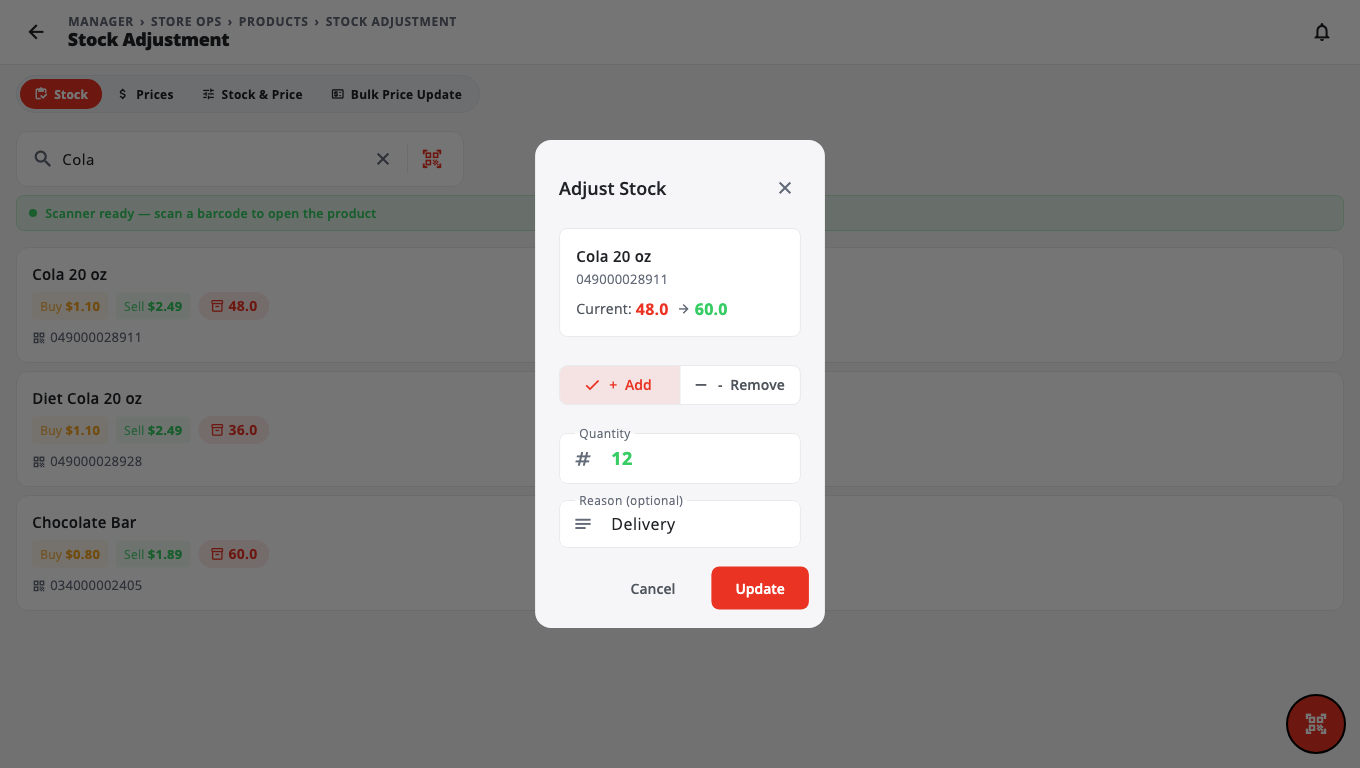
Add or remove stock#
- Open the Stock tab.
- Search for the product and tap it.
- Choose + Add or - Remove, enter the Quantity and an optional Reason.
- Tap Update.
Change one price#
- Open the Prices tab.
- Search for the product and tap it.
- Enter the New Buy Price and/or New Sell Price. A warning shows if you sell below cost.
- Tap Update.
Change stock and price together#
The Stock & Price tab lets you scan a barcode, then update the price and the stock in one go. Tap Save Changes.
Change many prices at once#
- Open the Bulk Price Update tab.
- Search, or filter by Category or Group, and add products to the basket.
- Choose an Action, for example Price Increase % or Price Decrease $. You can also change the category, supplier, group or department of all of them.
- Under Effective, choose Now, or Schedule for… and pick a date and time (in store time).
- Tap Apply (or Schedule) and confirm.
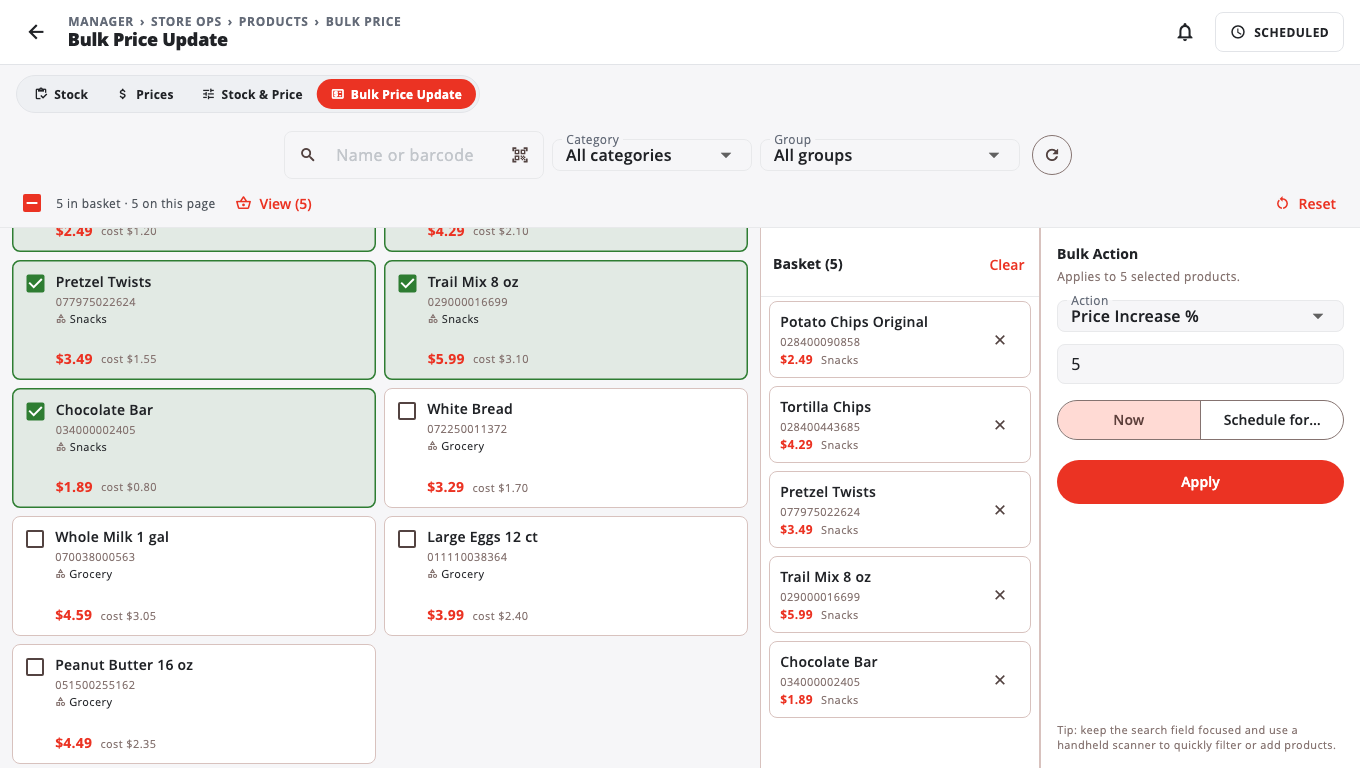
Only owners and admins can use Bulk Price Update. Only price increases and decreases can be scheduled.
Schedule one product's price change#
On the product's Edit Product page, tap Schedule price change…. Enter the New sell price, an optional New cost, and when it starts, then tap Schedule.
See price history and scheduled changes#
Go to Inventory → Price History (on the … more cards hidden — Show all list):
- History: every price change made.
- Scheduled: changes waiting to happen. You can cancel them, apply due ones now with Apply due now, or Print labels for the new prices.
Move stock within the store#
Go to Inventory → Location Transfers (on the Show all list), tap +, add products, then Review, choose From Location and To Location, and Confirm Transfer. To send stock to another store, see Multiple stores.
Good to know#
- Managers, owners and admins can adjust stock and single prices.
- Bulk Operations (edit many products in a grid, or by CSV) needs the Batch Operations module turned on in Marketplace.
- Scheduled price changes are not available on legacy Windows POS stores.
- Tills pick up the new prices on their next sync.
Was this helpful?
Thanks for letting us know.
Sorry it did not help. Tell us what was missing: open Help & Support in the app and choose Report a problem, or email support@builtsofthub.com.