
Manage more than one store
Switch between your stores, see all stores together in the P&L, copy your catalog from one store to the others, and send stock between stores.
If your account has more than one store, BuiltOFFICE shows one store at a time. Everything you do (products, reports, settings) is for the store you have open.
Switch to another store#
- Tap the store name at the top of the menu.
- Search or scroll in Your stores and tap the store you want.
BuiltOFFICE opens that store's Dashboard on Today.
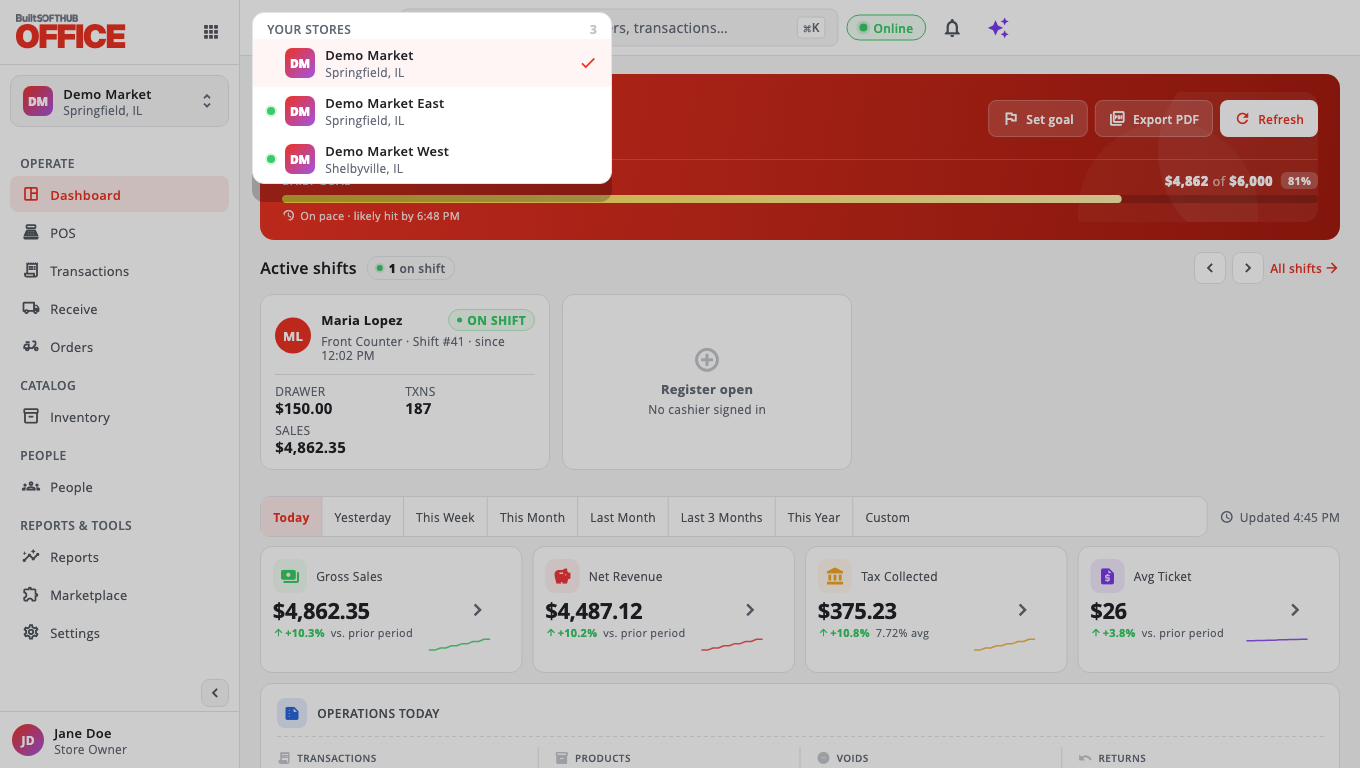
On a phone, you can also go to More → Settings → Switch Store.
See all stores together#
Go to Reports → P&L Statement and choose All stores at the top. Choose This store to go back. The switch only shows when you have two or more stores.
Copy your catalog to other stores#
Set up products once and send them to the rest of your stores.
- Go to Inventory → Publish Catalog.
- Under Source, pick the store to copy from.
- Under Targets, pick the stores to copy to (Publish to Selected stores, or a group of stores).
- Choose what to copy (products, categories, taxes, promotions).
- Under When a product already exists at a target, overwrite:, choose which fields may be replaced. Use Change the price only if the other stores keep their own names and categories.
- Tap Preview to see what will change, then Publish.
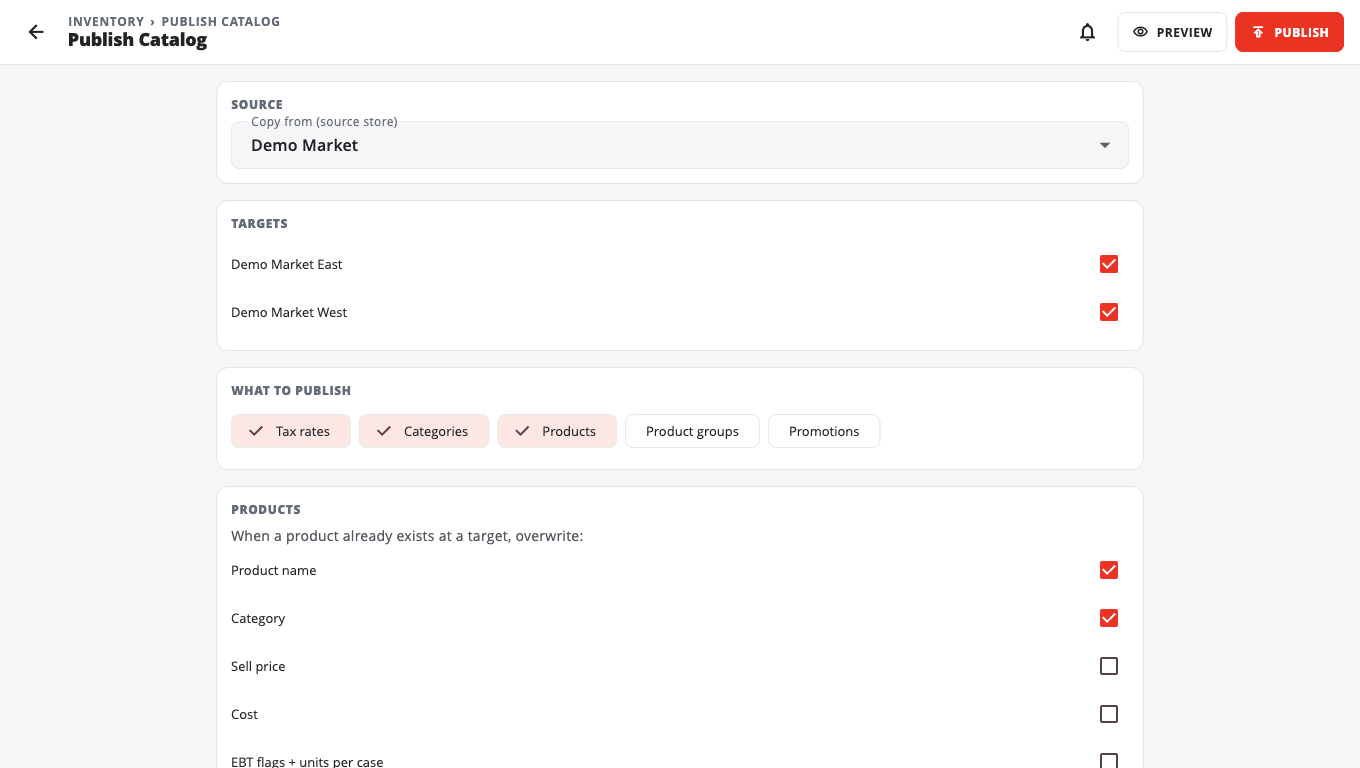
Stock counts are never copied. New products start at 0 in the other stores.
Send stock to another store#
- Go to Inventory → Store-to-Store Transfers (on the … more cards hidden — Show all list).
- Tap New Transfer, choose the other store and add the items.
- Tap Validate to check that every item exists in both stores.
- Tap Send (decrement source). The stock comes off this store.
- When it arrives, open the transfer at the other store and tap Receive (increment dest).
A transfer sent by mistake can be undone with Reverse.
Good to know#
- Only owners and admins can publish a catalog.
- Each store has its own employees, tills and settings. A person needs access to each store to see it.
- To open another store location, contact your provider or BuiltSOFTHUB support. Your plan sets how many stores you can have.
- Publishing and store-to-store transfers are not available for legacy Windows POS stores.
Was this helpful?
Thanks for letting us know.
Sorry it did not help. Tell us what was missing: open Help & Support in the app and choose Report a problem, or email support@builtsofthub.com.