
Run payroll
Create a pay period, generate paystubs from the hours worked, review them and finalize.
1. Create a pay period#
- Open Run payroll.
- Choose Create Pay Period (or New once you have periods).
- Pick the Period start, Period end and Pay date, then choose Create.
2. Generate paystubs#
- Pick the period from the list at the top.
- Choose Generate Paystubs.
- The window shows any open punches (people still clocked in) and active employees with no punches. Choose Review punches to fix them first. See Fix time punches.
- Choose Generate paystubs.
Hourly pay counts closed punches only. A salaried employee with no punches is normal.
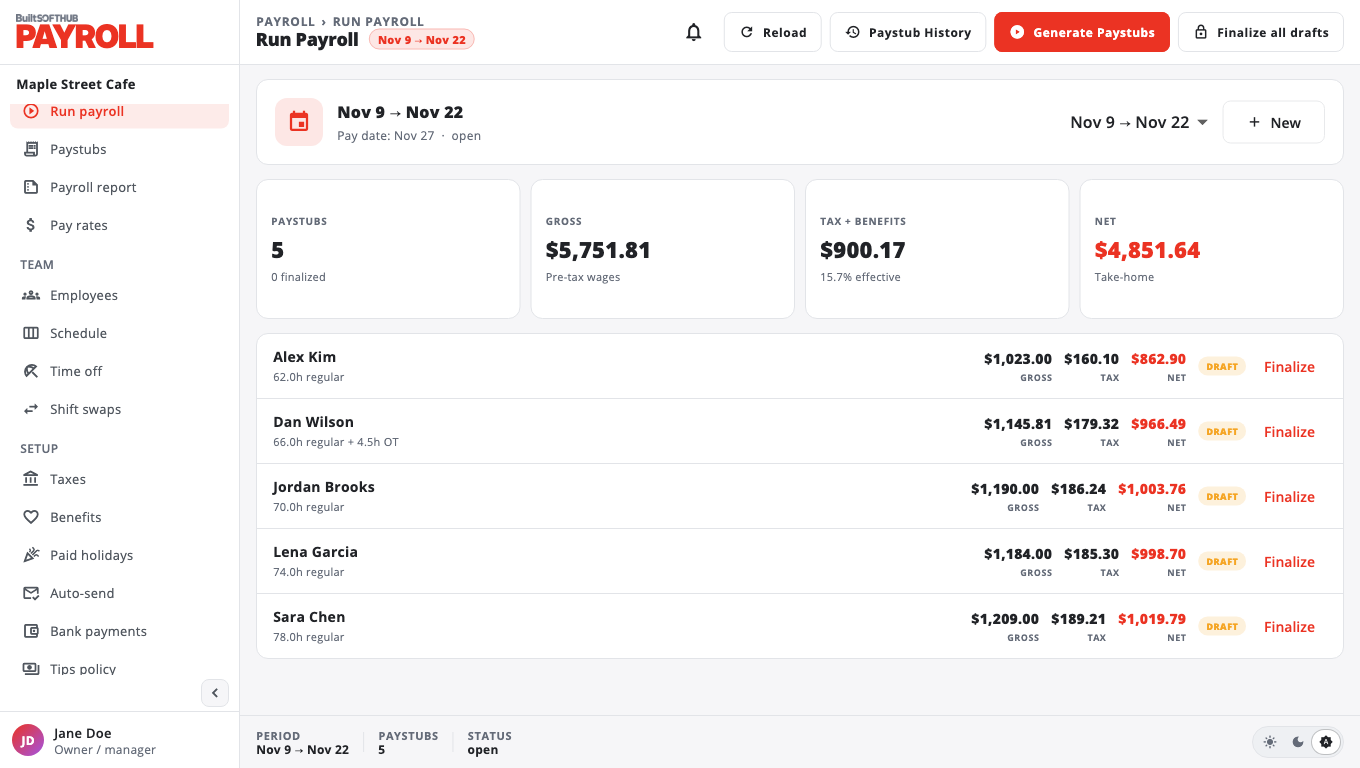
3. Review#
Each paystub shows regular and overtime hours, gross, taxes and net. The tiles at the top show the totals for the period. You can choose Generate Paystubs again as often as you like: draft paystubs are worked out again, finalized ones are skipped.
4. Finalize#
- Choose Finalize on one paystub, or Finalize all drafts.
- A finalized paystub is locked. Running payroll again does not change it, and the tips on it are marked as paid.
5. Pay#
Pay your team the way you normally do, using the net amounts. If you set up bank deposit, choose Pay via Stripe (see Pay employees by bank deposit).
Then send paystubs: Download paystubs or email them automatically.
Was this helpful?
Thanks for letting us know.
Sorry it did not help. Tell us what was missing: open Help & Support in the app and choose Report a problem, or email support@builtsofthub.com.