
Set pay rates and overtime
Set hourly, salary, commission or hybrid pay, the overtime rule and a holiday multiplier for each employee.
On this page
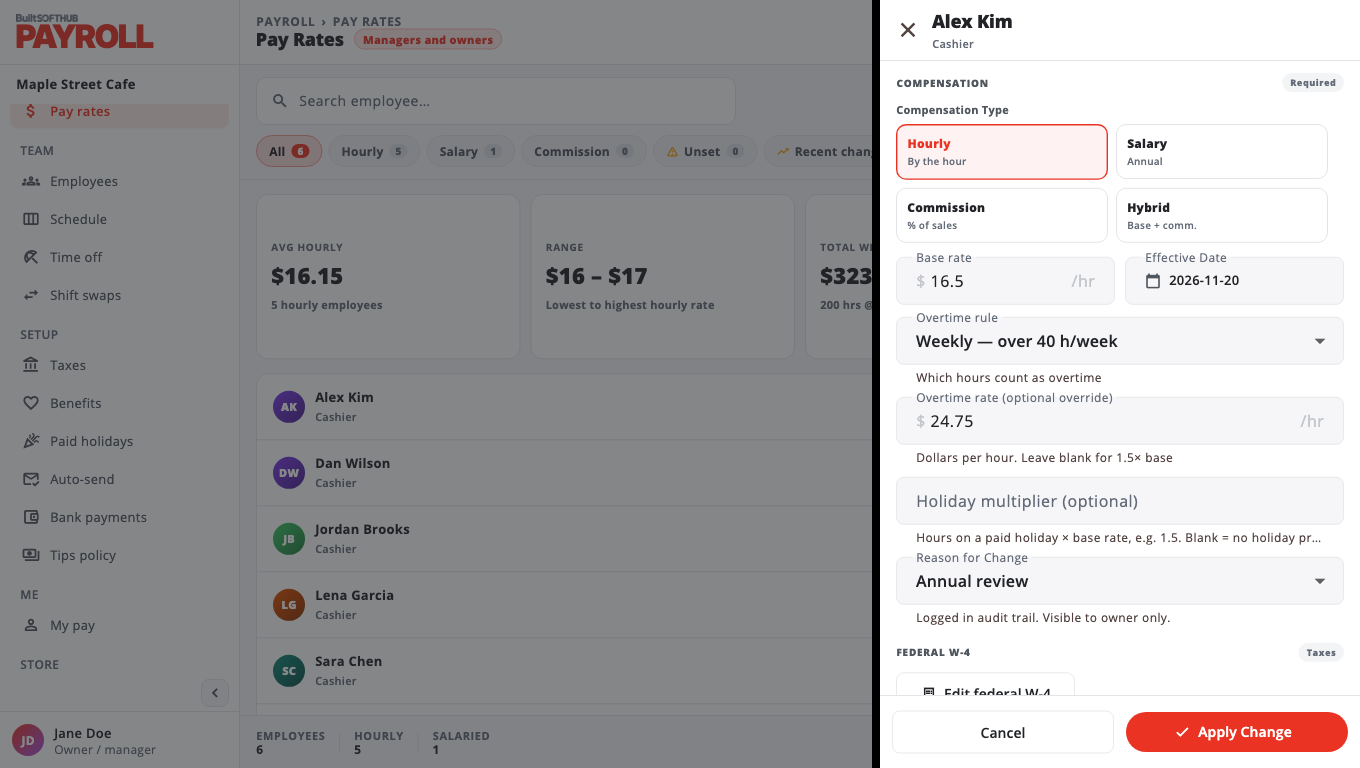
- Open Pay rates. Use the chips (Hourly, Salary, Commission, Unset) to filter the list. Unset shows people with no pay rate yet.
- Tap an employee to open their pay editor.
- Pick the Compensation Type: Hourly, Salary (annual), Commission or Hybrid (base plus commission).
- Enter the rate and the Effective Date.
- Pick the Overtime rule:
- Weekly — over 40 h/week (the default)
- Daily — over 8 h/day
- Daily 8 h + weekly 40 h
- California (daily 8/12, 7th day)
- Exempt — no overtime
- Optional: Overtime rate (optional override) in dollars per hour. Leave it blank for 1.5 × the base rate.
- Optional: Holiday multiplier (optional) for hours worked on paid holidays.
- Enter a Reason for Change. It goes in the audit log.
- Choose Apply Change.
Federal W-4#
In the same editor choose Edit federal W-4 to enter the employee's filing status and adjustments. It is used only when Calculate federal withholding from W-4 is on in Taxes.
See past changes#
Choose Audit Log at the top of Pay rates to see who changed which rate and why. Export copies the list as CSV.
Changes apply to draft paystubs the next time you choose Generate Paystubs. Finalized paystubs never change.
Was this helpful?
Thanks for letting us know.
Sorry it did not help. Tell us what was missing: open Help & Support in the app and choose Report a problem, or email support@builtsofthub.com.