
Hold and recall sales
Put a sale on hold to serve the next customer, then bring it back on this or another register.
On this page
Hold a sale#
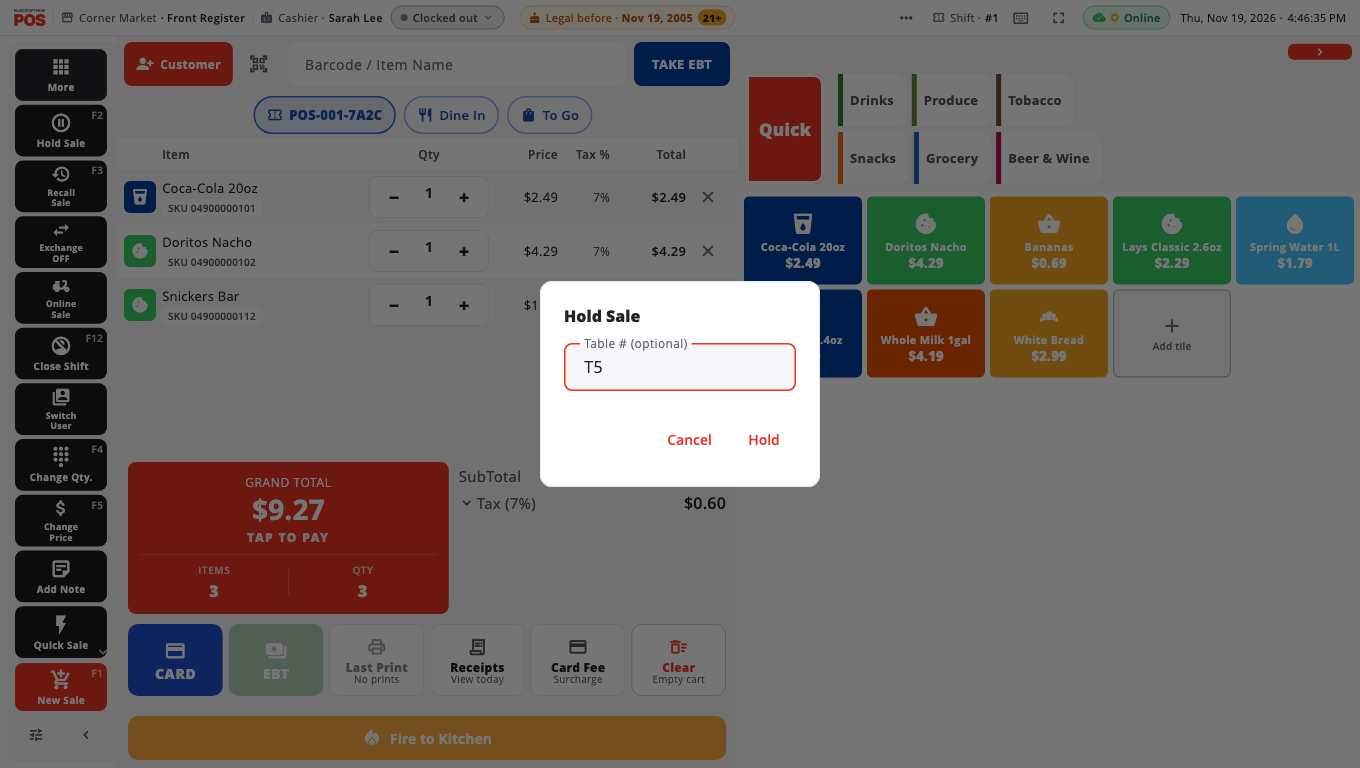
- With items in the cart, tap Hold Sale on the left button panel (F2 on Windows).
- Optionally type a name or table in Table # (optional) — for example "T5" or "Bar-2" — so you can find it later.
- Tap Hold. The cart is emptied and you can serve the next customer.
You can also tap Park bill on Take payment. On a phone, use Hold Bill on the Review page.
Recall a held sale#
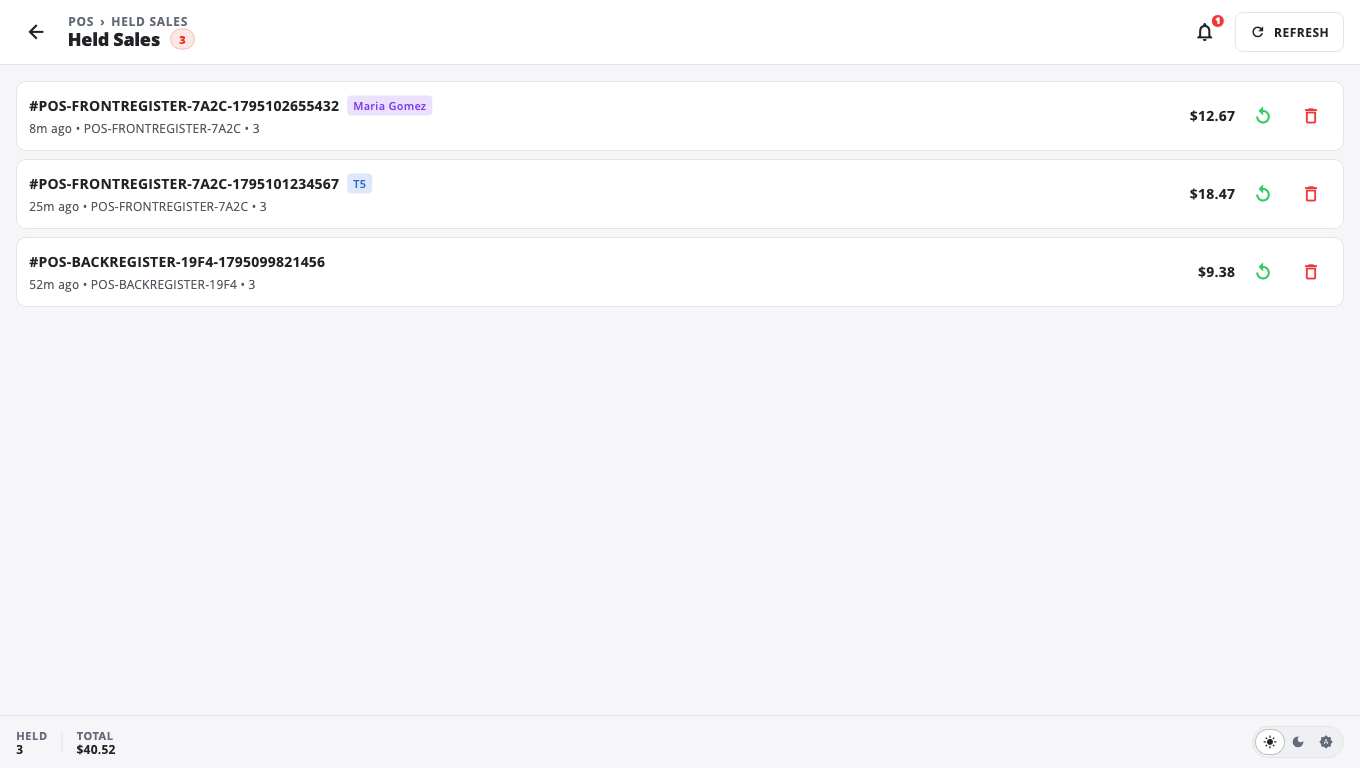
- Tap Recall Sale (F3). The button shows how many sales are on hold.
- Held Sales lists every held sale — from this register and the others in your store.
- Tap the recall icon on the sale you want.
- If your cart already has items, choose Hold & recall (holds the current cart first), Discard & recall, or Cancel.
- Finish the sale as normal.
Good to know#
- A held sale keeps its items, discounts, coupon and customer.
- Print a parked-order slip prints a slip for a held order. It is not a receipt.
- To throw a held sale away, tap the delete icon and confirm Delete held bill?. This cannot be undone.
- If someone recalls the same sale on another register at the same moment, you see That bill was just recalled on another terminal.
- A sale with fuel already pumped cannot be held — finish it.
- Payments are not kept on a held sale. If you park a bill with a card already approved, that card payment is voided first.
Was this helpful?
Thanks for letting us know.
Sorry it did not help. Tell us what was missing: open Help & Support in the app and choose Report a problem, or email support@builtsofthub.com.