
Link and manage tills, kitchen screens and kiosks
Pair a new till, kitchen display or kiosk with a 6-digit code, see which devices are online, rename them, and revoke a device you no longer use.
Every till, kitchen display (KDS) and kiosk is a terminal. Each one must be paired to your store before it can sync sales.
Only the store owner and admins can open Terminals.
Pair a new device#
- In BuiltOFFICE, go to POS → Terminals.
- Tap Pair Terminal (the + button).
- Choose 6-digit code (recommended).
- Enter a Terminal name, for example "Front Counter" or "Lane 3". It shows in BuiltOFFICE and on receipts.
- Choose the Role: Standalone POS, Kitchen Display (KDS), Self-serve Kiosk, or Cashier (paired to hub).
- Choose the Platform: iPad, Android, Windows, macOS or Web.
- Tap Pair. A 6-digit code appears with a countdown.
- On the new device, type the code. A till: open the BuiltPOS app and tap Pair this device. A kiosk: open BuiltKIOSK and tap Pair with code. A kitchen display: open BuiltKDS, type the code on Pair this display and tap Pair.
- Back in BuiltOFFICE, the wizard waits for the device. When it says Terminal is online and syncing., tap Done.
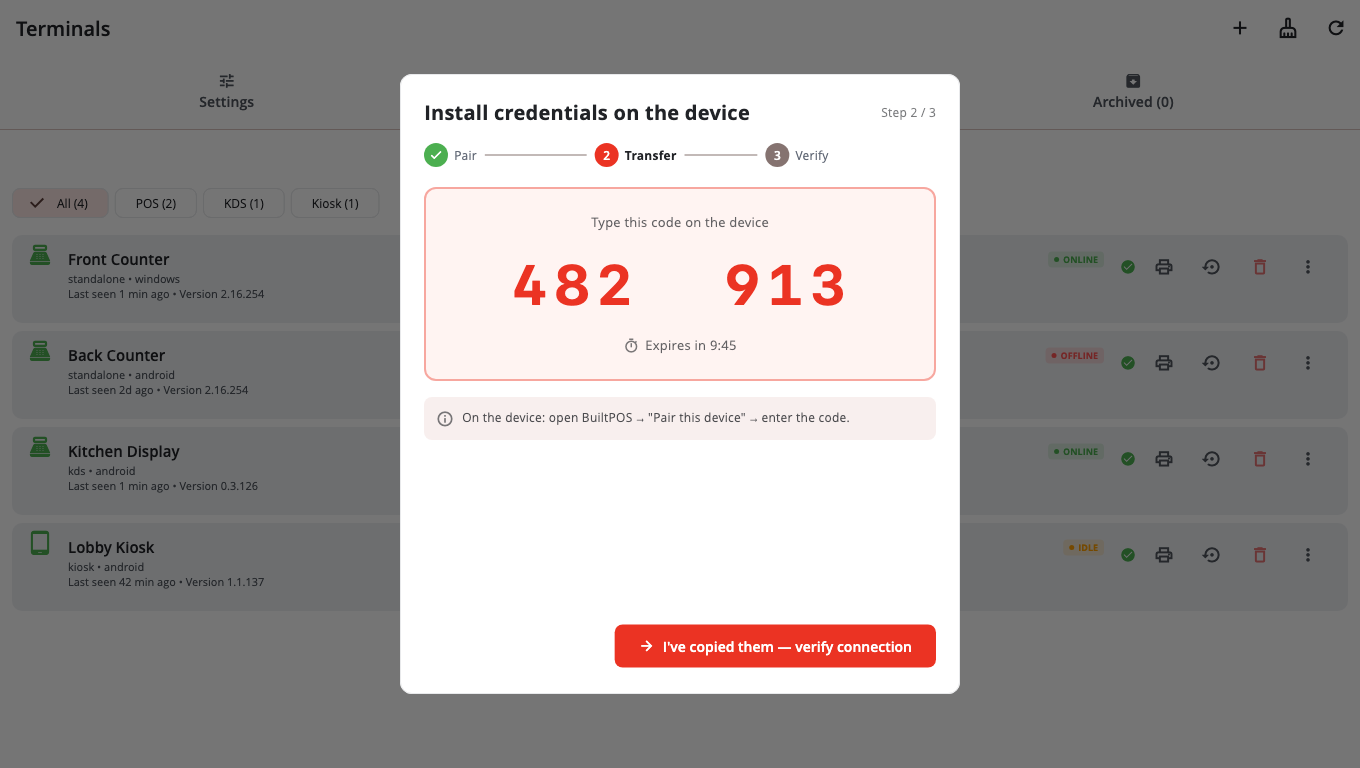
If the code runs out before you use it, tap Generate new code. You get a fresh code with the same name, role and platform.
For step-by-step help on the device, see Link this device.
See your devices#
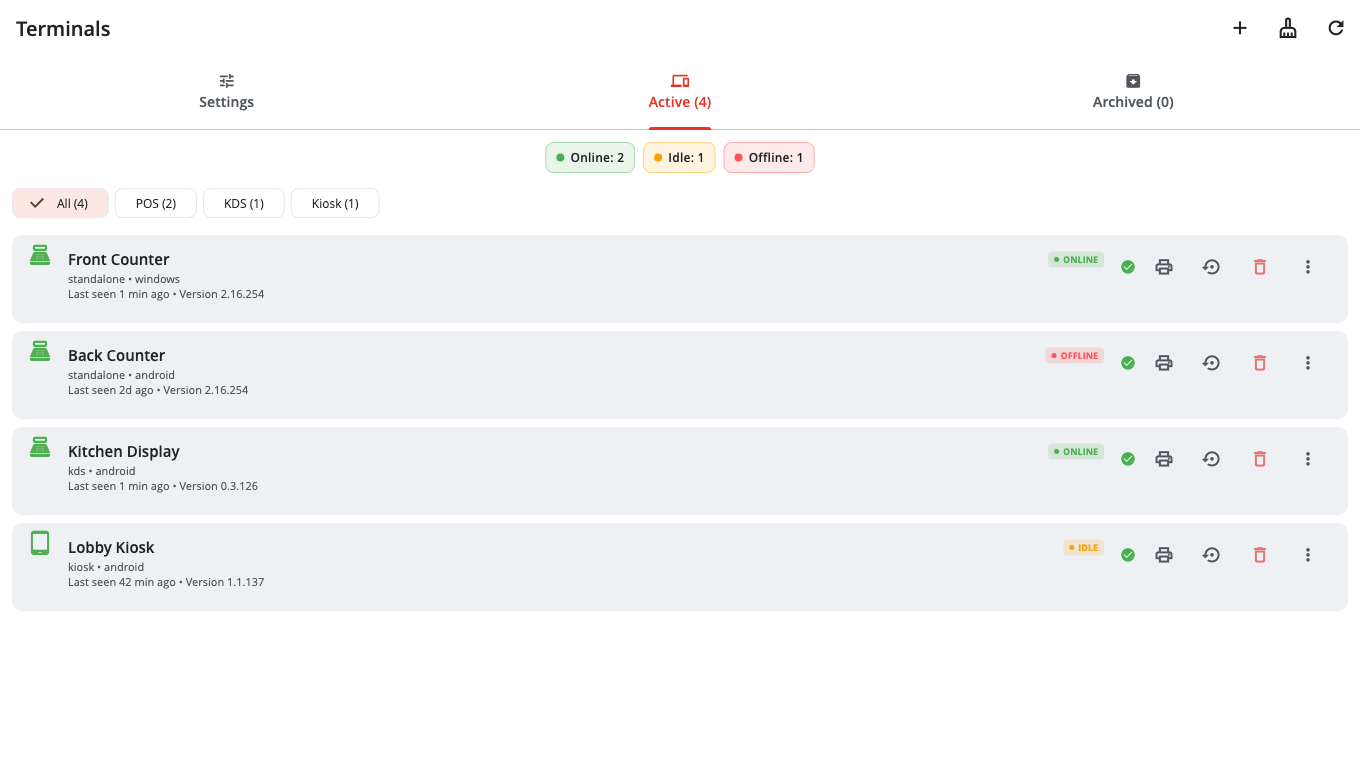
The Active tab lists every paired device with its status: Online, Idle or Offline. Filter by type (POS, KDS, Kiosk). A device that needs an update shows UPDATE AVAILABLE.
The Settings tab shows the settings of one till. Pick the till at the top.
Manage a device#
Open the device's More menu (⋮):
- Rename: change its name.
- Assign printers: choose which printers this till uses. See Kitchen stations and printers.
- Config backups: see saved copies of the till's settings, and reset it to the store defaults.
- Sync now: ask the till to sync straight away. It runs within a few seconds if the till is online.
- Upload diagnostics: ask the till to send its logs to support.
- Revoke: unlink the device.
Revoke a device#
- Open the device's menu and tap Revoke.
- Read the warning. If the till still has an open shift, BuiltOFFICE tells you. Close the shift on the till first if you can.
- Tap Revoke (or Revoke anyway).
The device stops syncing and moves to the Archived tab. To use it again, pair it again.
Clean up old entries#
Tap Archive stale at the top. It removes pairing codes that were never used (after 24 hours) and revoked devices not seen for 30 days. Active devices are not touched.
Good to know#
- Your plan sets how many terminals you can pair.
- Moving a till to a new computer? You can move it from the till itself, without pairing a new terminal. See Link this device.
- Terminals are not available on legacy Windows POS stores.
- To check sync health for every till at once, see Reports → Store Health.
Was this helpful?
Thanks for letting us know.
Sorry it did not help. Tell us what was missing: open Help & Support in the app and choose Report a problem, or email support@builtsofthub.com.