
BuiltPOS is slow, frozen or won't start
What to do when the till is slow, stops responding, opens in safe mode, or shows the Data recovery screen.
The cloud pill says "Slow"#
Slow means the server is taking more than a few seconds to answer. The till keeps ringing sales; only syncing slows down. It clears by itself when the connection improves. Tap the pill for details — see Offline or sales not syncing.
The till stops responding#
- Wait 30 seconds. A card payment or a large sync can hold the screen briefly.
- Look at the card terminal. If it is waiting for a card, finish or cancel the payment there.
- Restart BuiltPOS: close it and open it again. Your sales are saved on the till.
- If it is still frozen, restart the computer or device.
On Windows, if you try to close BuiltPOS while a card payment is in progress, it stays open and says A payment is in progress. Finish or cancel the payment first, or close it again within 10 seconds to close anyway.
BuiltPOS opens in safe mode#
If BuiltPOS fails to start three times in a row, it opens BuiltPOS safe mode instead. Nothing has been deleted.
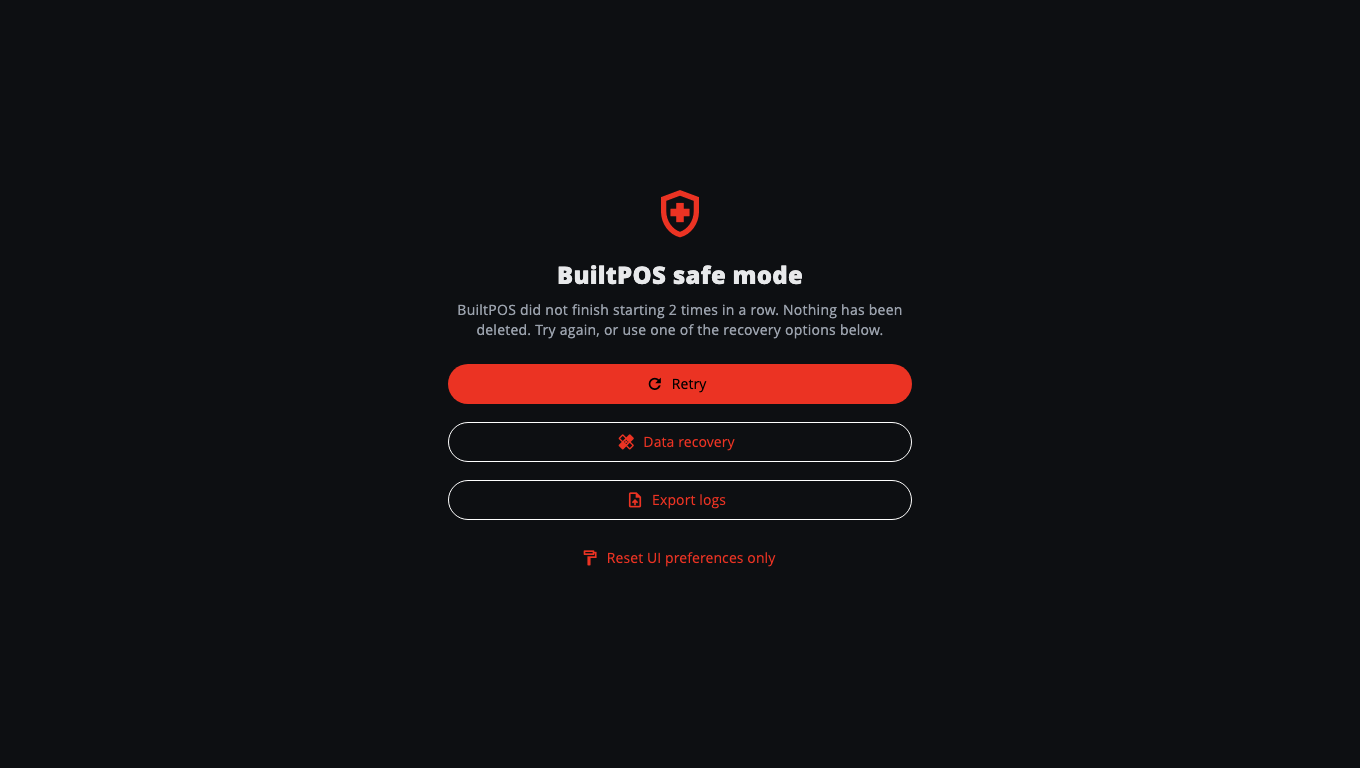
- Tap Retry first.
- Still failing? Tap Reset UI preferences only, then Reset. This puts theme, colours and layout back to the defaults — sign-in, store link, settings and sales are not touched. Tap Retry again.
- Tap Export logs and send the file to support with a ticket. The file's location is copied for you.
- Data recovery opens the recovery screen described below.
"Local data unavailable" (Data recovery screen)#
This screen appears when the till's own data file can't be used — for example it is damaged, an update could not finish, or the computer is out of disk space. Nothing has been deleted.
- If it says the computer is out of disk space, free up space, then tap Try again.
- Otherwise tap Try again once. It only re-opens the file and changes nothing.
- If that doesn't work, contact support. The other options — Restore the copy from before the update, Restore the latest backup, Export for support and Re-sync from the server — need a one-time Support token from BuiltPOS support or your provider. A staff PIN can't unlock them.
Recovery never throws away sales that haven't synced without asking you first.
It got slow or broke after an update#
- Check you are on the latest version: Store Management → Software Updates (see Update BuiltPOS).
- On a Windows computer that also runs your store server, Software Updates has an Update health & restore section where an Owner can see the last update result, retry the update or roll back to the previous version.
Report it#
Open More → Help & Support → Report a problem. Keep Include device details on so support sees your version, terminal and sync status. Replies appear under My tickets.
Good to know#
- On a phone or tablet, swiping BuiltPOS away is fine — it doesn't count as a failed start.
- Keep at least a few GB free on the till's disk; a full disk stops BuiltPOS saving sales.
Was this helpful?
Thanks for letting us know.
Sorry it did not help. Tell us what was missing: open Help & Support in the app and choose Report a problem, or email support@builtsofthub.com.