
Set up the cash drawer
Connect the drawer to the receipt printer, choose when it opens and test it.
On this page
BuiltPOS opens the drawer through the receipt printer. The drawer's cable (an RJ11 / RJ12 plug, like a phone cable) goes into the printer's drawer port — usually marked DK — not into the till.
Set it up#
- Set up the receipt printer first: Set up a receipt printer.
- Plug the drawer cable into the printer's drawer port.
- Open Store Management → This Till → Terminal Settings.
- Tap Cash Drawer in the list on the left.
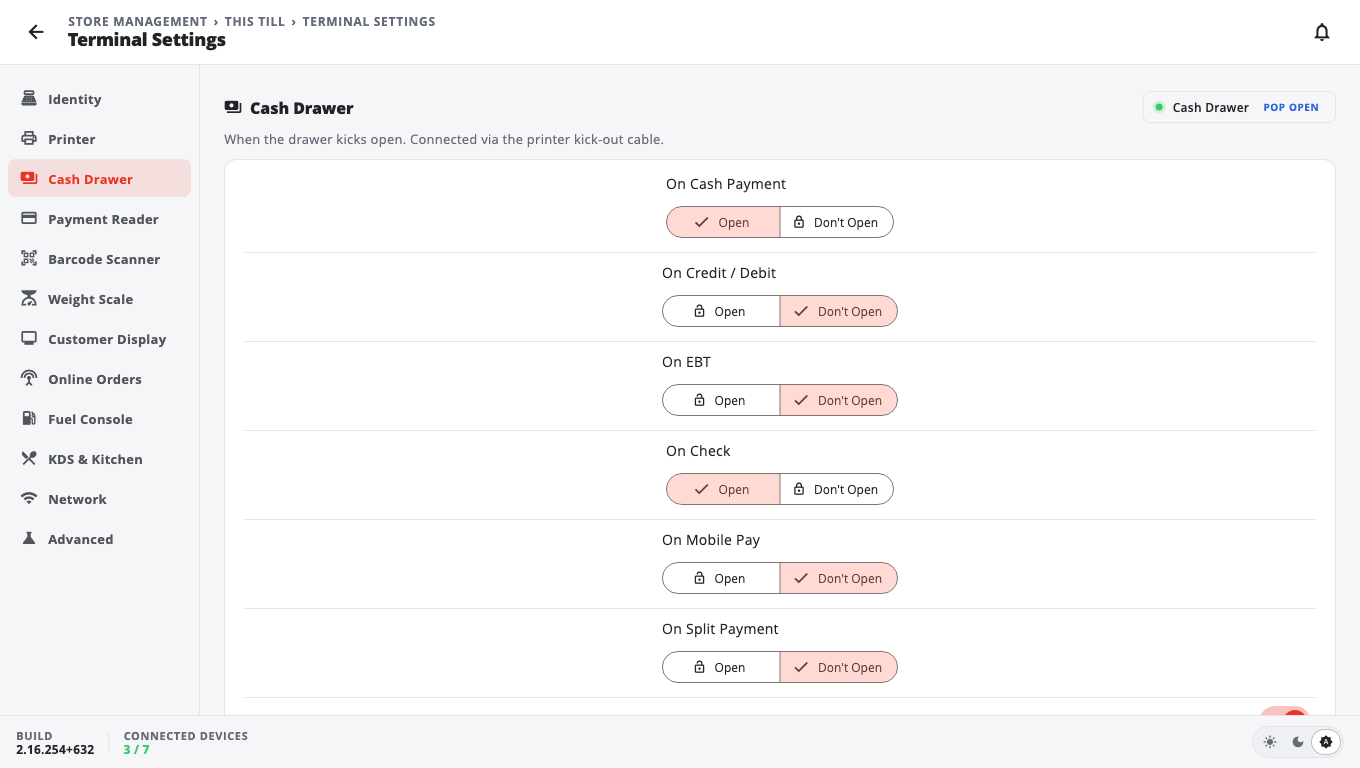
- For each payment type choose Open or Don't Open: On Cash Payment, On Credit / Debit, On EBT, On Check, On Mobile Pay, On Split Payment.
- Leave Kick Code on Standard (Pin 2) to start.
- Tap Save, then tap Test Cash Drawer (or Pop Open at the top of the section). The drawer should open.
If the drawer does not open#
Try the other Kick Code choices one at a time, tapping Test Cash Drawer after each:
- Pin 5 — for drawers wired to the second pin.
- Long Pulse — for drawers that need a longer kick.
- DLE DC4 (VOLCORA / Munbyn / clones) — many low-cost printers.
- Shotgun (try every sequence) — sends every known kick; use it to find out if the drawer can open at all.
- Custom Hex — only if your printer's manual gives you a code.
More help: Cash drawer troubleshooting.
Good to know#
- Out of the box the drawer opens for cash and check payments and stays shut for cards, EBT, mobile pay and split payments.
- No Sale / Open Drawer requires Manager/Admin and Safe Drop requires Manager/Admin are in the same section. Open drawer on cash payout / paid-in / safe drop decides if the drawer opens for those.
- Every drawer opening is logged; managers can review it in the drawer audit.
- A Sunmi register with a built-in printer opens its own drawer — choose Sunmi Built-in as the receipt printer.
- Safe drops and paid outs: Safe drop and paid out.
Was this helpful?
Thanks for letting us know.
Sorry it did not help. Tell us what was missing: open Help & Support in the app and choose Report a problem, or email support@builtsofthub.com.