
Set up a Brother QL label printer
Install a Brother QL (for example QL-800) on a Windows till, match the DK roll to the driver and print shelf and barcode labels.
A Brother QL prints through its Windows driver, so this setup is for Windows tills. On iPad or Android you can still print a label sheet as a PDF, or use a Zebra / TSC printer on your network (see Good to know).
1. Install the printer in Windows#
- Install the Brother driver for your model from Brother's website and connect the printer by USB.
- Load the DK roll you will use (for example DK-1201 address labels or DK-2205 62 mm continuous tape).
- In Windows Settings → Printers & scanners, open the Brother printer → Printing preferences, and set the paper to the same DK roll. This matters: the driver's paper decides how the label comes out.
2. Turn on the label printer in BuiltPOS#
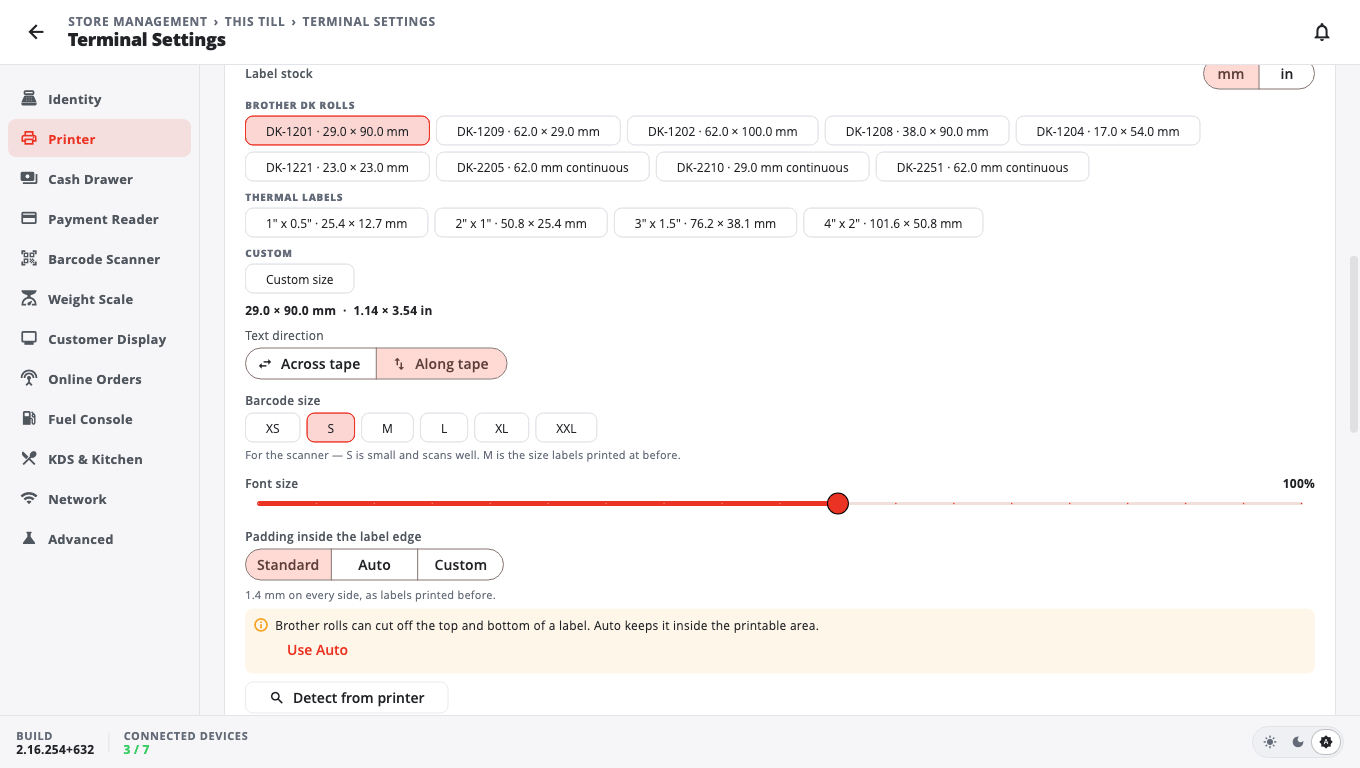
- Open Store Management → This Till → Terminal Settings → Printer.
- Scroll to Barcode / Label Printer and turn on its switch (it is off on a new till).
- Set Connection to System / Local Printer, then pick the Brother printer from the list.
- Under Label stock, open Brother DK rolls and choose the roll you loaded.
- Tap Detect from printer. The till reads the driver and says, for example, Driver is set to … — matches DK-1201. If it reports a different paper, tap Use DK-xxxx to switch to the driver's roll, or change the driver's paper.
- Tap Save.
3. Print a test label#
- Open Manager's Functions → Print Barcode Labels.
- Tap the gear to open Label settings, then tap Print test label. A test label shows its size so you can check it against the roll.
- Print labels for your products as usual — see Print barcode labels.
The paper check before printing#
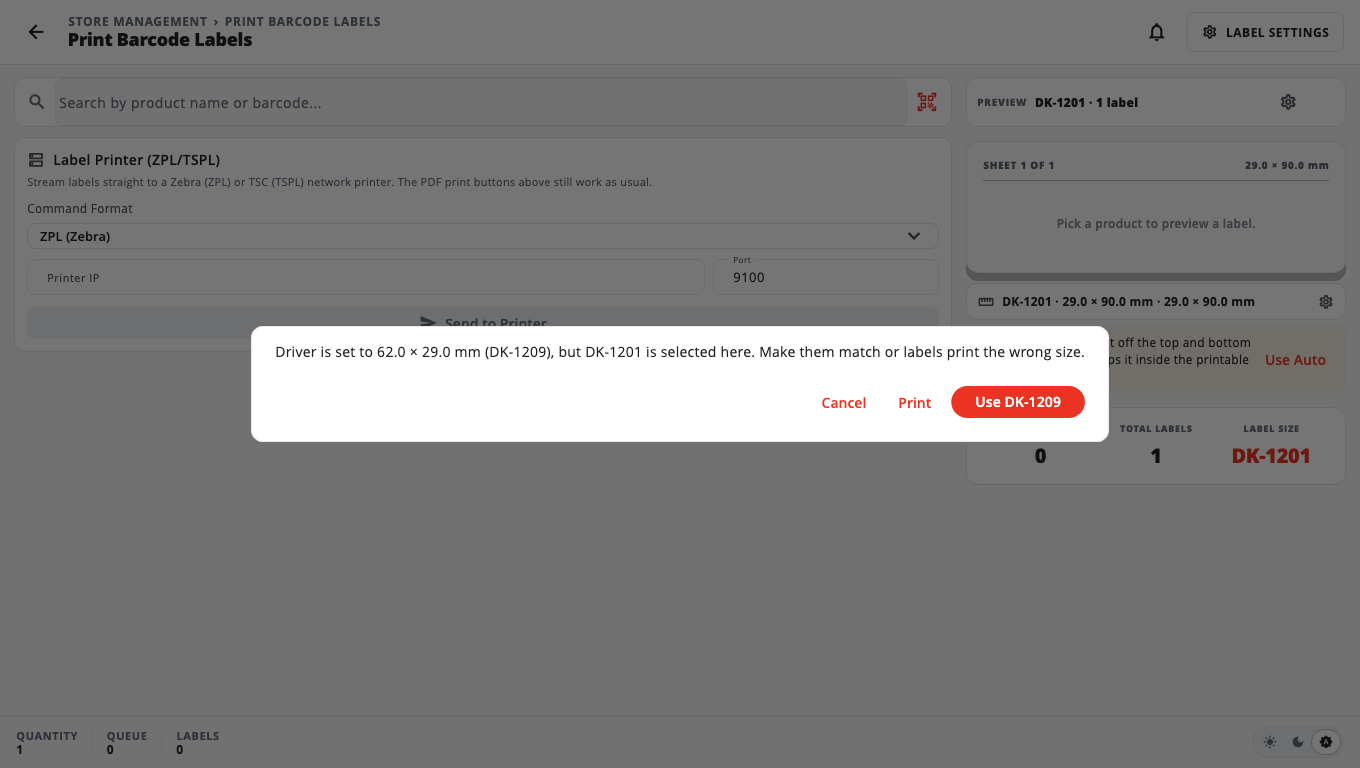
Every time you print labels, the till first compares the roll you chose with the paper the Brother driver is set to (it takes a few seconds the first time). If they don't match and the driver's paper is a known roll, you see a message such as Driver is set to …, but DK-1201 is selected here with three buttons:
- Use DK-1209 (the driver's roll) — switches the label size and prints. Usually the right choice.
- Print — prints with the size you chose anyway.
- Cancel — prints nothing, so you can change the roll or the driver.
Good to know#
- Brother DK rolls listed: DK-1201, DK-1209, DK-1202, DK-1208, DK-1204, DK-1221 (die-cut labels) and DK-2205, DK-2210, DK-2251 (continuous tape). There are also Thermal labels sizes (1" x 0.5", 2" x 1", 3" x 1.5", 4" x 2") and Custom size.
- Text direction (Across tape / Along tape) turns the label text to fit long thin labels.
- On continuous tape a label must be at least as long as the tape is wide.
- Zebra or TSC printers on your network: set Connection to Network (IP), enter the IP Address and Port, then on the Print Barcode Labels page use Label Printer (ZPL/TSPL) and pick the Command Format.
- If printing says Label printing is turned off for this till, step 2 was skipped.
- Labels sideways, cut off or the wrong size? See Label printer troubleshooting.
Was this helpful?
Thanks for letting us know.
Sorry it did not help. Tell us what was missing: open Help & Support in the app and choose Report a problem, or email support@builtsofthub.com.