
Set up a scale and scale labels
Connect a network weight scale to sell by weight, and read price or weight barcodes printed by a deli or produce scale.
There are two different things here:
- A weight scale on the counter that the till reads live while you ring an item.
- Scale labels — barcodes printed by a deli, meat or produce scale. The till reads the price or weight from the barcode; no scale is connected to the till.
Connect a weight scale#
This version reads network (Ethernet / Wi-Fi) scales only. The Serial and USB connection choices (and the Dymo USB (HID) protocol) are marked — not supported yet and show a warning when picked. They can still be saved, but the till does not read them — use a network scale.
- Connect the scale to your network and note its IP address and port (see the scale's manual).
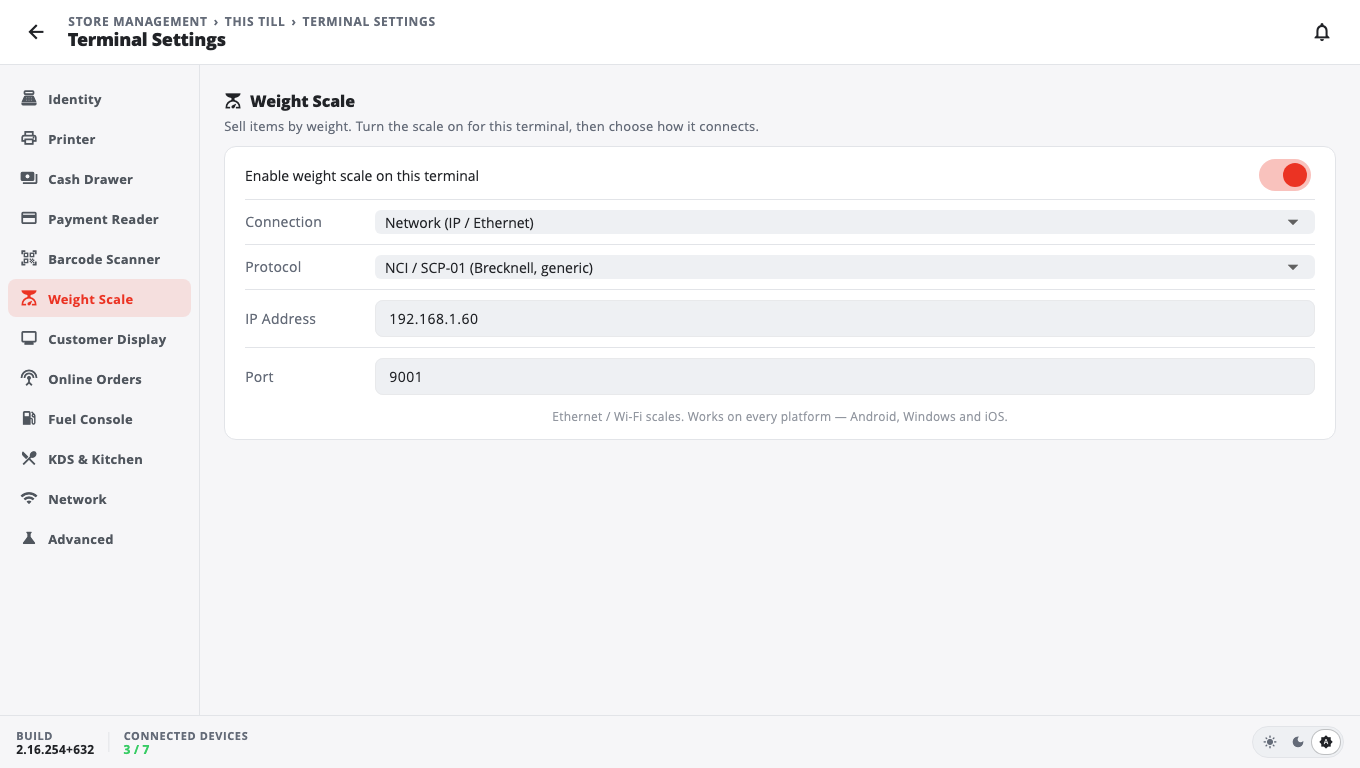
- Open Store Management → This Till → Terminal Settings → Weight Scale.
- Turn on Enable weight scale on this terminal (it is off by default).
- Set Connection to Network (IP / Ethernet), then enter the IP Address and Port.
- Set Protocol to match your scale: NCI / SCP-01 (Brecknell, generic), Mettler-Toledo (8217), CAS (PD-II / SW) or Avery Weigh-Tronix.
- Tap Save. Put something on the scale and check the weight shows on the sale screen.
Read scale-label barcodes#
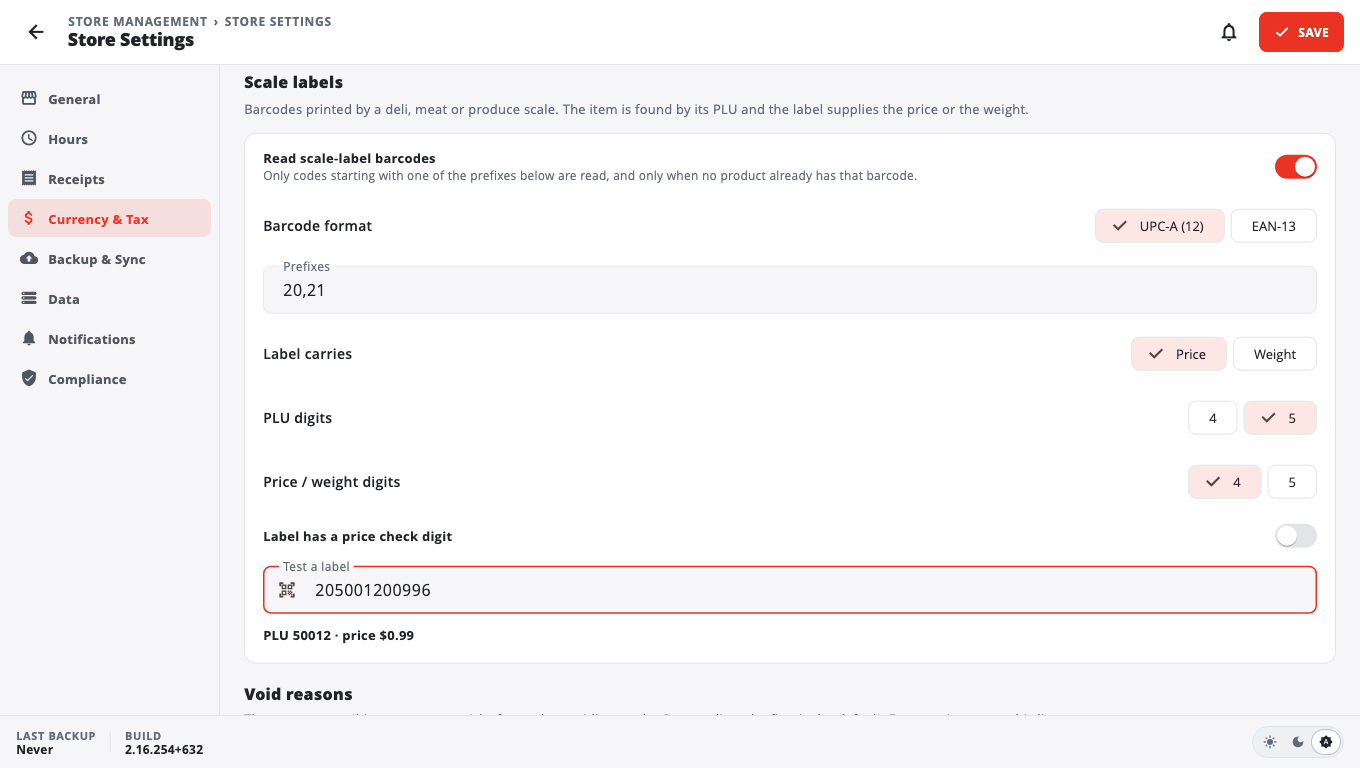
- Open Store Management → Store Settings and find Scale labels.
- Turn on Read scale-label barcodes.
- Set Barcode format (UPC-A (12) or EAN-13) and the Prefixes your scale uses (comma separated, for example 20,21).
- Set Label carries to Price or Weight, then PLU digits and Price / weight digits to match the label. For weight labels also set Weight unit and Weight precision.
- Turn on Label has a price check digit if your scale prints one.
- Scan or type a real label into Test a label. It should show the PLU and the price or weight. If it says Not a scale label for this layout., check the settings against the scale's label setup.
- Save the Store Settings.
The item is found by its PLU, so each product needs its PLU as a barcode or code in your catalog. Only codes that start with one of your prefixes are read this way, and only when no product already has that exact barcode.
Good to know#
- Scale labels are a store setting (every till); the weight scale is per till.
- If a layout cannot fit in the barcode you will see This layout does not fit in the barcode. Use fewer prefix, PLU or value digits.
- Problems: Scale troubleshooting.
Was this helpful?
Thanks for letting us know.
Sorry it did not help. Tell us what was missing: open Help & Support in the app and choose Report a problem, or email support@builtsofthub.com.