
Set up kitchen printers
Send kitchen tickets to a kitchen printer, the receipt printer or one printer per prep station, with or without a kitchen display.
Kitchen tickets are for stores in Restaurant mode. If you don't see the kitchen settings, switch the store to Restaurant mode first: Store Management → Store Settings → POS Mode → Restaurant.
1. Choose where tickets go#
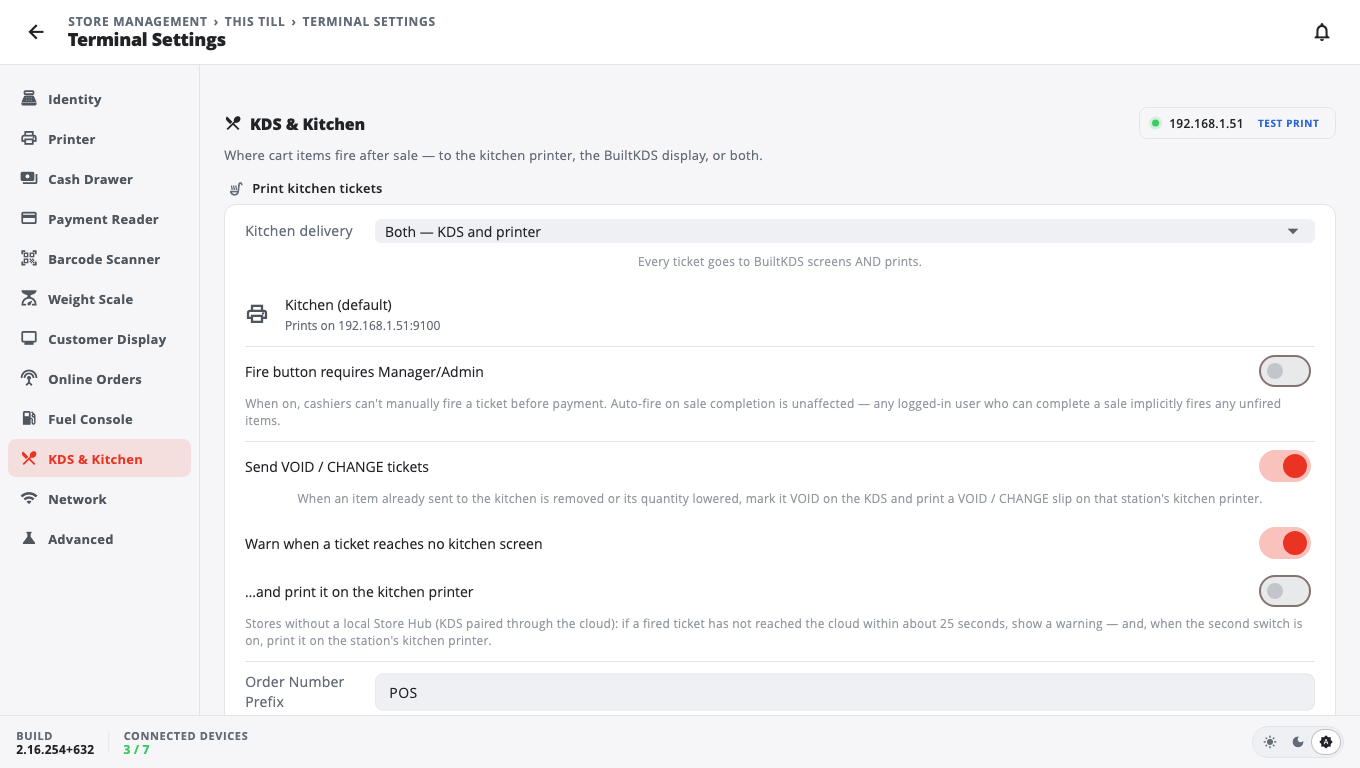
- Open Store Management → This Till → Terminal Settings.
- Tap KDS & Kitchen in the list on the left.
- Set Kitchen delivery:
- Both — KDS and printer (the default)
- KDS only
- KDS, print if the KDS is down
- Printer only
- Off (no KDS, no kitchen printer)
- If you print, set Kitchen ticket printer:
- Kitchen printer — a printer just for the kitchen (enter it below).
- Same as receipt printer — tickets print on the receipt printer, even when receipts are turned off.
- Prep-station printers only — only items whose station has its own printer print a ticket; everything else goes to the KDS.
- Tap Save.
2. Add one printer per prep station (optional)#
Use this when the grill, the bar or the cold station each have their own printer.
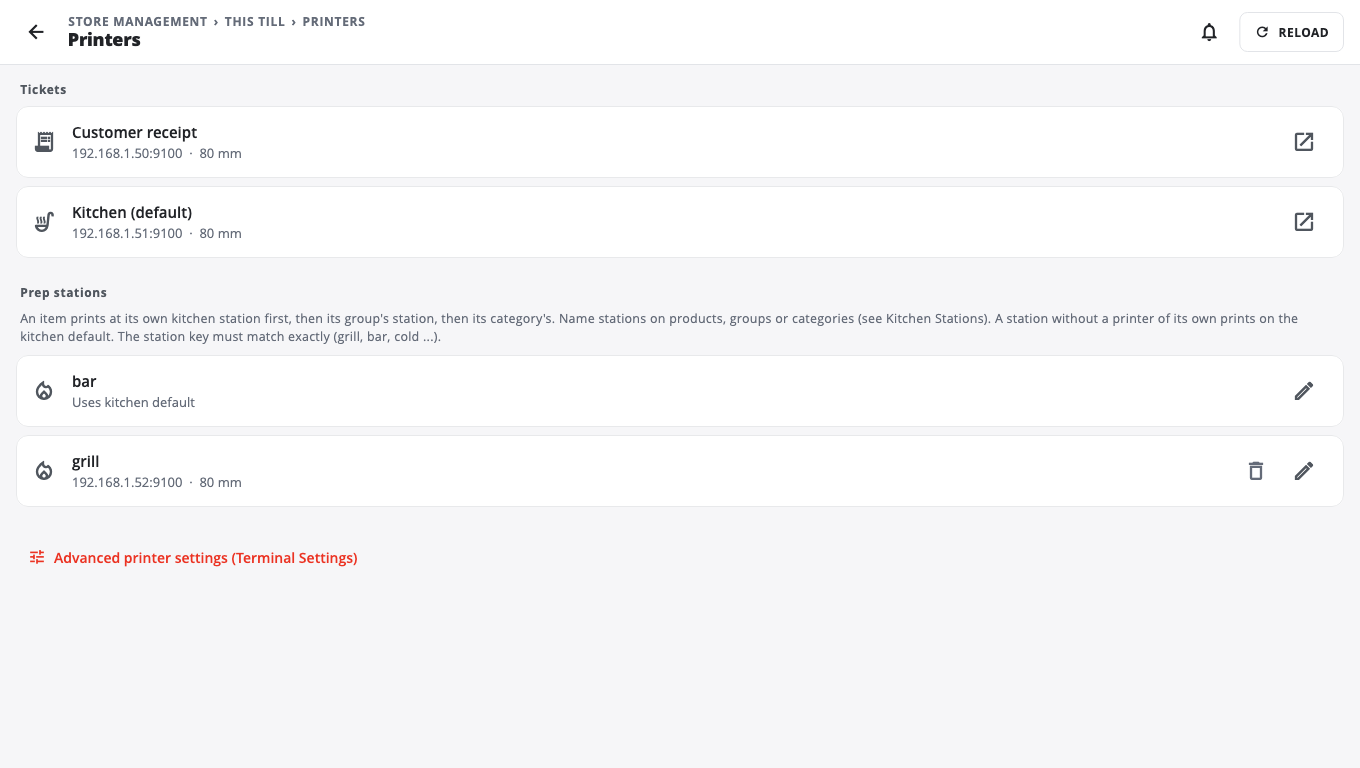
- Open Store Management → This Till → Printers.
- Under Prep stations, tap a station, or tap + to add one (Add a station). The Station key must match the station name exactly (grill, bar, cold …).
- Choose the Connection:
- Network (IP / Ethernet) — enter the IP address and Port.
- Windows / system printer (Windows only) — type the Printer name (exactly as Windows shows it) or tap Detect printers.
- Same as receipt printer or No printer.
- Set Paper to 58 mm (narrow) or 80 mm (standard), then tap Save.
A station without its own printer prints on the Kitchen (default) printer.
3. Decide which items go to which station#
Stations are given to product groups, categories or single products. A dish goes to ONE station: its own station, else its group's (lowest priority number wins), else its category's, else the default kitchen. Set this up in Store Management → Kitchen Stations, or in BuiltOFFICE — see Stations and routing and Kitchen stations and printers.
Good to know#
- Kitchen Stations also lets you pick Delivery per station (KDS, Printer, KDS + printer) and Print on the station printer when its KDS is missing or offline.
- Send VOID / CHANGE tickets (on by default in KDS & Kitchen) prints a VOID / CHANGE slip when an item already sent is removed or lowered.
- Extra-large order number on receipt & kitchen ticket and Large order name on the kitchen ticket make tickets easier to read across the pass.
- A printer row that says Assigned in BuiltOFFICE is managed from BuiltOFFICE — change it there.
- These settings are per till. Set them on every till that rings food.
- More on the ticket layout: Receipt designer. Kitchen workflow: Restaurant tables and kitchen.
Was this helpful?
Thanks for letting us know.
Sorry it did not help. Tell us what was missing: open Help & Support in the app and choose Report a problem, or email support@builtsofthub.com.