
Reject or cancel a web order
Reject a new order or cancel one you already accepted, and handle any refund.
On this page
- Reject is for a new order you have not accepted.
- Cancel order is for an order that is accepted, being prepared or ready.
- Open Orders and find the order.
- Press Reject or Cancel order.
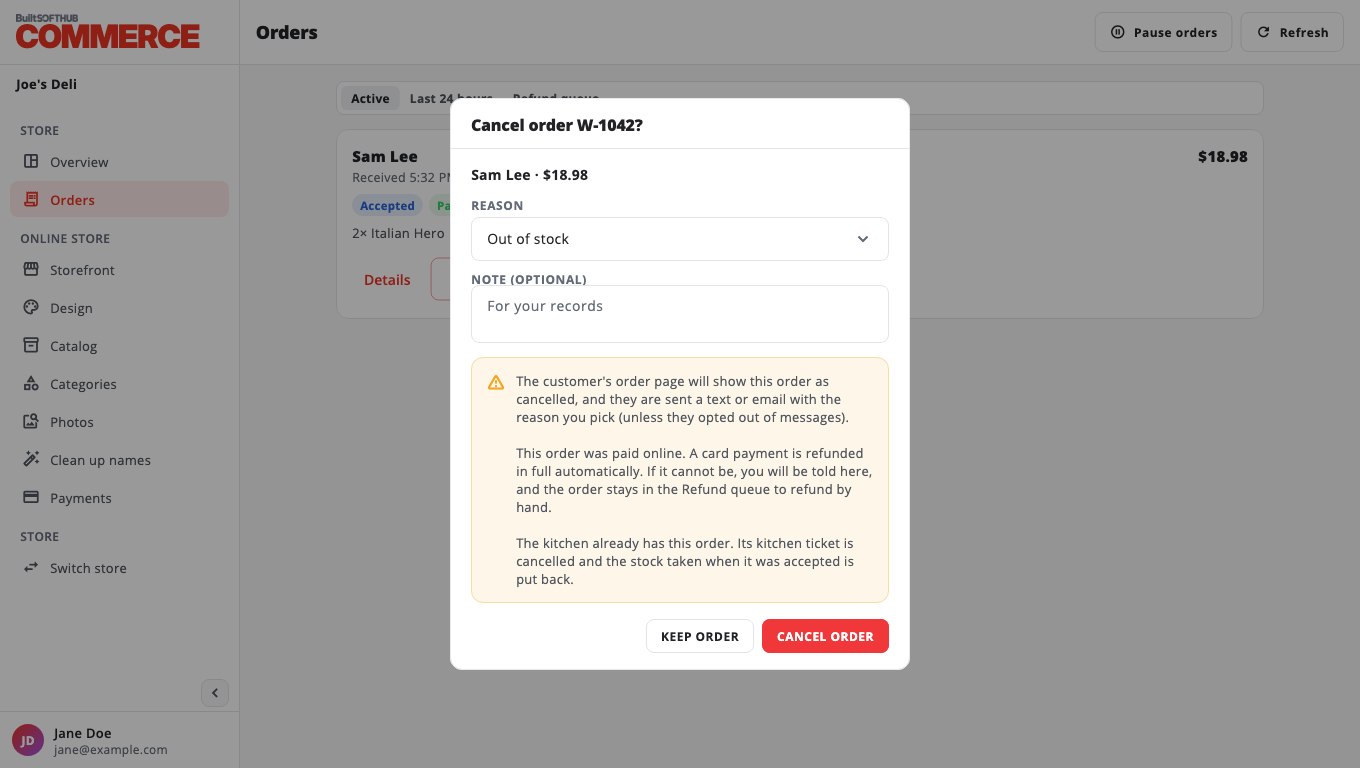
- Choose a Reason: Out of stock, Closing soon, Too busy, Customer asked to cancel (cancel only) or Other.
- Optional: add a Note for your records.
- Read the message, then press Reject order or Cancel order. Press Keep order to go back.
What happens next#
- The customer's order page shows the order as cancelled, and they get a text or email with your reason (unless they opted out of messages).
- Pay at counter: nothing was charged.
- Paid online: the card payment is refunded in full automatically. If it cannot be, you are told, and the order stays in the Refund queue.
- If the kitchen already had the order, its kitchen ticket is cancelled and the stock is put back.
Refund queue#
- Open Orders and choose Refund queue.
- Refund the amount on your card terminal or payment provider.
- Press Mark refunded and confirm.
Mark refunded does not send any money. It only takes the order off the list.
Was this helpful?
Thanks for letting us know.
Sorry it did not help. Tell us what was missing: open Help & Support in the app and choose Report a problem, or email support@builtsofthub.com.