
Take card payments online with Stripe
Connect your bank with Stripe so customers can pay by card when they order.
On this page
Until online card payments are on for your store, customers pay at the counter. BuiltSOFTHUB switches online card payments on for your store; if Payments says Not switched on yet, ask us through Help & support in the menu.
Only the store owner or an admin can connect Stripe.
Connect Stripe#
- Open Payments.
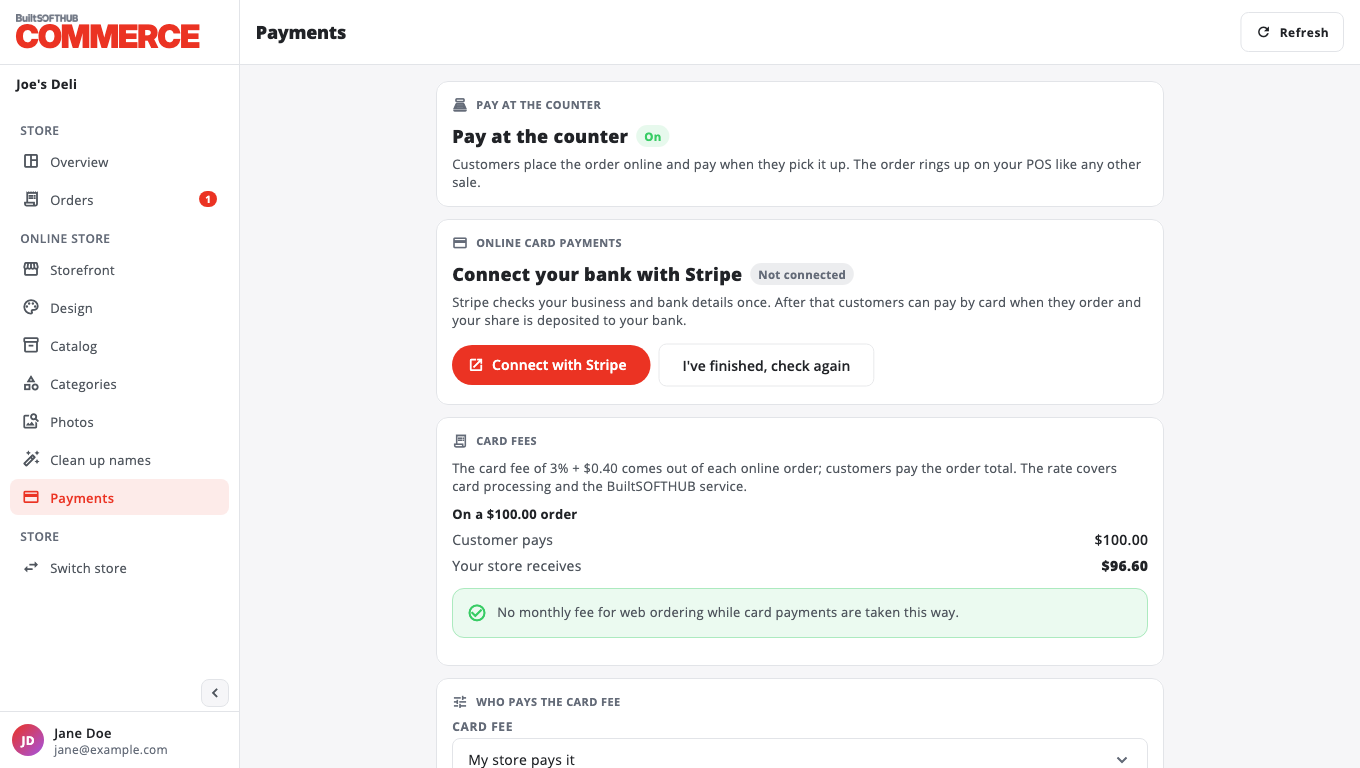
- Under Online card payments, press Connect with Stripe. Stripe opens in a new tab. Allow pop-ups if nothing opens.
- Enter your business and bank details on Stripe and finish.
- Back in BuiltCOMMERCE, press I've finished, check again.
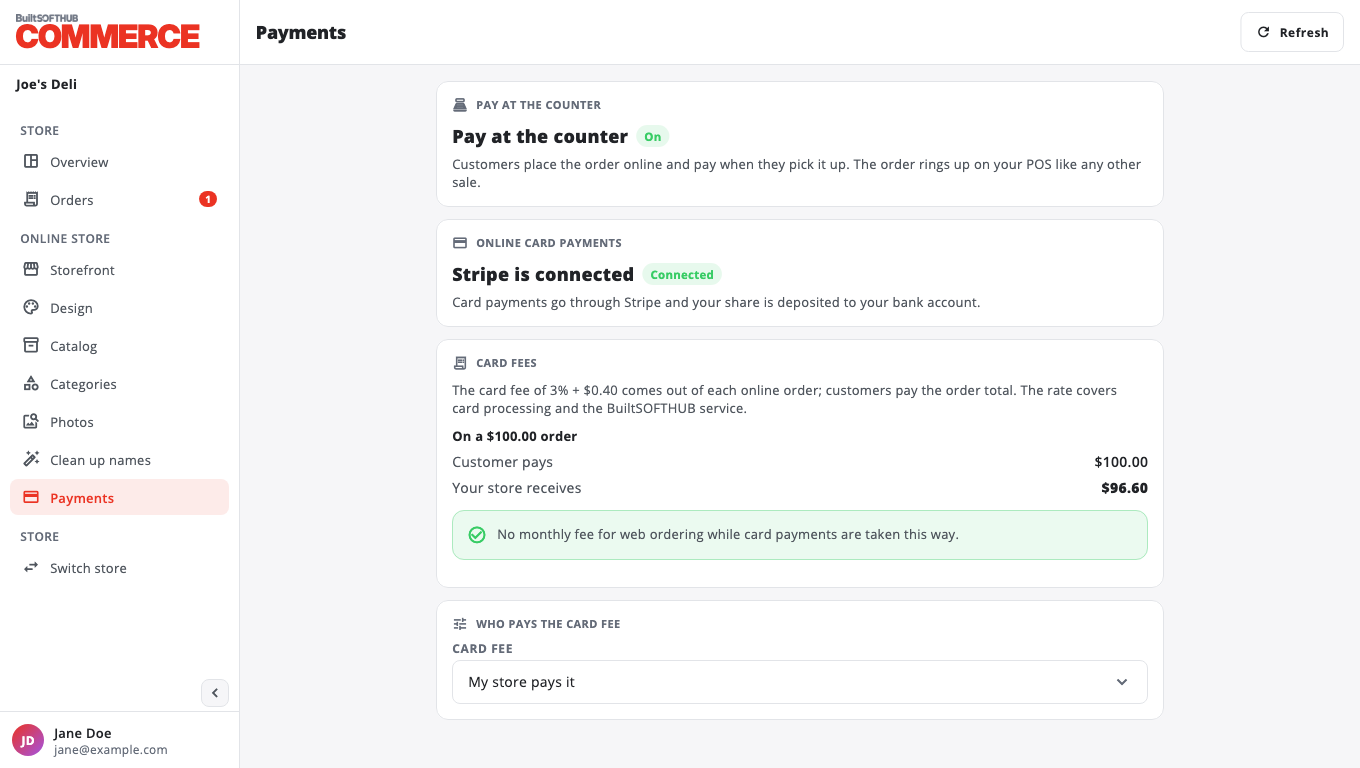
- When the badge says Connected, you can take card payments. Deposits go to your bank on Stripe's schedule.
If the badge says In progress or Action needed, the page lists what Stripe still needs. Press Continue Stripe setup to finish it.
Card fees#
The Card fees card shows the rate and an example: what the customer pays, the card fee and what your store receives.
If your store may choose, use Who pays the card fee:
- My store pays it: customers pay the order total.
- The customer pays it: added to the order as a card fee. This is not allowed in some states; the page tells you if so.
Pay at the counter#
Pay at the counter stays available: customers order online and pay when they pick up.
Was this helpful?
Thanks for letting us know.
Sorry it did not help. Tell us what was missing: open Help & Support in the app and choose Report a problem, or email support@builtsofthub.com.