
Email a contact and get task reminders by email
Send a one-to-one email from a contact's page, and turn on email reminders before your tasks are due.
On this page
Email one contact#
- Open the contact. They need an email address.
- Select Send email.
- Optionally pick a Template under Start from a template (optional) (templates live in Settings → Templates).
- Write the Subject and Message.
- Select Send.
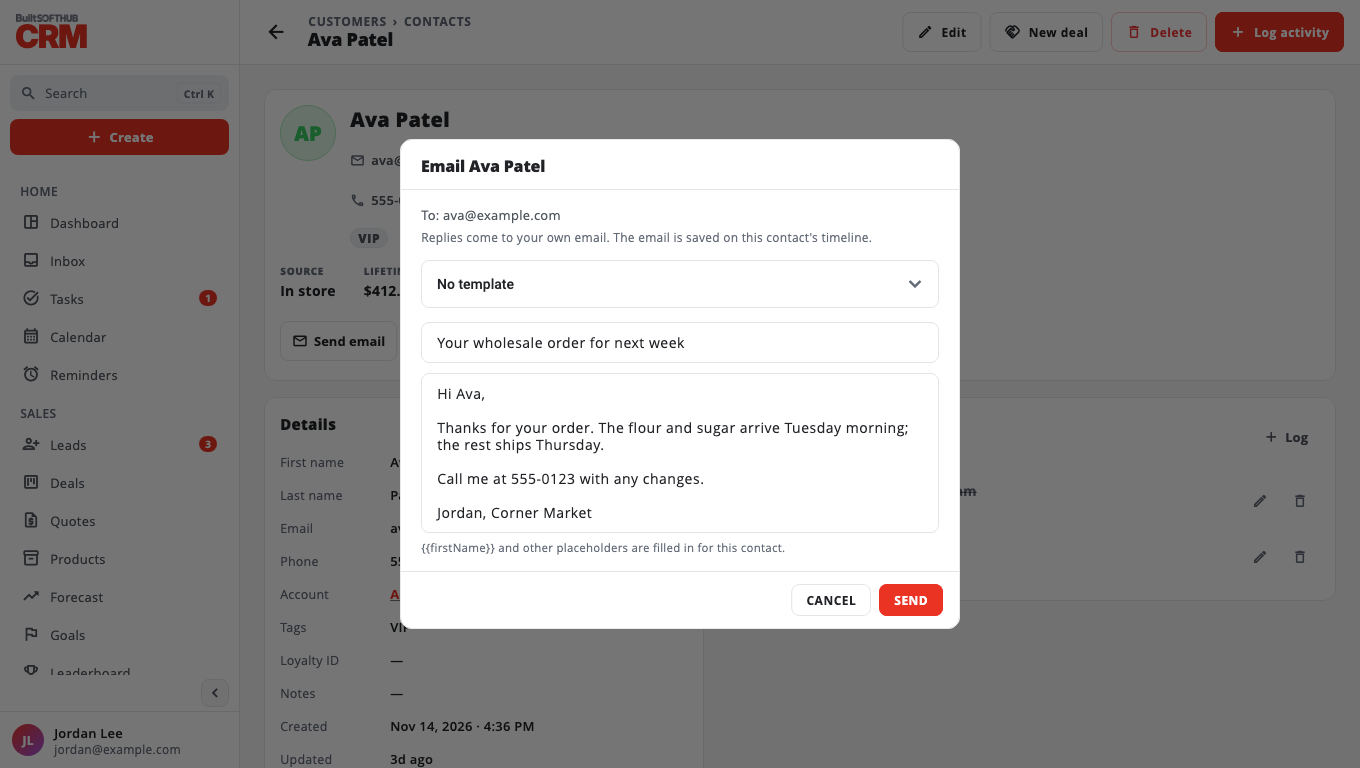
The email goes out with your business name as the sender. Replies come to your own email address. A copy is saved on the contact's timeline.
BuiltCRM will not send to a contact who has opted out (for example, tagged unsubscribed or do not email) — you see "This contact does not want emails. Nothing was sent."
Get task reminders by email#
- Go to Settings.
- Turn on Email me before my tasks are due.
BuiltCRM then emails your sign-in address shortly before (15 minutes) each task, call or meeting assigned to you is due. It is off until you turn it on, and each person chooses for themselves. Change the due time and you are reminded again for the new time.
Emails not arriving? See Emails not arriving.
Was this helpful?
Thanks for letting us know.
Sorry it did not help. Tell us what was missing: open Help & Support in the app and choose Report a problem, or email support@builtsofthub.com.