
Set what each role can do
Owners choose, area by area, what admins, members and viewers can view, add, edit, delete and export.
On this page
- Go to Permissions (or Settings → Permissions).
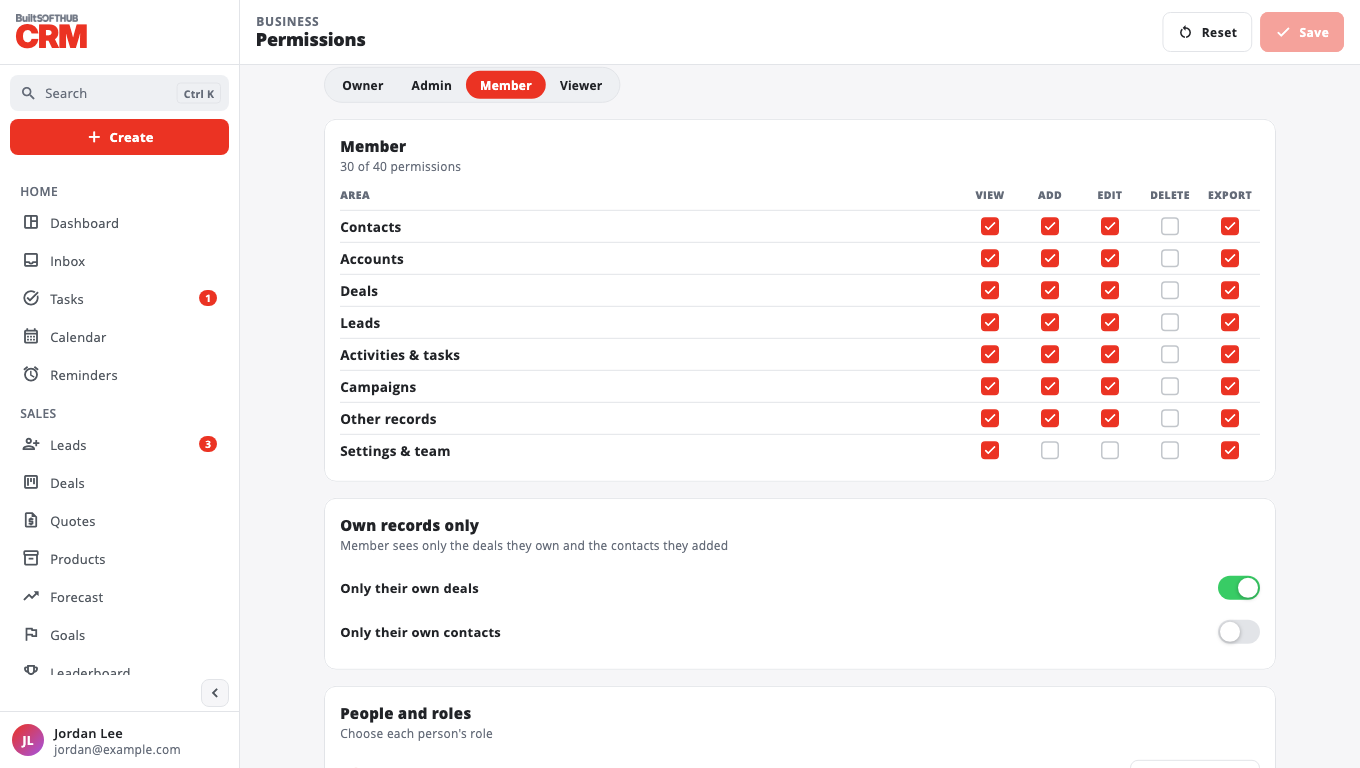
- For each role — Admin, Member, Viewer — tick what it may do in each area: Contacts, Accounts, Deals, Leads, Activities & tasks, Campaigns, Other records and Settings & team.
- The actions are View, Add, Edit, Delete and Export. Taking away View takes away the rest.
- For members and viewers, tick Own records only to limit deals and contacts to their own (deals they own, contacts they created).
- Select Save. Select Discard to undo unsaved changes, or Reset to go back to the standard permissions.
Owners always have full access, so the business can never lock itself out. The rules apply to everyone in the business; only an owner can change them.
Standard permissions#
Admins can do everything, members cannot delete or change settings, and viewers can only look.
Change a person's role#
Under People and roles, the owner picks a role for each person. A role set here can change again when the person's role at your store changes.
When a role cannot export, the Export CSV button disappears for them; when it cannot delete, Delete disappears.
Was this helpful?
Thanks for letting us know.
Sorry it did not help. Tell us what was missing: open Help & Support in the app and choose Report a problem, or email support@builtsofthub.com.