
Import accounts and deals from a CSV
Bring companies and open deals in from a spreadsheet, preview first, then import.
- Copy your sheet, including the header row.
- Go to Accounts → Import CSV (or Deals → Import CSV).
- Select Paste from clipboard.
- Under Columns, check which column fills each field. Pick Not imported for columns you do not want.
- Tick Update rows that already exist (otherwise they are skipped) if you want to update matches.
- Select Preview. BuiltCRM shows what each row would do — nothing is saved yet.
- Select Import.
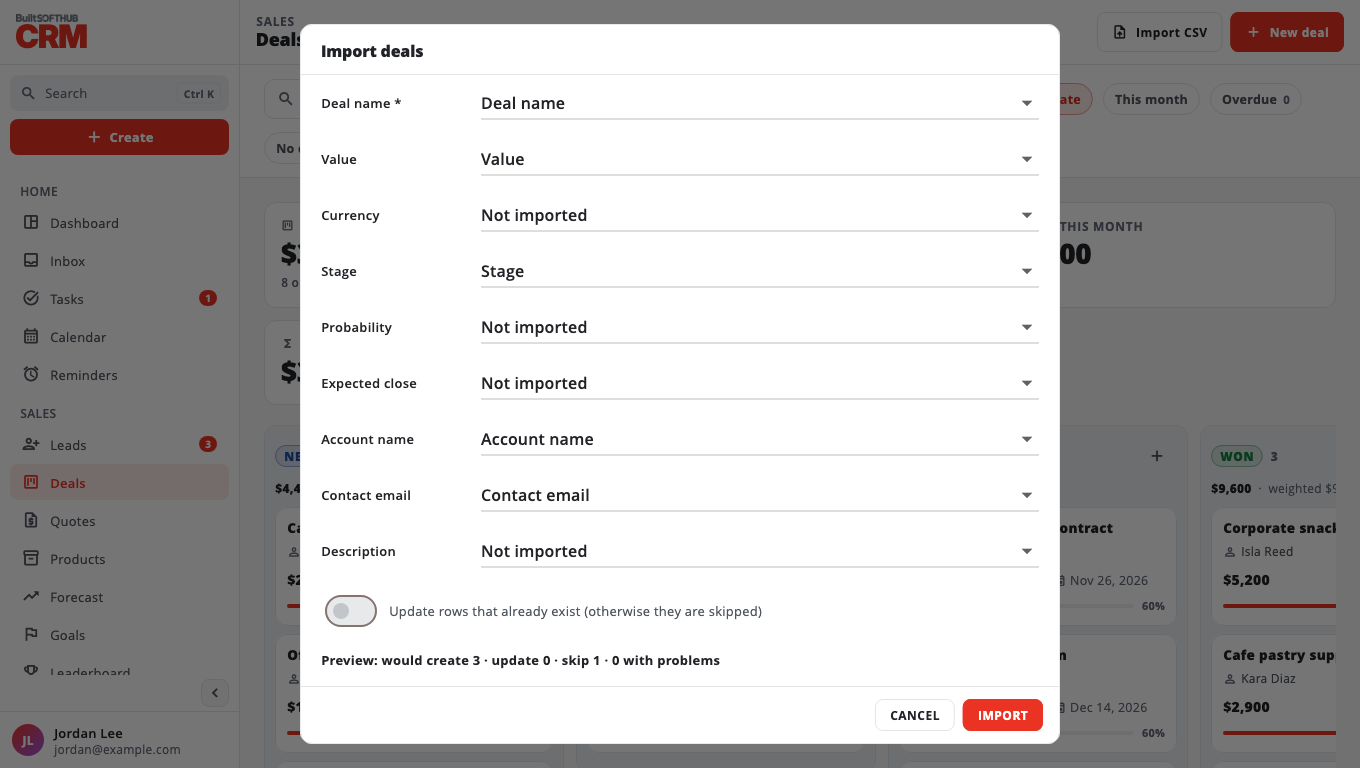
Accounts: Name, Industry, Website, Phone, Address, Notes. An account with the same name as an existing one is a duplicate.
Deals: Deal name, Value, Currency, Stage, Probability, Expected close, Account name, Contact email, Description. A deal finds its account by name and its contact by email. A deal with the same name and account as an existing one is a duplicate.
Import up to 2000 rows at a time. Import accounts before deals so deals can link to them.
Was this helpful?
Thanks for letting us know.
Sorry it did not help. Tell us what was missing: open Help & Support in the app and choose Report a problem, or email support@builtsofthub.com.