
See and manage who can sign in
Check who has access to your BuiltCRM, invite someone by email, and remove someone.
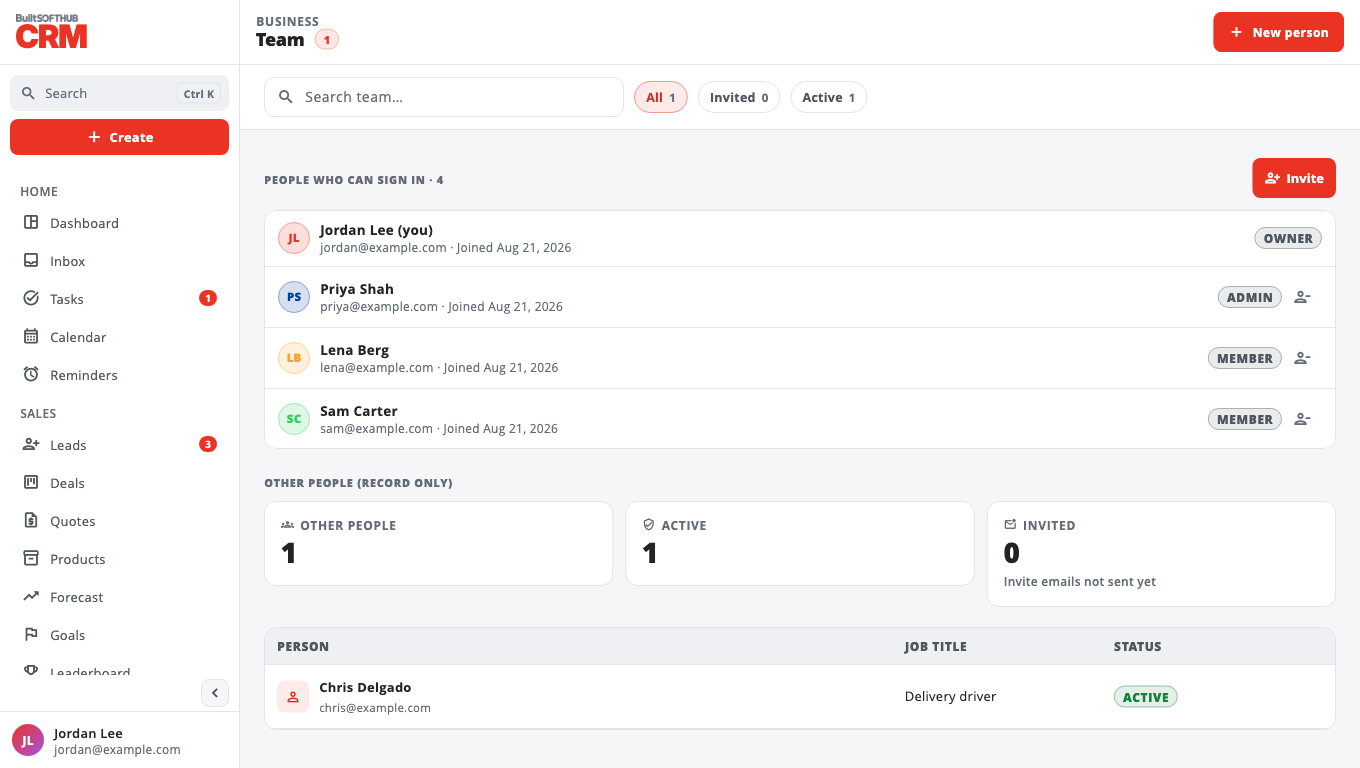
Go to Team. The top section, People who can sign in, lists everyone with access and their role.
Roles#
| Role | Can do |
|---|---|
| Owner | Everything, including the team and other owners. |
| Admin | Everything except owners: settings, the team, deletes. |
| Member | Works with contacts, deals and tasks. No deletes or settings. |
| Viewer | Can look, cannot change anything. |
Owners can change what each role may do: see Permissions and roles.
People who belong to your BuiltSOFTHUB business get their role from their role at your store (owner or admin → Owner, manager → Admin, others → Member). Change someone's store role in BuiltOFFICE and their BuiltCRM role follows. People you invite get the role you picked on the invite.
Invite someone#
Owners and admins can invite people by email, even if they have no other BuiltSOFTHUB app.
- On Team, next to People who can sign in, select Invite.
- Type their Email and pick a Role. Only an owner can invite another owner.
- Select Send invite.
- You'll see Invite sent ("We emailed an invite to … The link works once and expires in 7 days."). If the email could not be sent, you'll see Invite ready with Copy link, so you can send the link yourself.
Waiting invites are listed under Invited, marked Invite emailed, Invite not emailed yet or Link expired. Use Resend (or Send a new link when it has expired) and Revoke. A revoked link stops working; you can invite them again later.
Accepting an invite#
The person opens the link and sees You are invited to BuiltCRM. They Sign in or Create an account with the same email address the invite was sent to, verify their email if asked, then select Accept and join. Signed in with a different email, they see Could not open this invite with Sign in with another account.
A co-owner or admin of your BuiltSOFTHUB business can also join by signing in and selecting Add BuiltCRM to my business. See Team and roles.
Remove someone#
Owners and admins can select the remove icon next to a person. Their contacts, deals and notes stay. Only an owner can remove another owner, and the last owner always stays.
Other people (record only)#
The lower list keeps a note of people who work with you but do not sign in. Adding someone here does not give them access.
Was this helpful?
Thanks for letting us know.
Sorry it did not help. Tell us what was missing: open Help & Support in the app and choose Report a problem, or email support@builtsofthub.com.