
Make your documents look like your business
Add your logo, brand colour, signature, footer, language and number prefixes.
Logo, colour and signature#
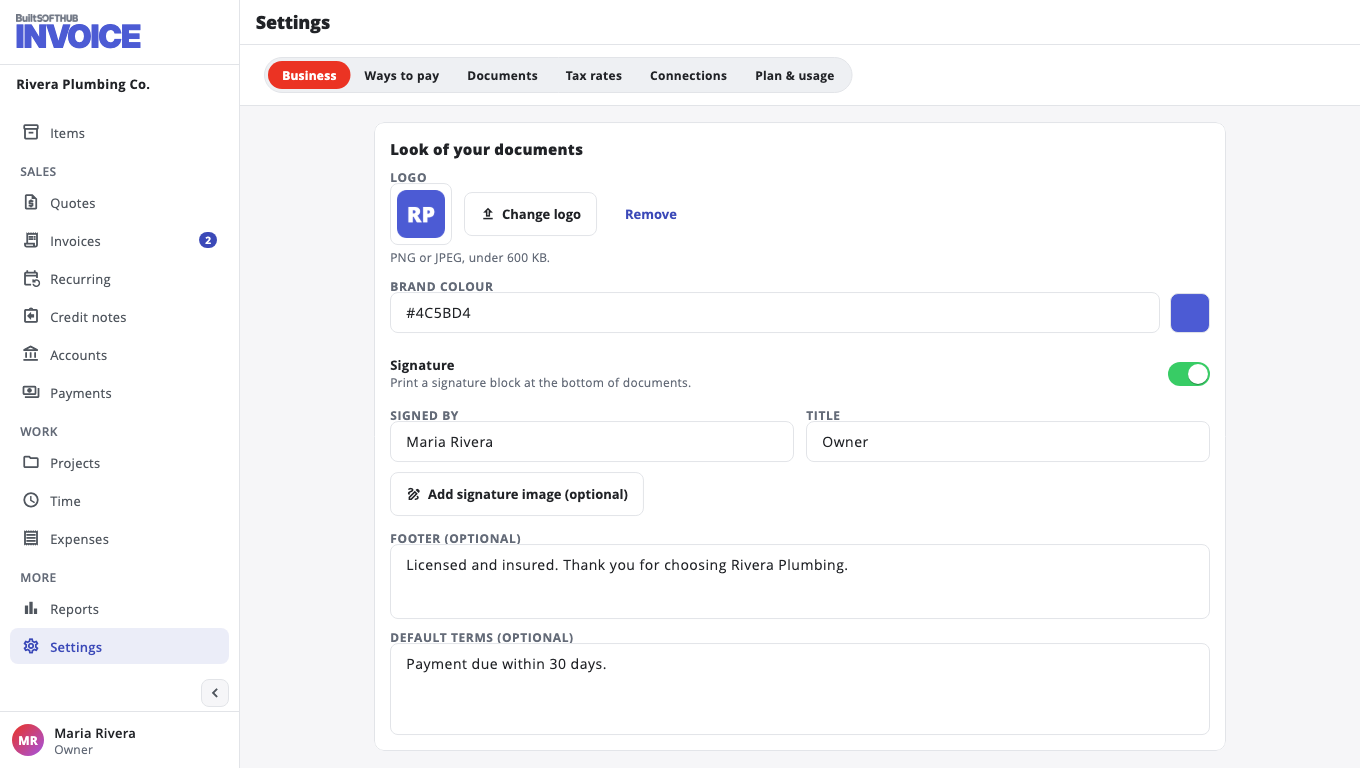
Go to Settings, Business, Look of your documents.
- Choose Upload logo (PNG or JPEG, under 600 KB).
- Enter your Brand colour, for example #4C5BD4.
- Turn on Signature to print a signature block. Fill in Signed by and Title, and add a signature image if you like.
- Add a Footer (optional) and Default terms (optional).
- Choose Save changes.
Template, language and numbers#
Go to Settings, Documents.
- Template — Classic, Modern or Compact. You can still pick another one on a single document.
- Document language — the words printed on invoices, quotes and the pay page (English, Spanish, French, German, Portuguese, Italian or Dutch). A customer can have their own language.
- Number prefixes — for example INV- for invoices. New numbers use the new prefix.
- Number documents when they are issued — drafts get their number when you send them, so deleting a draft never leaves a gap.
Every page carries a small "Sent with BuiltINVOICE" line at the bottom.
Was this helpful?
Thanks for letting us know.
Sorry it did not help. Tell us what was missing: open Help & Support in the app and choose Report a problem, or email support@builtsofthub.com.