
Import customers or items from a CSV file
Bring in a spreadsheet of customers or items, and choose what happens to ones you already have.
- Open Customers (or Items) and choose Import CSV.
- Save your spreadsheet from Excel or Google Sheets as "CSV UTF-8". The first row must be the column names. Up to 5,000 rows.
- Choose Choose file.
- Check how each column is matched. Columns BuiltINVOICE does not use show Not in the file.
- Under When a row matches customers already here, choose Skip it or Update it. Update changes only the columns the file fills in; an empty cell never clears anything.
- Look at Rows to look at for rows with errors, then choose the Import button (it shows how many rows will be imported).
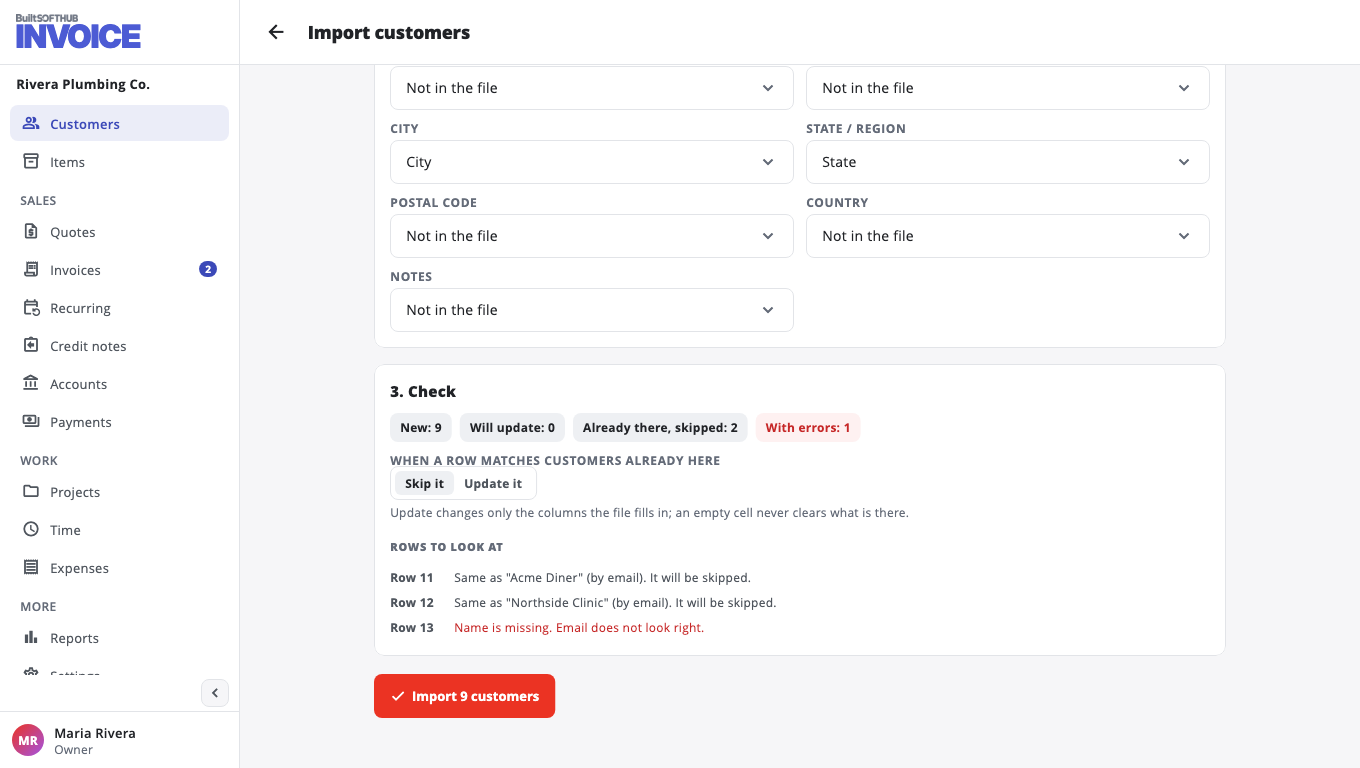
When it finishes you see how many were Added, Updated, Skipped (already there) and Not imported (errors), with the row number of each error.
Problems? See A CSV import fails.
Was this helpful?
Thanks for letting us know.
Sorry it did not help. Tell us what was missing: open Help & Support in the app and choose Report a problem, or email support@builtsofthub.com.