
Invite your team
Invite people to your business and choose what each person can do.
- Go to Settings, Business, and in the Team card choose Manage team.
- Choose Invite.
- Enter their Email and choose a Role.
- Choose Send invite.
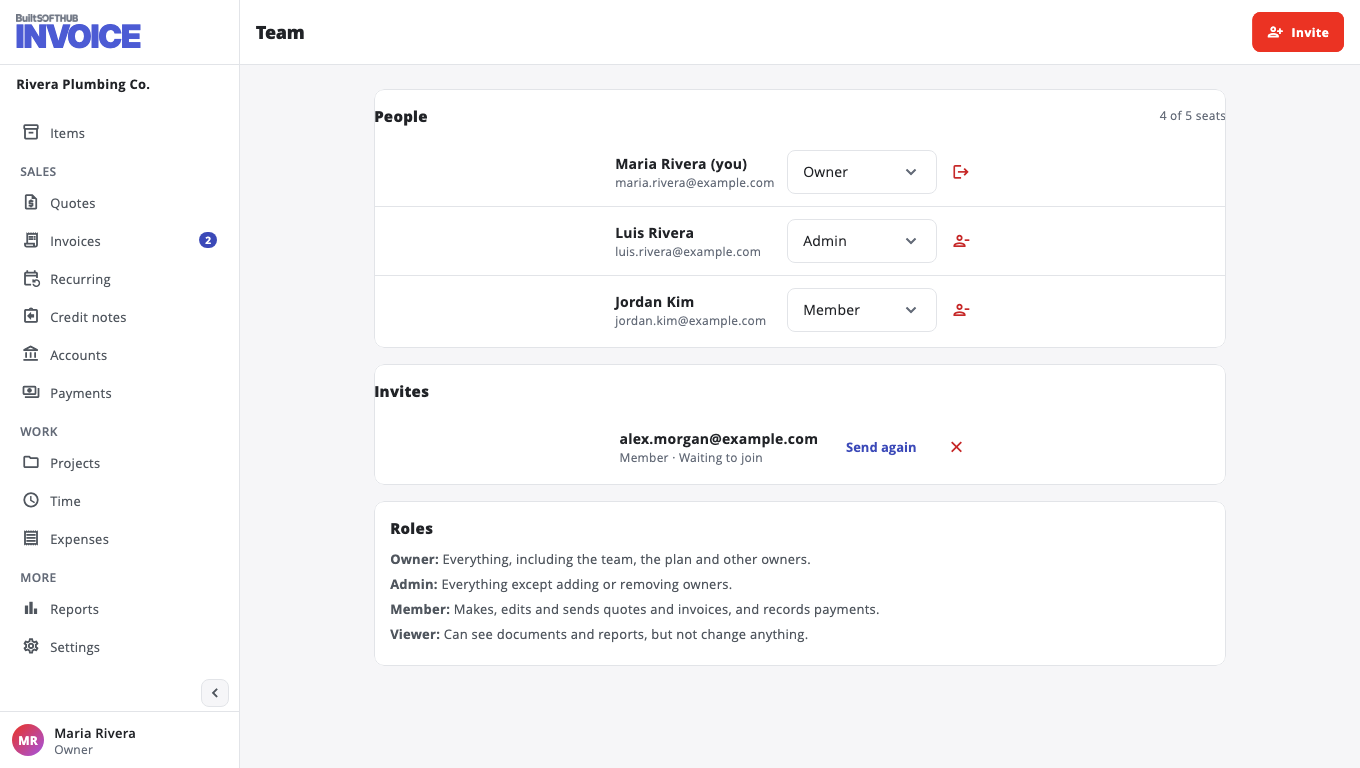
They get an email with a link that works once, for 7 days. They sign in, or create an account, with that email, then choose Join. If the email could not be sent, choose Copy link and share it yourself.
Roles#
| Role | What they can do |
|---|---|
| Owner | Everything, including the team, the plan and other owners. |
| Admin | Everything except adding or removing owners. |
| Member | Makes, edits and sends quotes and invoices, and records payments. |
| Viewer | Can see documents and reports, but not change anything. |
On the Team page, People lists who is in, Invites lists who has not joined yet (Send again or Cancel invite), and Roles explains each role. To change someone's role, pick a new one next to their name. Choose Remove to take them out; their documents and payments stay.
Belong to more than one business? Use Switch business in your account menu.
Was this helpful?
Thanks for letting us know.
Sorry it did not help. Tell us what was missing: open Help & Support in the app and choose Report a problem, or email support@builtsofthub.com.