
Take card and bank payments with Stripe
Connect Stripe so customers can pay invoices by card (and by US bank account) from the invoice page.
On this page
With Stripe connected, every invoice gets a Pay button. The money goes to your own Stripe account.
Connect Stripe#
- Go to Settings, Ways to pay.
- In Stripe: card and bank payments online, choose Connect Stripe.
- Stripe opens in a new tab. Create or sign in to your Stripe account and finish its steps.
- Come back and choose Check status.
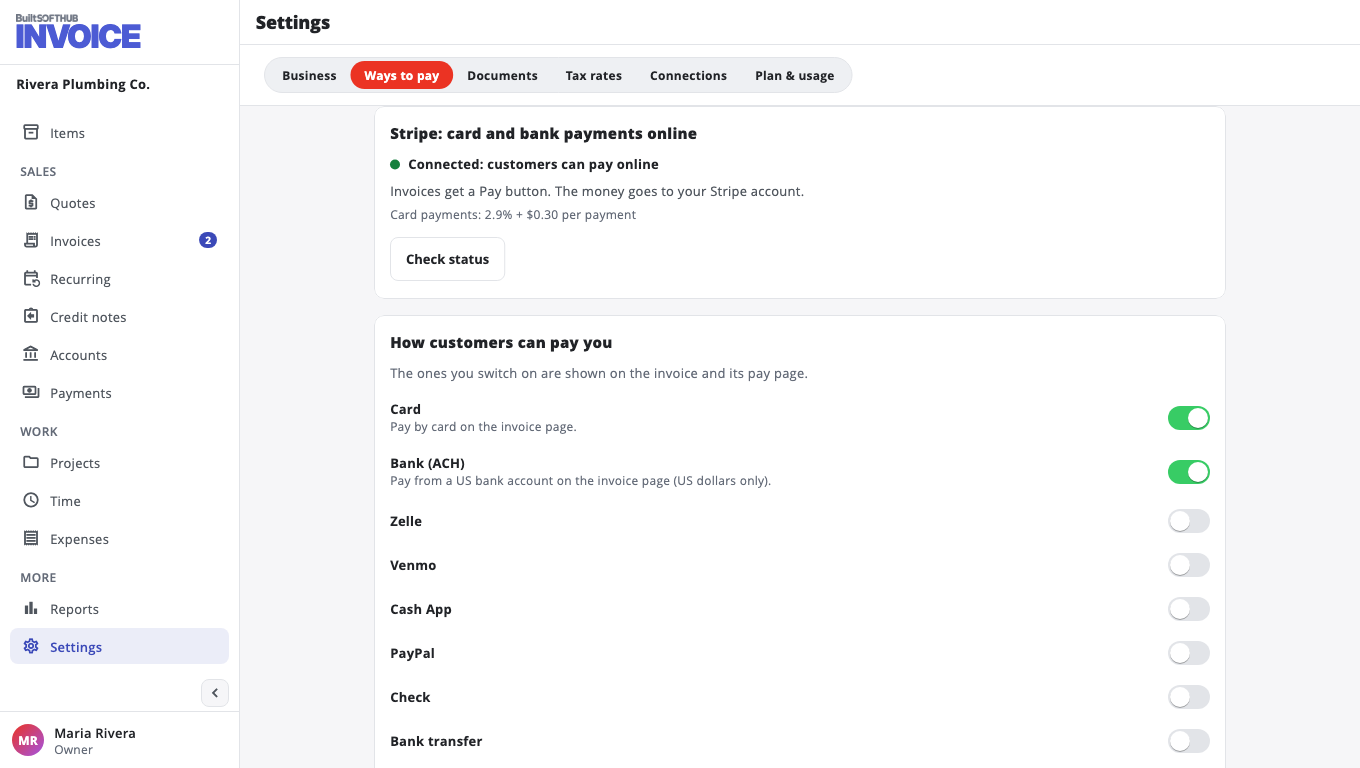
The status shows:
- Connected: customers can pay online — you are done.
- Connected, but Stripe needs more details — choose Continue on Stripe and finish what it lists.
- Not connected — start again with Connect Stripe.
Already take cards on BuiltPOS with Stripe? Choose Use my store's Stripe account instead.
Then switch on card (and, in the US, bank) payments under How customers can pay you. Bank (ACH) payments are for US dollar invoices only. The card fee for each payment is shown on the Stripe card.
Saved cards#
Turn on Let customers save their card. At checkout the customer can keep their card on file. Then:
- open an invoice and choose Charge saved card to charge it, or
- let a recurring invoice charge it by itself. See Recurring invoices.
To remove a saved card, open the customer and choose Remove card.
Only the owner or an admin can connect Stripe or charge a saved card. Something not working? See Online payments are not working.
Was this helpful?
Thanks for letting us know.
Sorry it did not help. Tell us what was missing: open Help & Support in the app and choose Report a problem, or email support@builtsofthub.com.