
Customize the sale screen
Choose which buttons show on the left panel and in the More menu, and change the theme, size and layout of the sale screen.
Both settings below are saved on this till only. Set up each till the way its staff like it.
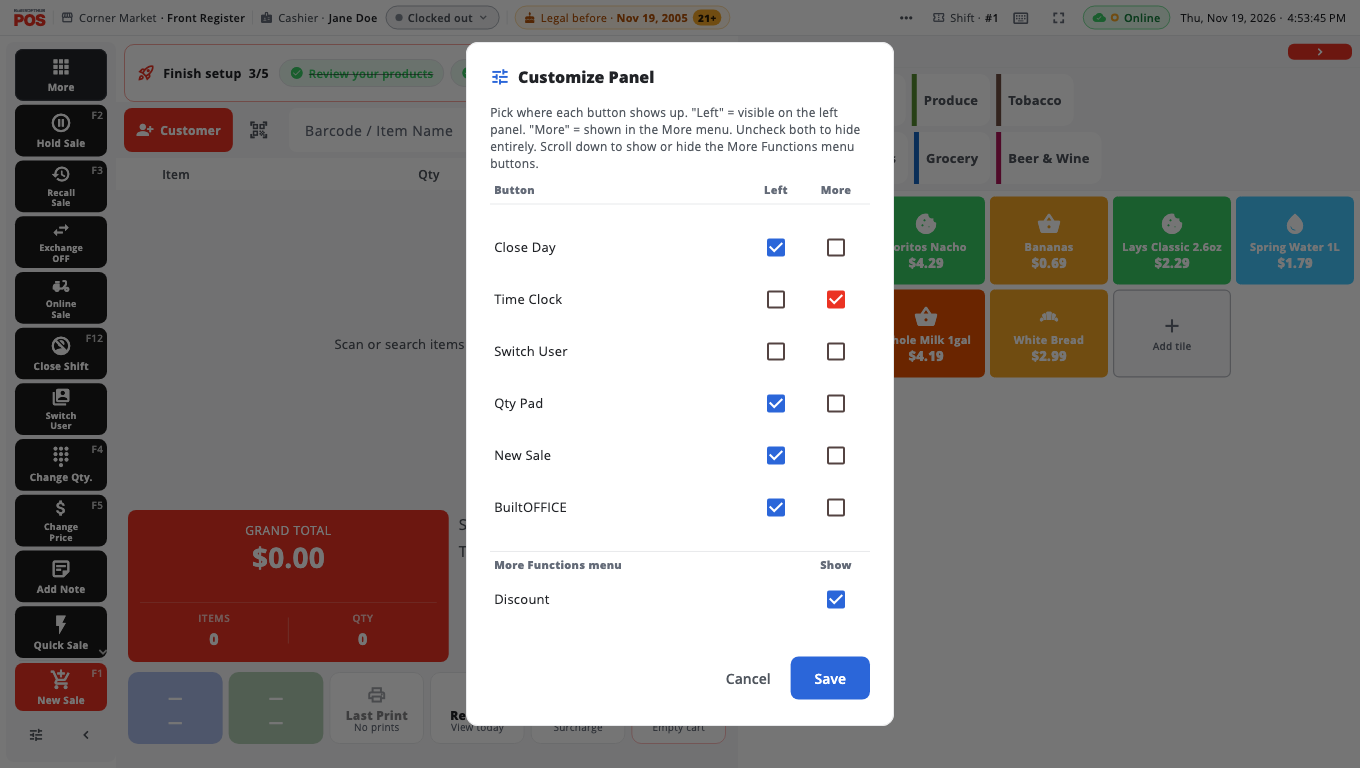
Choose the buttons (Customize panel)#
- On the left panel, tap Customize panel.
- Enter an Owner or Manager PIN. Owners and Admins go straight in; everyone else, including a signed-in Manager, types a PIN.
- For each button, tick Left to show it on the left panel, or More to keep it in the More menu. Untick both to hide it.
- Scroll down to More Functions menu and tick Show for each More button you want (for example Discount, Pay Out, Cash Drop (to safe), Void Last Sale).
- Tap Save.
The Manager, Close Shift, Close Day and Sign out buttons in the More menu cannot be hidden.
Change the look (Appearance)#
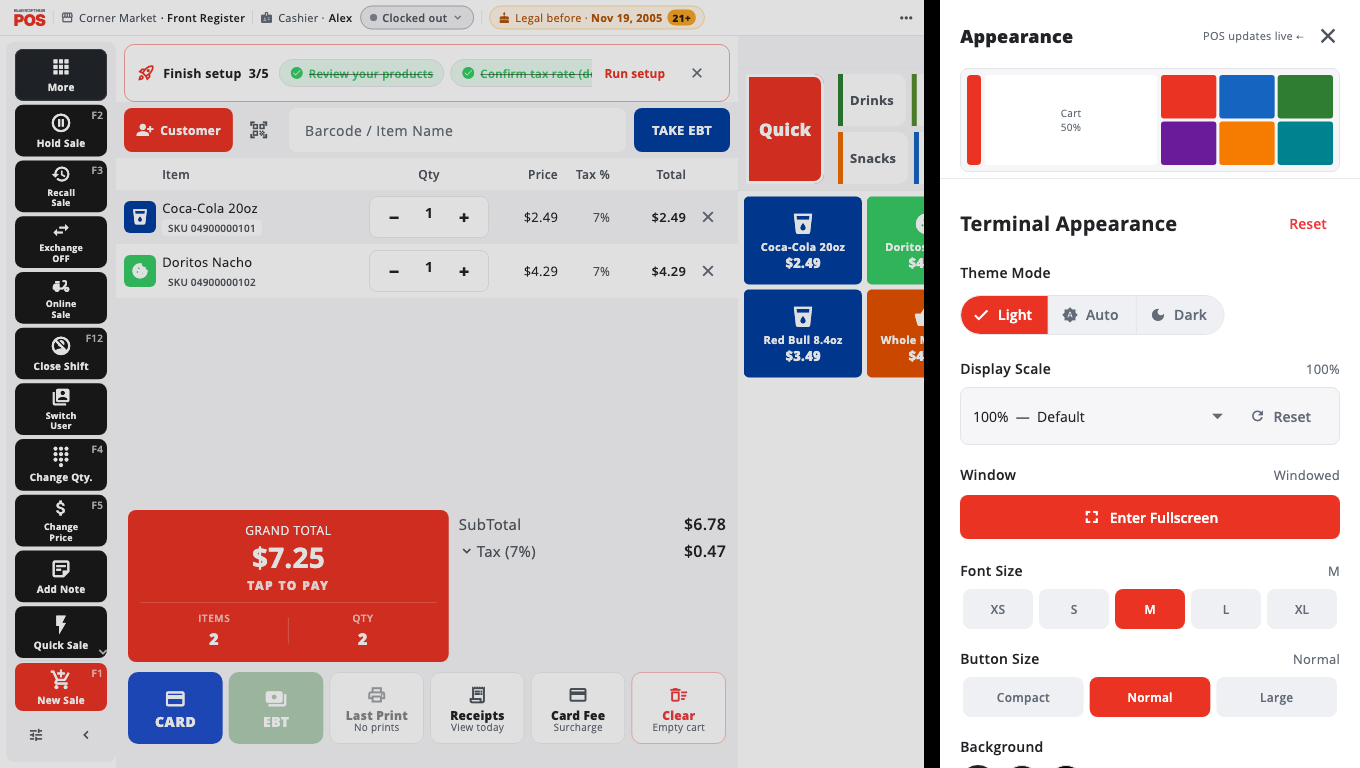
- Open Manager's Functions and tap Appearance Settings. The settings open beside the live sale screen, so you see each change straight away. (Owners and Admins can also use Store Management → This Till → Appearance.)
- Change what you need. Common settings:
- Theme Mode — Light, Auto or Dark. (You can also switch theme from the APPEARANCE row in the More menu.)
- Display Scale and Font Size — make everything bigger or smaller.
- Button Size, Button Heights and Quick Button Size — size of buttons and tiles.
- Tile Columns — how many quick buttons per row. Tap Reorder Quick Buttons to change their order.
- Panel Layout — drag to share space between the cart and the quick buttons.
- Sale screen layout — Default, or Scan only (hides the quick buttons and category pills).
- Modifier screen — Pop-up or Columns.
- Ask before removing an item — shows Remove item? before a line leaves the cart. On by default.
- Cart action bar — Up, Down, +, −, % and Remove buttons above the cart. Off by default.
- Compact cart — slimmer cart lines. Off by default.
- Category Pills, Best Sellers First and Quick Button Images.
- Function Panel and Quick Panel — show or hide the left and right panels.
- Tap Done. Reset puts this till back to the standard look.
Fewer pop-ups on the till#
To keep routine messages (saved, sent, undo bars) off the screen, turn on Quiet POS screen — hide routine popups in Store Management → This Till → Notifications. It is off by default. The messages then wait in More → Alerts. Messages about money, such as a card that may have been charged, still pop up.
On a phone#
There is no left panel on a phone. The same buttons are in Functions, and they follow the Customize panel. Appearance opens full screen and says This phone only.
Related#
Was this helpful?
Thanks for letting us know.
Sorry it did not help. Tell us what was missing: open Help & Support in the app and choose Report a problem, or email support@builtsofthub.com.