
Store and till settings
Set the store timezone, choose rules every till follows (tax-inclusive prices, ID ages, opening cash, void reasons), and set defaults for till behaviour.
There are two places for settings:
- Settings in the menu: things about BuiltOFFICE and your store account.
- POS → POS Settings: rules every till in the store follows.
Settings#
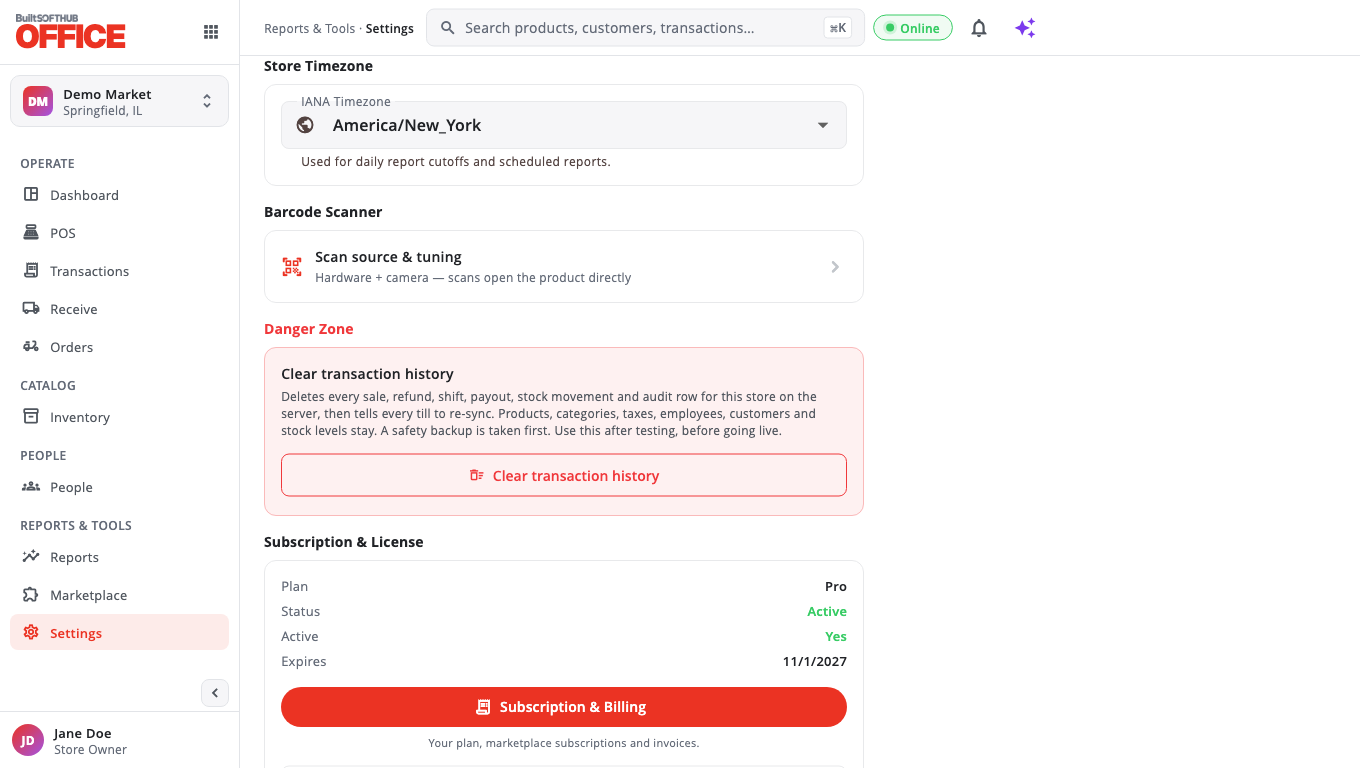
- Store Timezone: pick your store's real timezone. Reports and daily cut-offs use it.
- Barcode Scanner: choose how this device scans in BuiltOFFICE (hardware scanner, phone camera, both, or off).
- Subscription & License: your plan, status and limits (stores, terminals, employees). Owners and admins also see the Subscription & Billing button. See Subscription and billing.
- Store tools:
- Hub Cards: show or hide cards on each hub for the whole store.
- Dashboard Preferences: how the Dashboard looks on this device.
- Notification Preferences: turn each alert type on or off for this device.
- Receipt Delivery (SMS/Email): a log of receipts sent by text and email.
POS Settings#
Go to POS → POS Settings. There are three tabs. Only owners and admins can change them. Each tab has its own Save button; nothing changes until you save.
Store Policy#
These apply to every till. A till takes them on its next sync, never in the middle of a sale.
- Card fees: Add a card processing fee, Default card fee (%) and Dual pricing (cash price / card price). These are managed by BuiltPOS. To change them, contact support; you'll need a payment-setup support token.
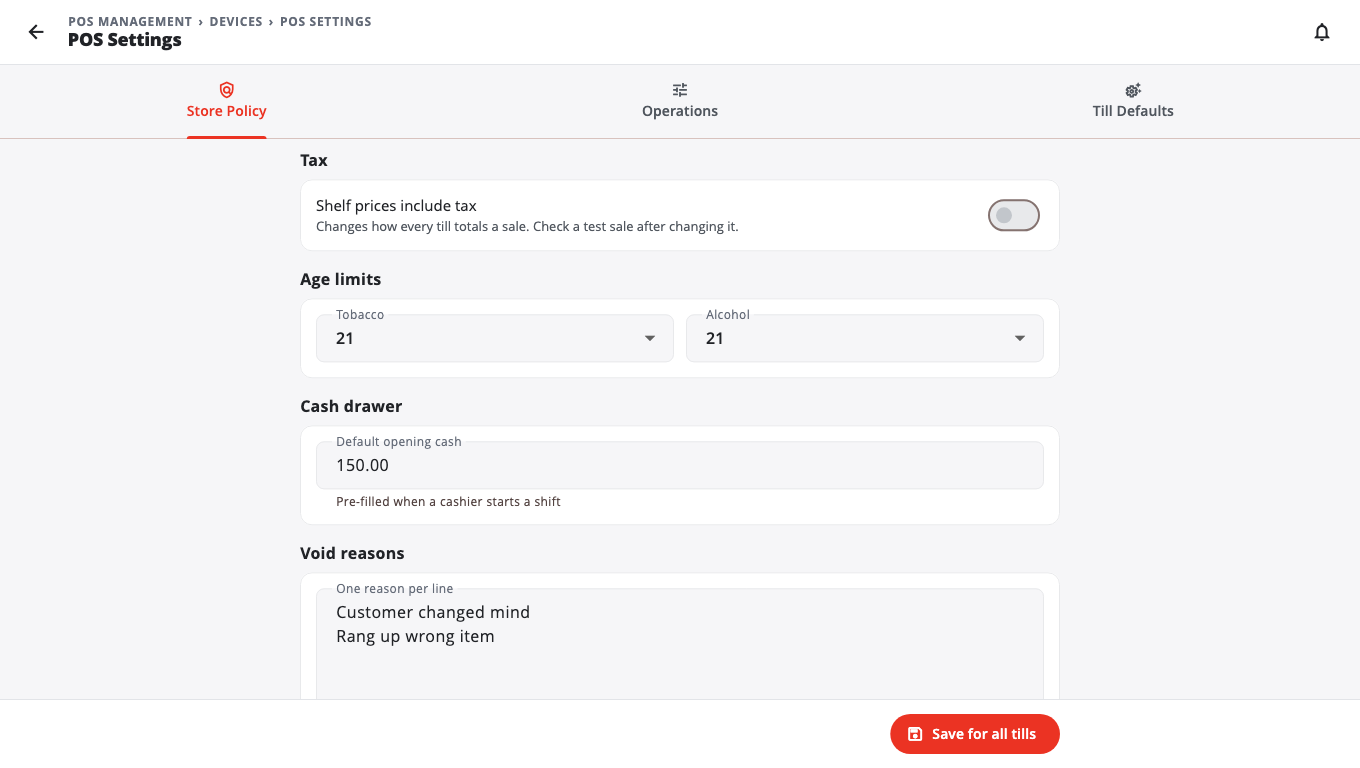
- Tax: Shelf prices include tax (off by default). Ring a test sale after you change it.
- Age limits: the ID age for Tobacco and Alcohol (21 by default).
- Cash drawer: Default opening cash, filled in when a cashier starts a shift.
- Void reasons: the reasons a cashier picks from when voiding. Type One reason per line.
Tap Save for all tills.
Operations#
Store-wide numbers such as PIN lockout, tip suggestions, card fee minimum sale, receipt copies, low stock threshold and backups. Tap Save for all tills.
Till Defaults#
Defaults for every till that hasn't chosen its own setting, for example:
- Auto sign-out after (minutes idle)
- No Sale / Open Drawer needs a manager
- Ask customer name before payment
- Allow selling below zero stock
- Card sale receipt copies
- Restaurant options such as Send orders to the kitchen display and Ask dining type before payment (restaurant)
Not set leaves each till to decide. Tap Save store defaults.
Settings that live on the till#
Some settings are set on each till, not in BuiltOFFICE:
- Store name, phone and address on receipts: Store Management → Store Settings → General on the till. Saving there updates BuiltOFFICE too.
- The till's own printers: Store Management → This Till → Printers on the till.
Good to know#
- To make one till follow the store defaults again, go to POS → Terminals, open the till's menu → Config backups → Reset to store default.
- POS Settings are not available on legacy Windows POS stores. Those tills keep their settings in the Windows POS.
Was this helpful?
Thanks for letting us know.
Sorry it did not help. Tell us what was missing: open Help & Support in the app and choose Report a problem, or email support@builtsofthub.com.