
Promotions and coupon codes
Set up automatic promotions (percent off, BOGO, mix & match, fixed price) and coupon codes customers enter at the till or kiosk.
Promotions apply to a product group. Make the group first: see Products and categories.
Create a promotion#
- Go to Inventory → Discounts & Promos → Promotions.
- Tap New promo.
- Pick the type:
- % Off: a percent off each item.
- $ Off Each: an amount off each item.
- BOGO: buy some, get some free.
- Mix & Match: any mix of items in the group for a bundle price (for example any 2 for $5).
- Fixed Price: each item sells at one set price.
- Fill in the numbers for that type, for example Percent off or Buy and Get free.
- Choose the Product group and give it a Promotion name.
- Set the Start date and End date if it should run for a limited time.
- Optional limits: Max per cart, Max uses total, Channels (where it works), Days of week, and Happy hour times.
- Leave Active on and tap Create.
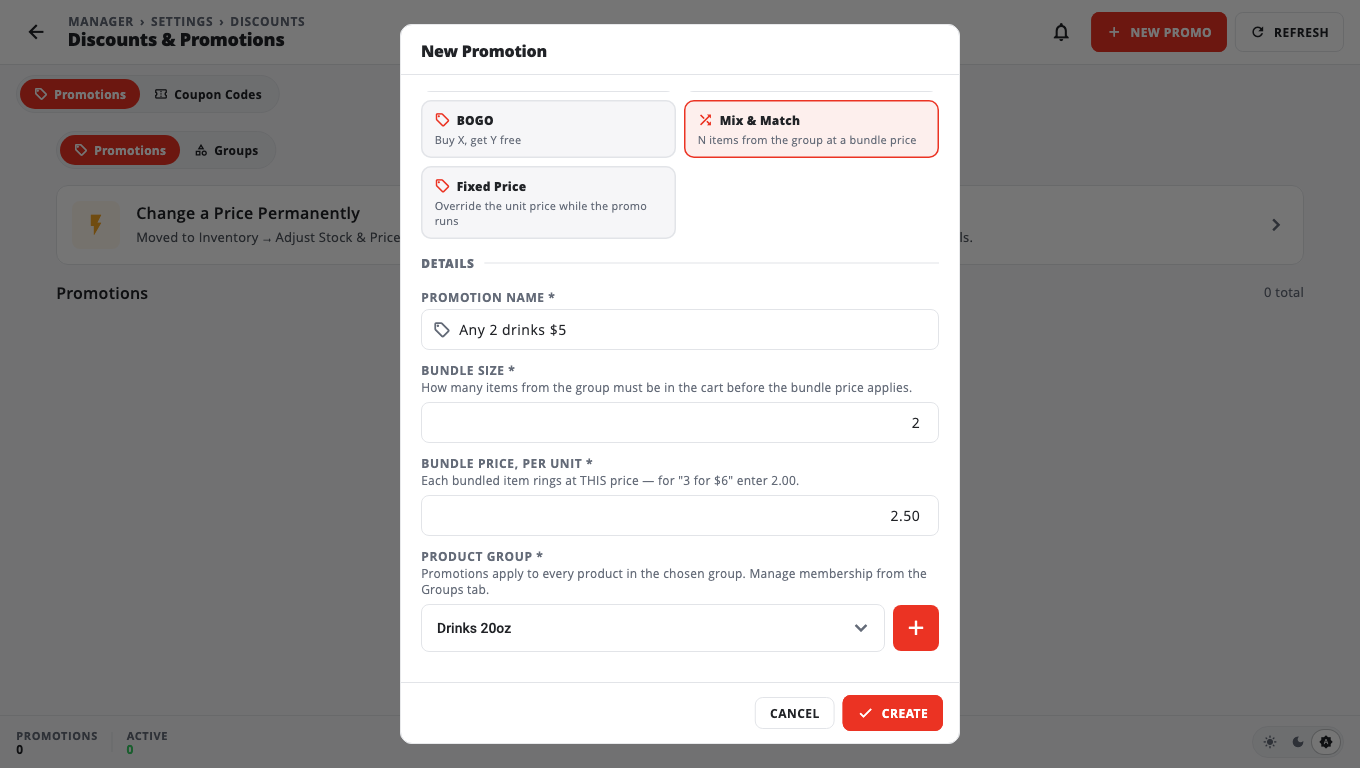
The till applies the promotion automatically when the right items are in the cart.
Make a promotion need a code#
In the promotion, type a Coupon code (for example SUMMER25). Leave it empty for an automatic promotion.
Create a coupon code#
- Go to POS → Coupon Codes (or Discounts & Promos → Coupon Codes).
- Tap New.
- Enter the Code, and a Name for the receipt line.
- Choose the Type: Percentage or Fixed amount, and enter the value.
- Choose the product group under Applies to (product group).
- Optional: Max uses (blank or 0 means unlimited), Valid from and Valid until.
- Tap Save.
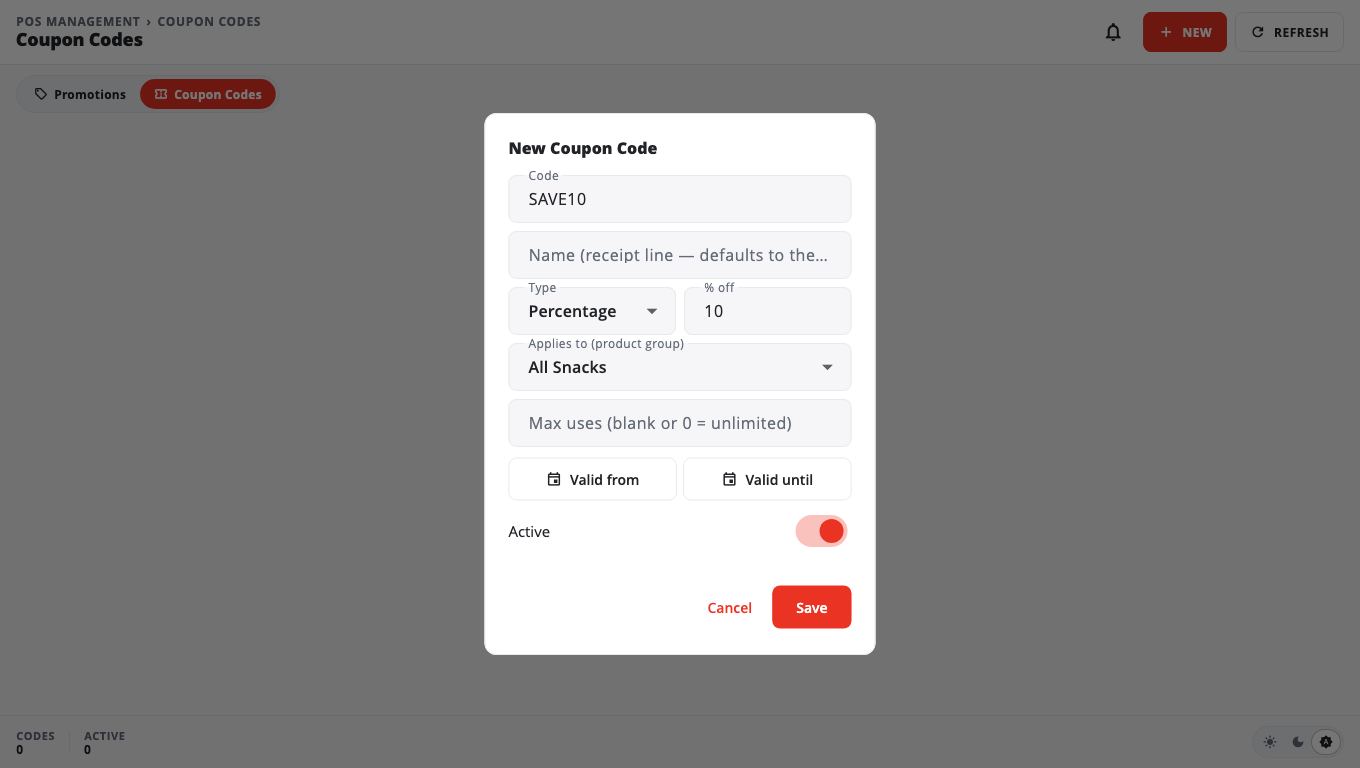
To stop a code, tap Deactivate. It stops working at every till and kiosk.
Good to know#
- Owners and admins open Discounts & Promos on the Promotions tab. Managers who can manage inventory also see the card; it opens on Coupon Codes, and the Promotions tab stays for owners and admins. Coupon codes are also on the POS hub.
- Fixed Price promotions and coupon codes are not available on legacy Windows POS stores.
- Change a Price Permanently (owners and admins open it from Adjust Prices: Inventory → Adjust Stock & Prices → Prices; the Promotions page has a link to it) changes a product's regular price for good. It is not a promotion. For a temporary price, use a promotion or a scheduled price change.
Was this helpful?
Thanks for letting us know.
Sorry it did not help. Tell us what was missing: open Help & Support in the app and choose Report a problem, or email support@builtsofthub.com.