
Read the Dashboard
What the Dashboard figures mean, how to change the date range, set a daily sales goal, and export the Dashboard as a PDF.
The Dashboard opens when you sign in. On a phone it is Home in the bottom bar.
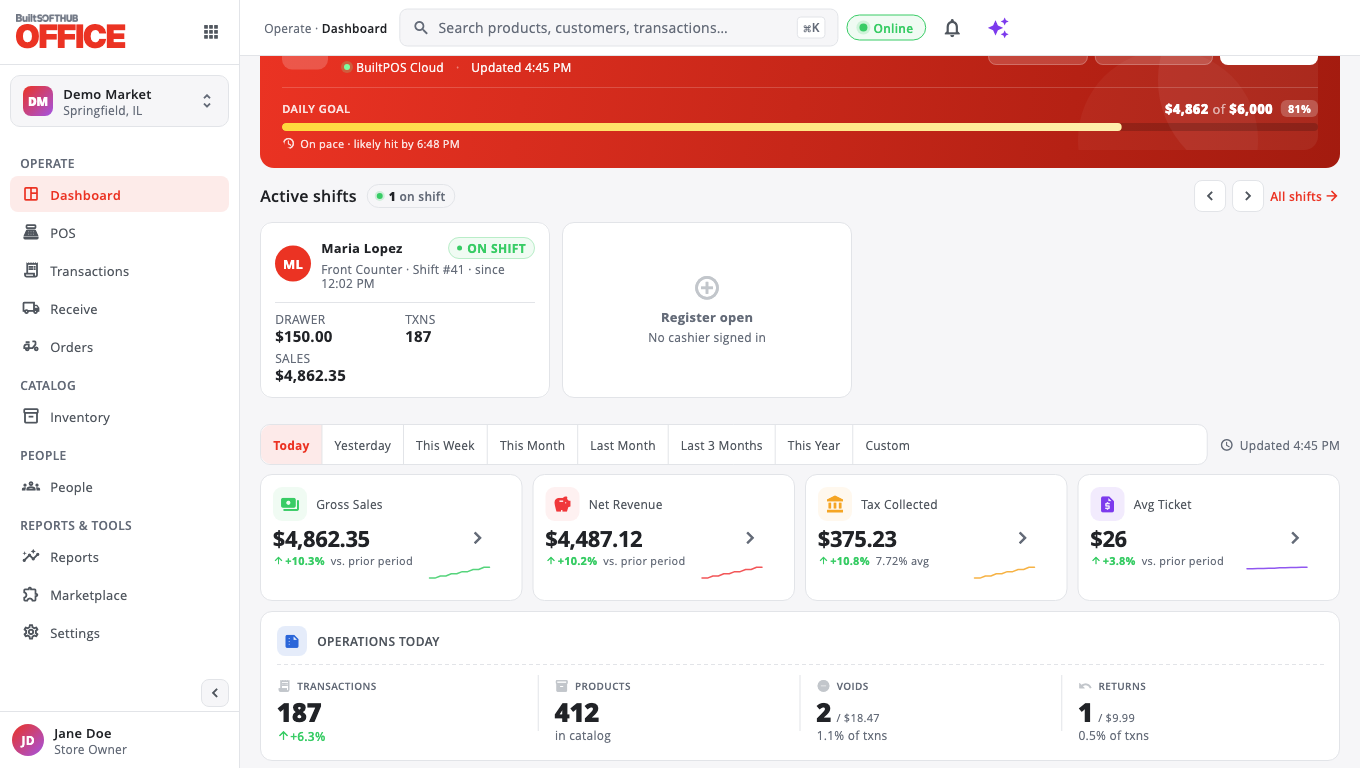
The figures#
| Card | What it shows |
|---|---|
| Gross Sales | Total taken, including tax |
| Net Revenue | Gross sales minus tax |
| Tax Collected | Sales tax charged |
| Avg Ticket | Average sale |
| Transactions | Number of sales |
| Products Sold | Number of items sold |
| Voids | Sales that were voided |
| Returns | Refunds and returns |
Below the cards you see active shifts, top products and other panels.
Change the date range#
Tap a range above the cards: Today, Yesterday, This Week, This Month, Last Month, Last 3 Months, This Year or Custom. The Dashboard opens on Today.
Set a daily sales goal#
- Tap Set goal at the top.
- Enter the Daily sales goal ($).
- Tap Save.
A progress bar at the top shows how close today's gross sales are to the goal. Only owners and admins can set the goal.
Export the Dashboard#
Tap Export PDF to save or print what you see.
Kiosk orders waiting for payment#
If customers ordered on a kiosk and chose to pay at the counter, you may see Kiosk order awaiting payment with a count and an amount. These orders are not in your sales until a cashier takes the payment on the till. Tap the line to see the orders.
A card shows "—"#
A card shows — with data unavailable when its figure could not be loaded this time. It does not mean $0. Tap Refresh to try again. While a card shows —, you can't export the PDF.
Change how the Dashboard looks#
Go to Settings → Store tools → Dashboard Preferences. You can change the card layout, density, colours and how top products and active shifts are shown. These choices are saved on this device only. Restore defaults puts everything back.
Good to know#
- The Dashboard uses the store timezone (Settings → Store Timezone).
- On a legacy Windows POS store the top says Legacy Windows POS, and Set goal is not available.
- For a full day's figures with cash drawer totals, use the End of Day report. See Reports.
Was this helpful?
Thanks for letting us know.
Sorry it did not help. Tell us what was missing: open Help & Support in the app and choose Report a problem, or email support@builtsofthub.com.