
Receive supplier EDI invoices
Check an EDI invoice from your supplier, link or create its products, fix pack sizes and prices, then apply it as a stock receipt — or undo it.
Many distributors send invoices as EDI files. BuiltOFFICE reads them, matches each line to your products, and adds the stock when you confirm.
EDI receiving needs the EDI Invoicing module. If it is not on for your store, the EDI Inbox shows EDI Invoicing — Advanced with Enable for this store — $60/mo. Tapping it opens the module sheet: an owner can turn it on there; other roles are told to ask the owner, your provider or BuiltSOFTHUB support.
When a new invoice arrives#
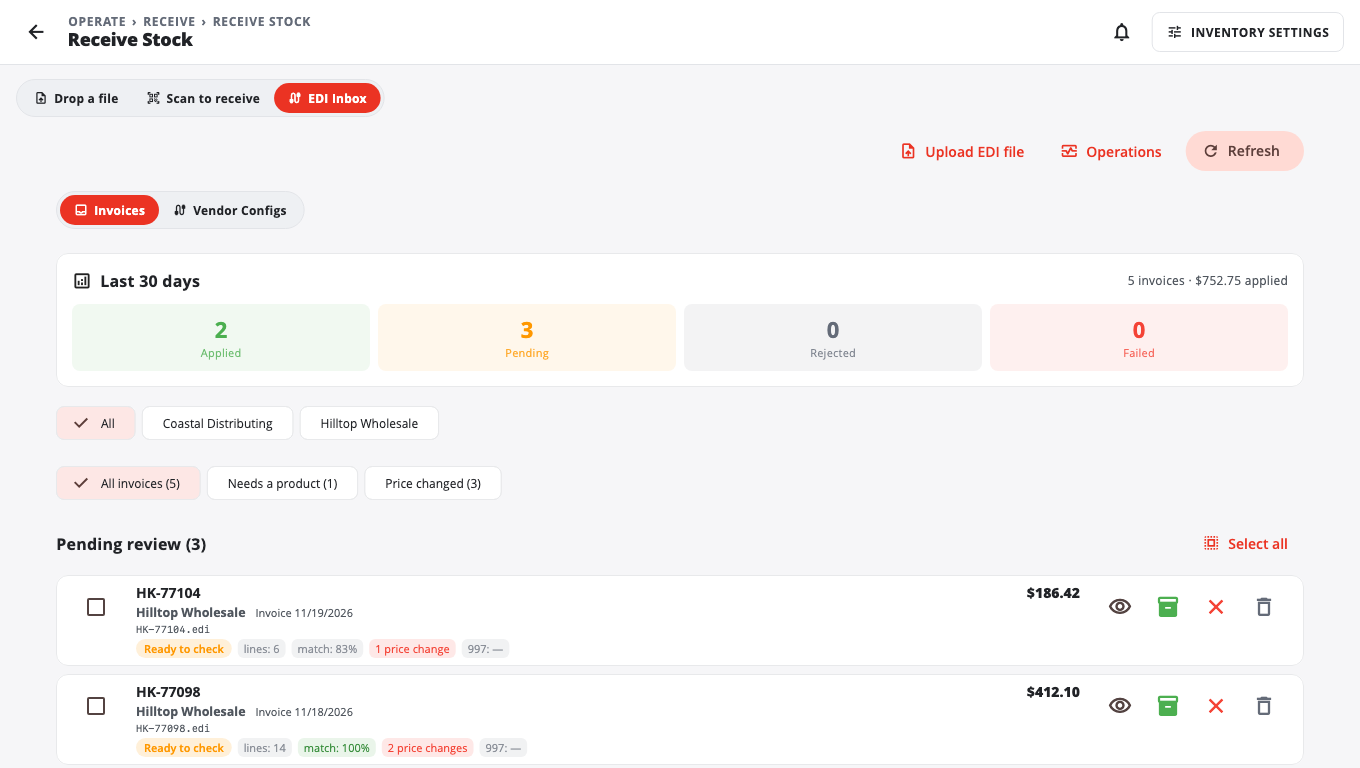
You see a banner: N EDI invoices have been received — please review and confirm. The bell shows it too. Tap Review.
You can also go to Receive → Receive Stock → EDI Inbox.
Check and apply an invoice#
- On the Invoices tab, under Pending review, tap the invoice (or use its menu → Review). Each invoice shows its state in plain words: Ready to check, Checked, Receiving…, Received, Partly received, Rejected, Couldn't read the file or Undone.
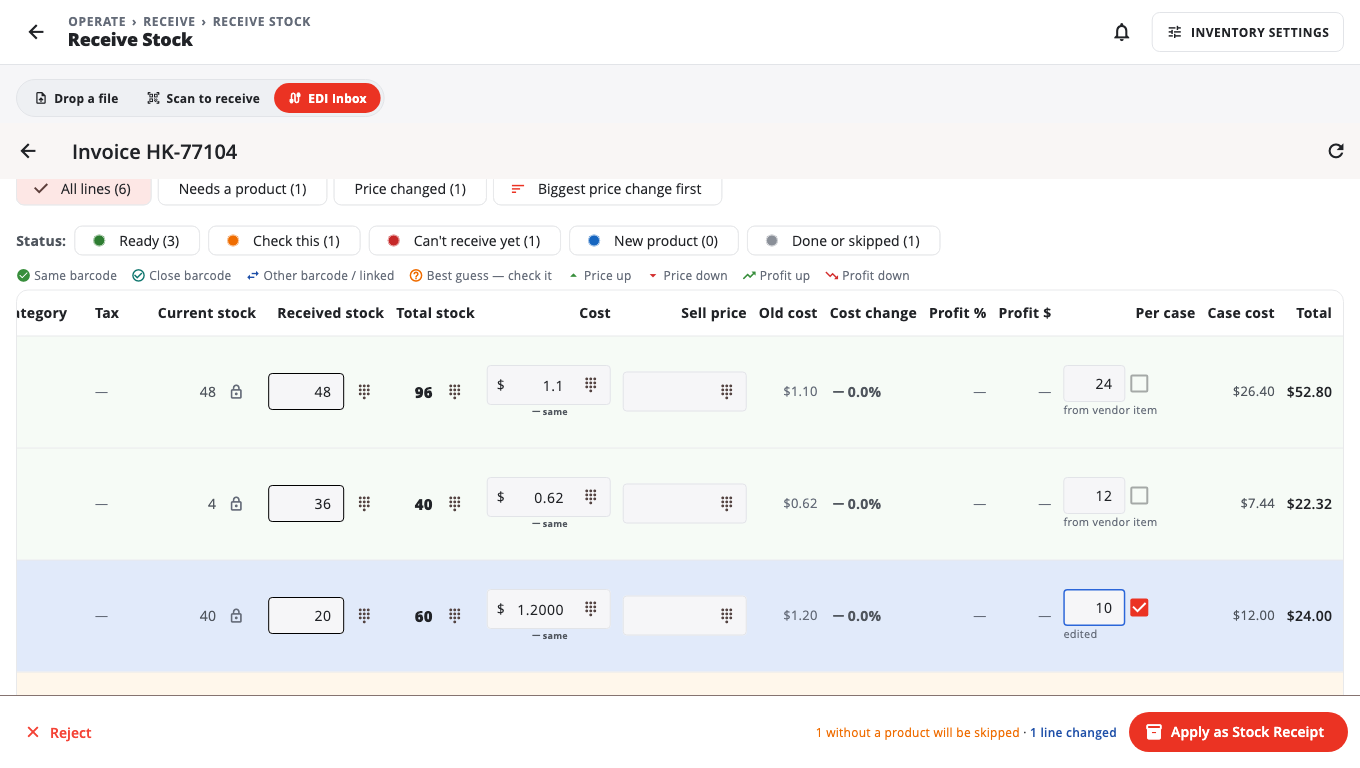
- Look at the coloured status of each line:
- Ready: matched and ready.
- Check this: the price changed, the pack size is missing, or the amount differs.
- Can't receive yet: no product found, or the amount is wrong. This line is skipped until you fix it.
- New product: it will be created as a new product.
- Done or skipped: already received, or a fee (not stock).
- Fix the lines that need it:
- No product found: tap the link icon (Link to existing product) and search, or tap Create. The invoice barcode is saved as an extra barcode on the product.
- Many new products: tap Fill category and tax, then Create all new products.
- Pack size: type the number of units in the Per case box. Tick the box beside it (Remember this pack size for this vendor item) so next time it is filled in for you.
- Prices: use Keep old profit %, Set sell prices or Round prices to update sell prices from the new costs.
- Tap Apply as Stock Receipt (on a phone: Apply receipt), then Apply receipt to confirm.
The status changes to Received (or Partly received if some lines were skipped).
Undo an applied invoice#
If you applied an invoice by mistake, open it and tap Undo this invoice. The stock it added is taken back off. Undo is only offered when the invoice can be safely reversed.
Reject an invoice#
Tap Reject and give a Reason. The supplier is not told. The reason stays on the invoice.
Upload a file yourself#
Some suppliers email you the file instead of sending it directly.
- On the EDI Inbox, tap Upload EDI file.
- Pick the file format.
- Under Tag a vendor? (optional), choose the supplier.
- The invoice appears in Pending review.
Who can do what#
- Owners and admins can do everything, including setting up vendors in Vendor Configs.
- Managers can check and apply invoices unless you turn off EDI Invoice Review for managers in Role permissions.
- Cashiers can only if you turn it on for them.
Good to know#
- Invoices that don't change stock. For some vendors the invoice is a bill only and the stock comes in on a separate delivery note. If a vendor sends only invoices and you don't receive their deliveries by hand, an admin can open the vendor's setup and turn on Receive stock from this vendor's invoices. It is off by default, so stock is not counted twice.
- Vendor setup (connection, file format, schedule) is done by an admin on the Vendor Configs tab with Add Partner (the + button). For a vendor without a file server, choose Manual (no FTP) under Protocol in Edit config, and upload their files by hand.
- Some invoices need a second person to approve them before they can be applied. The button then reads Approval required.
- Undo is not available on legacy Windows POS stores.
- No EDI? You can still receive stock by scanning or from a purchase order. See Purchase orders and receiving.
Was this helpful?
Thanks for letting us know.
Sorry it did not help. Tell us what was missing: open Help & Support in the app and choose Report a problem, or email support@builtsofthub.com.