
Purchase orders and receiving stock
Create a purchase order, send it to your supplier, receive the delivery (in full or in part) and print a goods receipt note.
Create a purchase order#
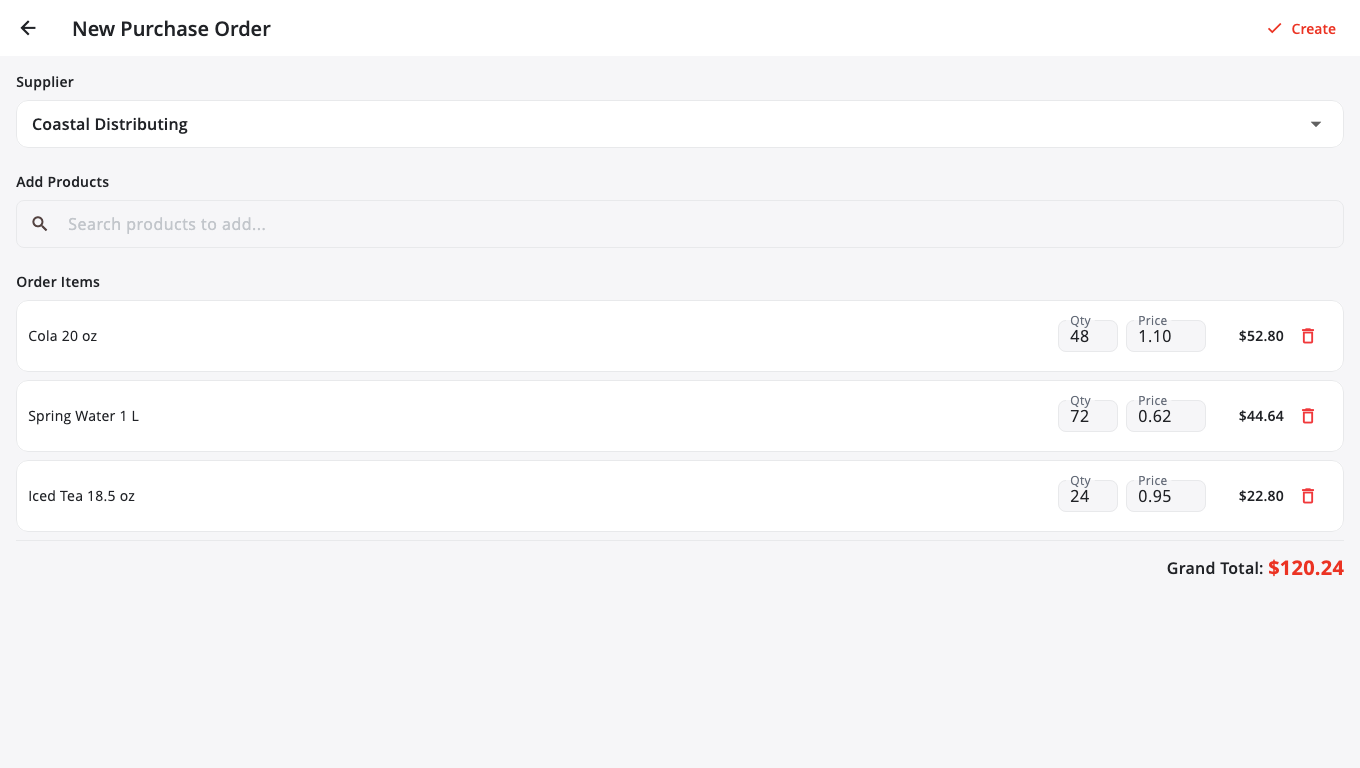
- Go to Receive → Purchase Orders.
- Tap New PO.
- Choose the Supplier.
- Tap Add Products, search, and add each product.
- Set the Qty and price on each line. The Grand Total updates.
- Tap Create.
Tip: tap BuiltAI Generate to have BuiltOFFICE suggest an order from recent sales. Check the suggestion, then Save as drafts.
Send it to the supplier#
Open the purchase order and tap:
- Email Supplier, then Send, to email it, or
- Send EDI 850 if the supplier is set up for EDI orders.
Receive the delivery#
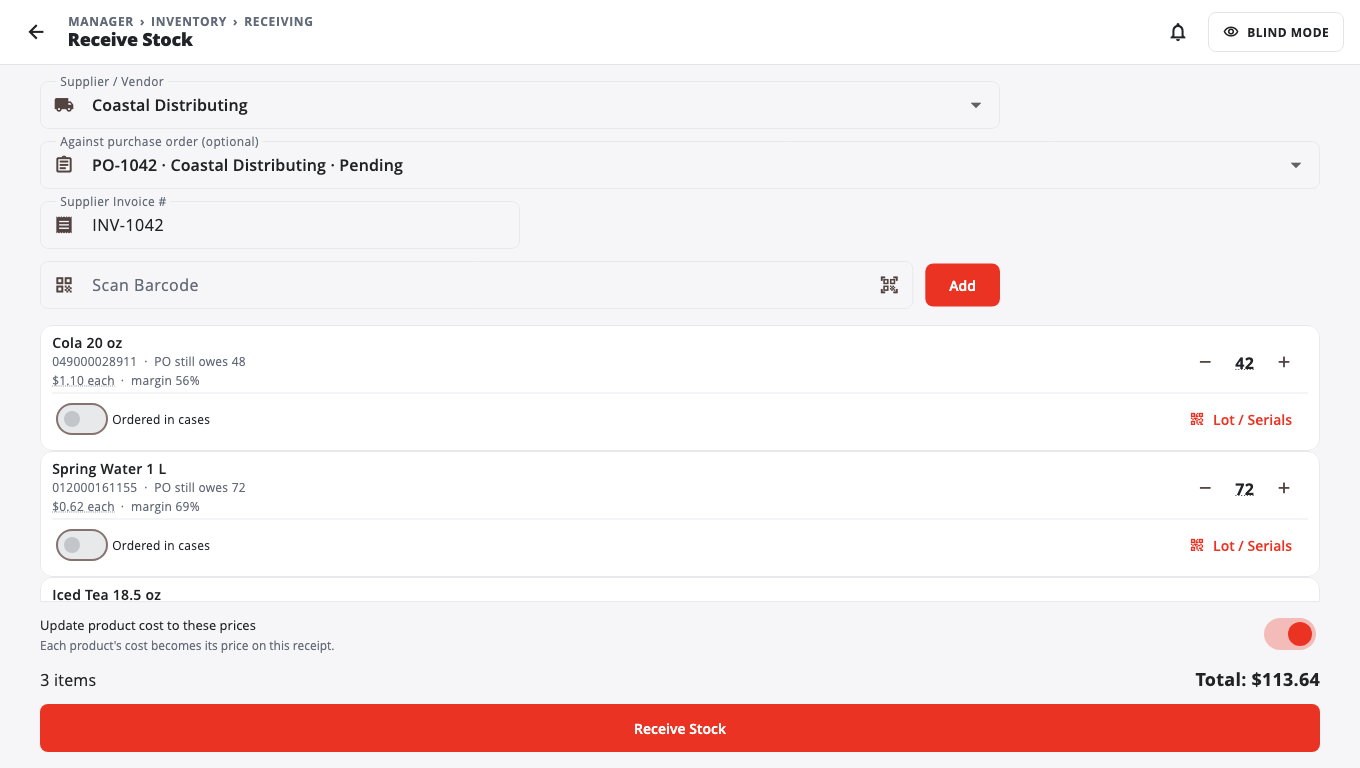
- Open the purchase order and tap Receive. Or go to Receive → Receive Stock → Scan to receive, and pick the order under Against purchase order (optional).
- The lines the order still owes are filled in. Enter the Supplier Invoice #.
- Change any quantity that is different from what arrived. You can also scan items with Scan Barcode.
- Leave Update product cost to these prices on to update your costs. It is on by default.
- Tap Receive Stock.
If a cost changed by more than 10%, BuiltOFFICE asks you to check. Tap Go back to fix it, or Receive anyway.
When you receive less than ordered, the order shows Partial, and you can receive the rest later.
Print a goods receipt note#
After receiving, tap Print GRN in the message, or open the receipt from the purchase order.
Receive without a purchase order#
Go to Receive → Receive Stock:
- Drop a file: drop or photograph a supplier invoice or file. BuiltOFFICE works out what it is.
- Scan to receive: choose the Supplier / Vendor, scan the items, and tap Receive Stock.
- EDI Inbox: see Receive EDI invoices.
Turn on Blind mode if you want the person receiving to count without seeing the expected quantities.
Other tools#
- Purchase Orders → Reorder suggestions sets reorder points from your sales.
- Purchase Orders → Auto drafts holds orders BuiltOFFICE drafted for you to approve.
- Inventory → Low Stock → Create purchase orders makes one draft per supplier.
- Receive → Suppliers to add suppliers (Add Supplier) and see their scorecards.
- Receive → Purchase Returns to send items back.
Good to know#
- Status changes (Mark Approved, Close, Cancel) are in the purchase order's status menu. Mark all received adds the full order to stock in one step.
- On a legacy Windows POS store you can create and receive orders, but emailing, EDI 850, returns and status changes are not available.
Was this helpful?
Thanks for letting us know.
Sorry it did not help. Tell us what was missing: open Help & Support in the app and choose Report a problem, or email support@builtsofthub.com.