
Count your stock
Run a stock count, enter or scan what you counted, check the differences and apply them to your on-hand stock.
Find the page#
Go to Inventory. Inventory Count is hidden at first: scroll down and tap … more cards hidden — Show all, or switch it on with the hub's Customize button.
Start a count#
- Open Inventory Count.
- On Active Sessions, tap Start ad-hoc count.
- Choose a Mode:
- Informed: the counter sees the system quantity next to what they count.
- Blind: the counter does not see the system quantity, so it can't steer their count.
- Tap Create, then Start.
Enter what you counted#
- Tap Enter counts.
- Choose Barcode or Product ID, and scan or type it.
- Enter the Counted qty and tap Add.
- Turn on Add to count if you count the same product in more than one place. Without it, scanning a product again replaces its earlier count.
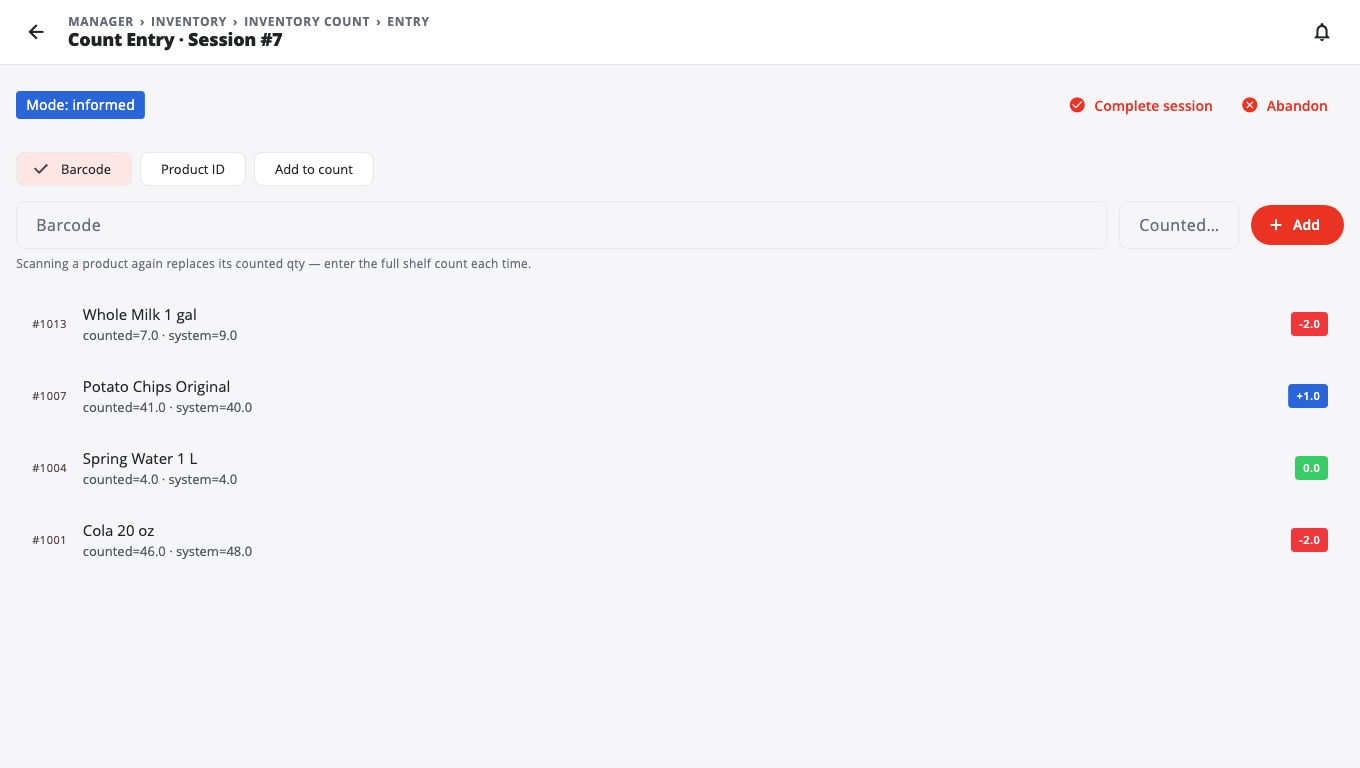
In Informed mode each line shows the counted and system quantities and the difference.
Finish the count#
- Tap Complete.
- Read the warning: your on-hand quantities are replaced with what you counted. This can't be undone.
- Tap Apply variances.
To stop without changing stock, tap Abandon.
Count on a schedule#
On the Schedules tab, tap Add schedule. Give it a Name, choose a Cadence (daily, weekly, monthly or quarterly) and a Default mode.
Good to know#
- Past counts are on the History tab.
- Use a USB or Bluetooth barcode scanner, or type the barcode. This page has no camera scan.
- Owners, admins and managers can run counts.
- For a quick fix to one product, use Adjust Stock & Prices instead. See Stock and price changes.
Was this helpful?
Thanks for letting us know.
Sorry it did not help. Tell us what was missing: open Help & Support in the app and choose Report a problem, or email support@builtsofthub.com.