
Design your receipts and kitchen tickets
Choose a receipt design, set the header and footer text, pick what shows on the receipt, and style kitchen tickets per station.
Go to POS → Receipt Designer. There is a tab for each kind of printout: POS Receipt, Kiosk Receipt and Kitchen Ticket. The Preview beside the settings shows the result as you change things.
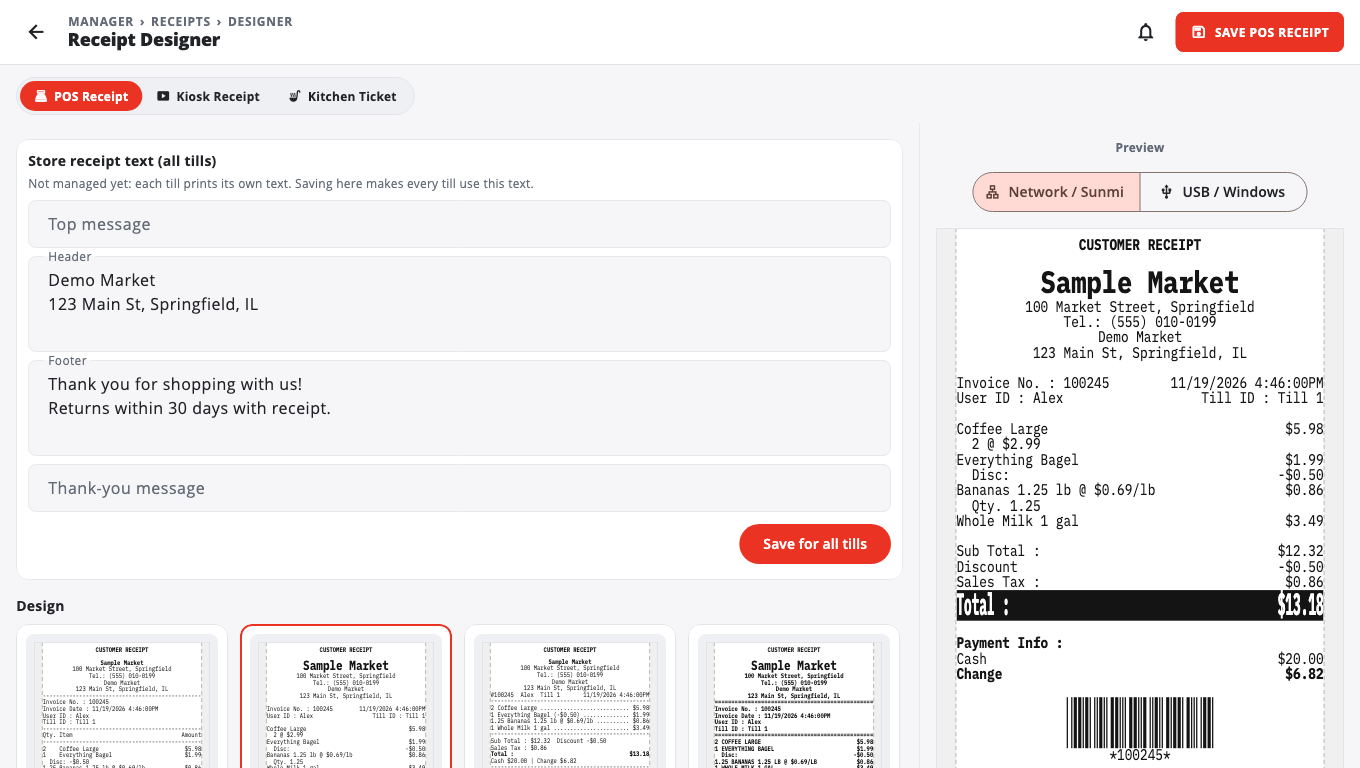
Set your receipt text for all tills#
On the POS Receipt tab, the Store receipt text (all tills) box at the top has:
- Top message
- Header
- Footer
- Thank-you message
Type your text and tap Save for all tills, then confirm with Use on every till. Nothing changes on any till until you save. To let each till use its own text again, tap Let each till use its own text.
Choose a design#
Under Design, tap a design. For receipts: Classic, Modern, Compact, Bold, Boutique, Itemized and Sectioned. Under Style you can fine-tune it; Reset to Classic goes back to the standard look.
Choose what's on the receipt#
- Paper Size: 58mm, 80mm or A4.
- Font Size and Margins.
- Header: Store Logo, Store Name, Store Address, Store Phone, Show Tax ID, and Custom Header Text.
- Transaction Details: Date & Time, Invoice Number, Cashier Name, Terminal ID, Customer Info.
- Line Items: Item Barcode, Item Tax.
- Payment & Totals: Payment Details, Change Amount, Tax Summary.
- Footer: Thank You Message, Custom Footer Text, Loyalty CTA.
- Tap Save POS Receipt at the top.
The tills use the new design on their next sync.
Kitchen tickets#
- Open the Kitchen Ticket tab.
- At the top, pick the Kitchen station to style, or Default (all stations).
- Choose a design: Classic, Big & Bold, Compact, Checklist, By Seat, Extra Large or Prep List.
- If tickets go into a ticket holder, use Top space (kitchen ticket holder) to add blank paper above the header.
- Tap Save Kitchen Ticket.
If some stations have their own design and you want them all the same again, tap Use this design for every station.
Kitchen tickets print on each kitchen printer's own paper roll. The paper choice on this tab only changes the preview.
Good to know#
- If another admin saved the same template while you were editing, you're asked to Reload theirs or Overwrite.
- The store name, phone and address come from the till's Store Management → Store Settings → General.
- The Receipt Designer is not available on legacy Windows POS stores; the Windows POS prints its own receipts.
Was this helpful?
Thanks for letting us know.
Sorry it did not help. Tell us what was missing: open Help & Support in the app and choose Report a problem, or email support@builtsofthub.com.