
Build the schedule
Set each employee's weekly hours, copy last week, post open shifts and export the schedule as a PDF.
Open Schedule. Switch between Week and Month, and use Previous, Next and Today to move around.
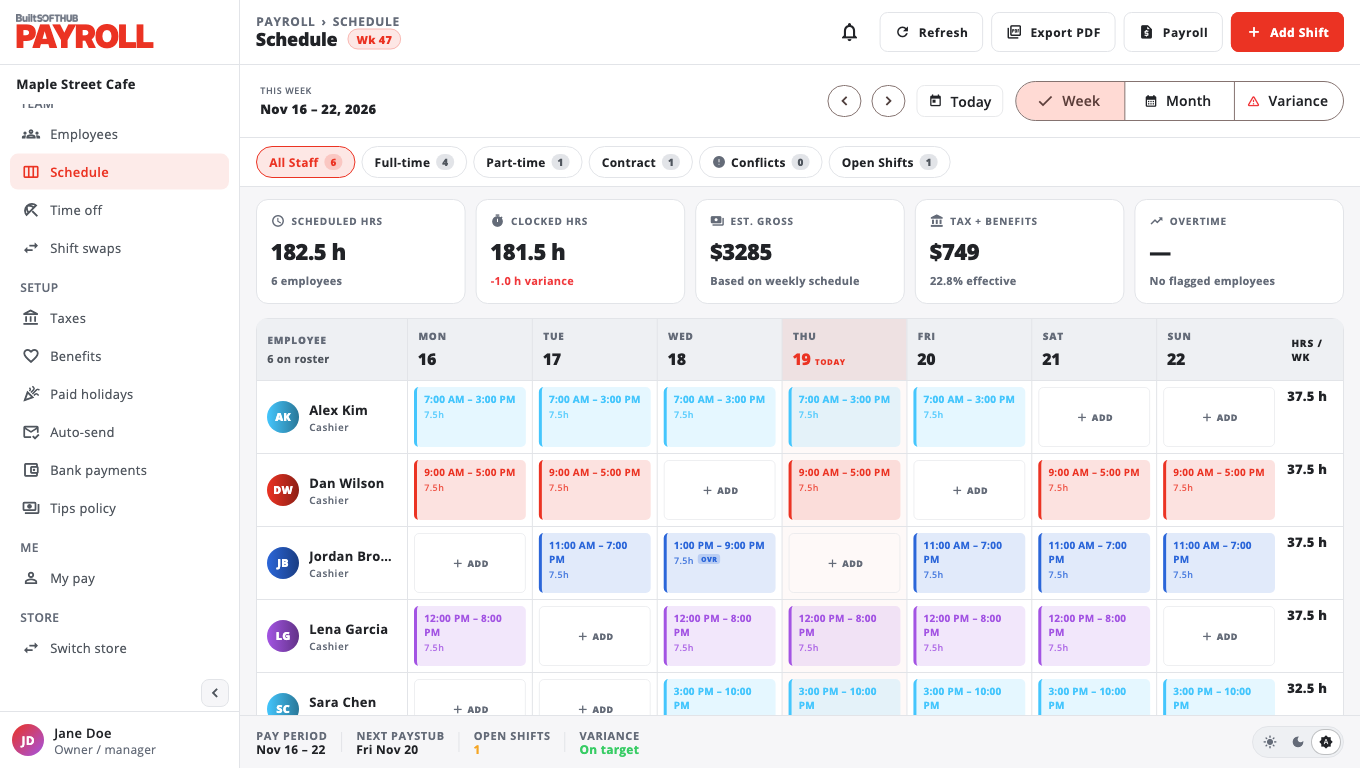
Set someone's regular hours#
- Choose Add Shift (or tap the employee's row) and pick the employee.
- In the panel, choose Edit weekly template and set the hours for each day. Copy Mon → Mon–Fri fills the weekdays in one go.
- Choose Save. The new hours show in the grid.
Shortcuts in the same panel:
- Copy from last week copies last week's days into this week.
- Suggest from clock-ins builds a template from the hours the person actually worked. Choose Accept to use it.
Change one day#
In Month view, tap the day, then add or edit the employee's shift for that date. Change the Start and end time or the Break, or turn on Mark this date as OFF for a sick day or vacation. Choose Save. The change applies to that date only; the weekly template stays the same.
Post an open shift#
- Find Open Shifts and choose Add open shift.
- Set the day and times and choose Post slot.
- To give it to someone, choose Claim for… and pick the employee.
Share the schedule#
Choose Export PDF to download a printable copy for the week.
Employees see their next 14 days of shifts on My pay.
If someone else changed the same shift while you were editing, BuiltPAYROLL asks whether to Reload theirs or Overwrite.
Was this helpful?
Thanks for letting us know.
Sorry it did not help. Tell us what was missing: open Help & Support in the app and choose Report a problem, or email support@builtsofthub.com.