
Refunds and exchanges
Refund items from a past sale to cash, card or store credit, do a no-receipt return, or swap items in an exchange.
Use a refund when the sale is already finished and the customer brings something back. To cancel a whole sale that was rung by mistake instead, see Void a sale.
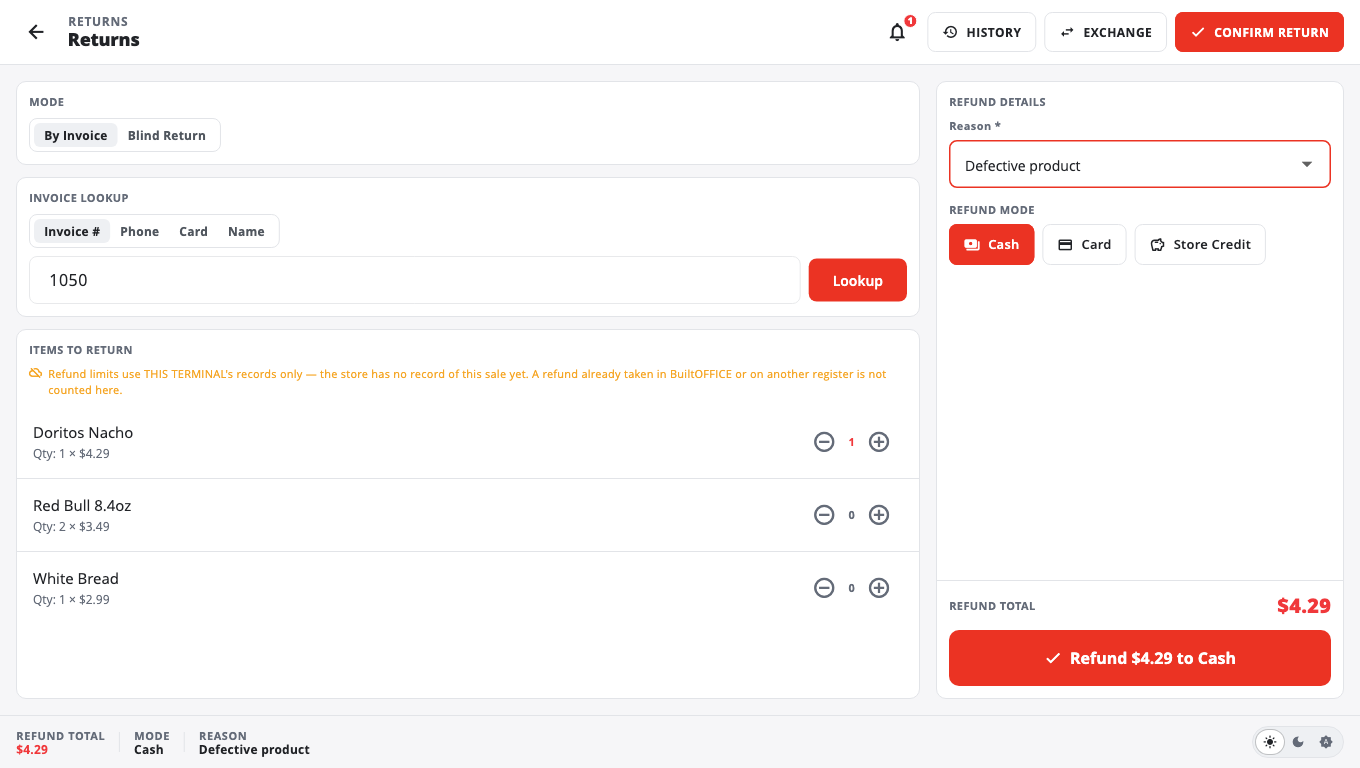
Refund with the receipt#
- Open Returns: tap Returns in More (F11 on Windows), or open the sale from Receipts and tap Refund. If the button shows a lock, a manager or owner PIN is needed.
- Under MODE, keep By Invoice.
- Find the sale under INVOICE LOOKUP: scan the receipt barcode, or search by Invoice #, Phone, Card (last 4 digits) or Name.
- Under ITEMS TO RETURN, tick the items and set how many of each come back.
- Pick a reason (Select a reason...). Other (see note) needs a short note.
- Under REFUND MODE, choose Cash, Card, or Store Credit. The till suggests how the customer paid.
- Tap Refund $… to …. For a card refund, follow the card terminal.
Refund without a receipt (blind return)#
- In Returns, under MODE, choose Blind Return.
- Search for each product under BLIND PRODUCT SEARCH and add it.
- Pick a reason and tap Confirm Blind Return. A blind return always needs a manager PIN and always refunds in Cash.
Exchange#
- In Returns, find the sale and tick the items coming back, as above.
- Tap Exchange. The returned items go into the cart as a credit.
- Ring the new items. Take payment collects or refunds only the difference.
Good to know#
- Refunds above the store's limit ask for an Owner / Manager PIN.
- You cannot return more than was sold, or refund more than was paid. A sale that has been partly refunded shows what is left.
- If your store set a return time limit, an older sale shows Refund window expired.
- Store Credit is only offered when the sale has a customer with a phone number. See Gift cards and store credit.
- A sale paid with store credit refunds back to store credit first; the rest goes to cash or another method.
- Card and EBT refunds can only be done from Returns, not from Take payment.
- See past refunds in More → Return History. Cashiers see their own returns.
- Not available in training mode.
Was this helpful?
Thanks for letting us know.
Sorry it did not help. Tell us what was missing: open Help & Support in the app and choose Report a problem, or email support@builtsofthub.com.